

 Apex Exclusive

Fine-tune mole retouch
Adjusts the intensity of AI-detected mole retouching.
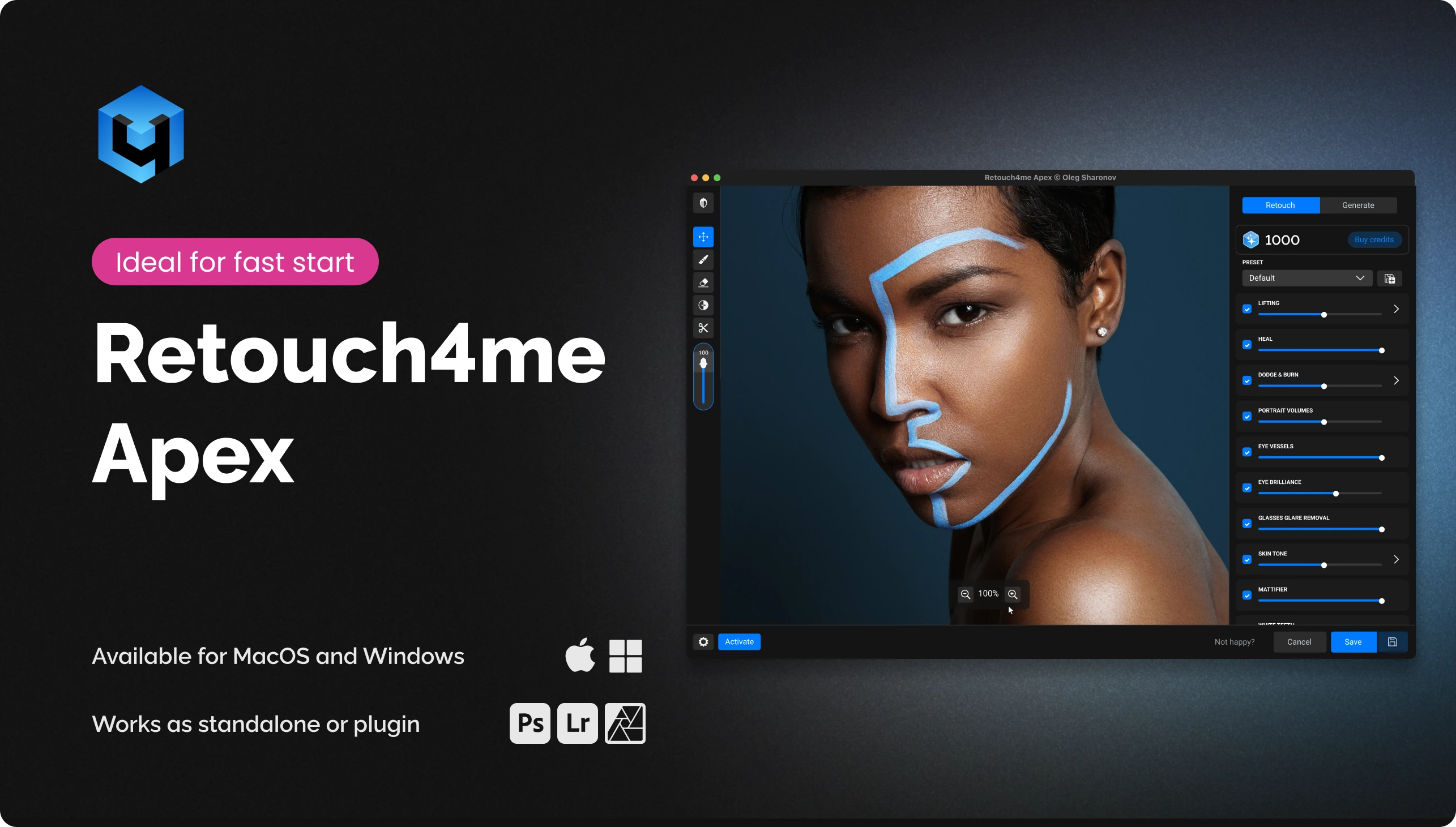
All the essential Retouch4me tools — and even more — in one.
 New
New
A simple way to try AI processing without complex software and extra steps.

Remove the routine and keep the natural skin texture — the shot looks alive, not “plastic”.

Save hours on rough editing while keeping full control over the final shot.

Fast processing of gigabytes of shoots: a consistent style for thousands of frames in minutes.
Activate a welcome pack of 20 credits for cloud retouching and get to know all of Apex’s features. Credits are available for 7 days after activating the pack.
Download and install Apex as a standalone app or as a plugin in Photoshop.
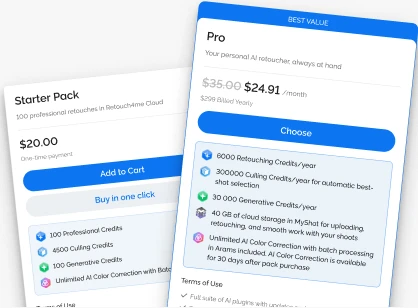
1 credit = 1 photo. Top up your balance to match your volume — get a subscription or buy a pack.
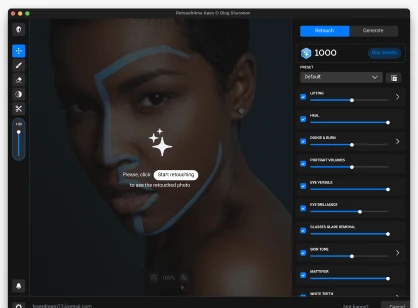
Select one or more photos and click "Start retouching".
Apex combines the best Retouch4me tools in a single app. Upload photos, run processing and control the result in real time.
Apex Exclusive
Adjusts the intensity of AI-detected mole retouching.
 Apex Exclusive
Automatically detects the bindi and protects it from retouching.
 Apex Exclusive
Removes reflections from glasses while preserving natural eye detail.


 Cloud retouching
 Smart culling in Arams
 Generative Credits
 AI Color Correction
 Up to 100 GB of cloud storage in MyShot
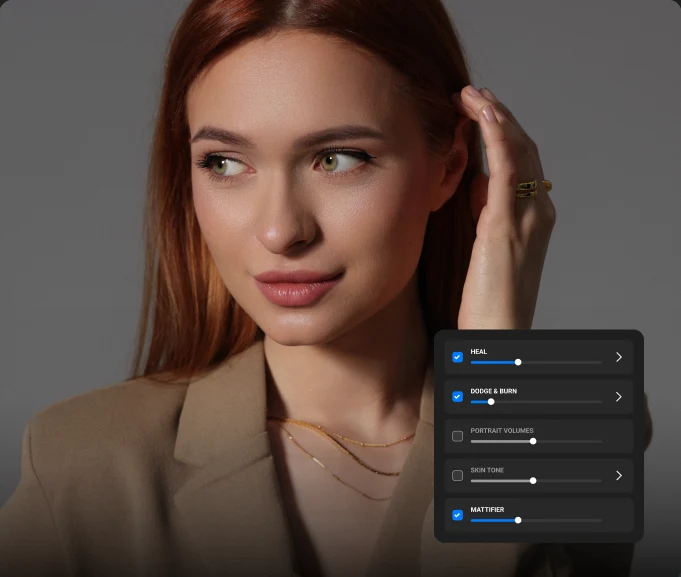
You need to remove inflammation and redness while preserving natural texture and pores.

Start with the Heal plugin (intensity 30–40%) for precise defect removal

then add Dodge & Burn with 15–20% opacity to gently smooth the skin without a “plastic” effect.

if there is an oily shine, add Mattifier (20–30%).
Save the combination as a preset — the next series will go much faster.
• Cloud retouching with real-time preview • Works inside Photoshop and as a standalone application • Easy installation, suitable even for less powerful computers • Access to multiple retouching tools in one interface • Unique features such as Fine-tune mole removal, Keep Bindi, Face Make Lifting, Inpaint and Glasses Glare Removal
Absolutely. Apex also works as a standalone application — Photoshop is not required.
Yes. You can save settings as custom presets or use the built-in ones. Batch mode lets you process multiple images at once with full control and confirmation before credits are deducted.
Your photos are uploaded to our secure cloud, processed by neural networks on powerful servers and returned to you fully retouched. This lets you use the plugin even on less powerful computers.
Operating systems • Windows 10 (x64), Windows 11 • macOS 10.15+ Hardware • At least 6 GB RAM • 64-bit (x64) processor, 1.2 GHz or faster • PC: graphics card with 4 GB VRAM or an Intel CPU • MAC: 2015 or newer, Intel, M1-M3 or newer processors
1 credit = 1 photo. This includes access to all Apex tools for that image with no extra charges per tool. A credit is deducted only after the photo has been fully uploaded to the server. If you cancel the upload before it finishes, no credit is used. You can reopen the same photo within 24 hours and restore the result without being charged another credit.
A subscription is optional. You can buy credit packs (for example, 100, 300 or 1200) and use them as needed with no expiration date.
Yes, security is our priority. Photos are transferred over encrypted channels, used only for processing and automatically deleted from the servers once the operation is complete. Your images are not used for training neural networks, storage or any other purposes — they are used exclusively to carry out the processing you request.
You can always check the latest version and download updates in your Personal Account, on the product page or in My Purchases. For help, contact support through the chat window in the bottom right corner of the website or create a ticket in your Personal Account.
Open APEX, press and hold the 0 (zero) key on your keyboard and, while holding it, click the email address in the application window. You can then sign in to another account.
Apex combines the best Retouch4me tools in a single app. Upload photos, run processing and control the result in real time.
By purchasing our software you confirm that you have read and agree to the public offer terms
 from $0.04 / photo