

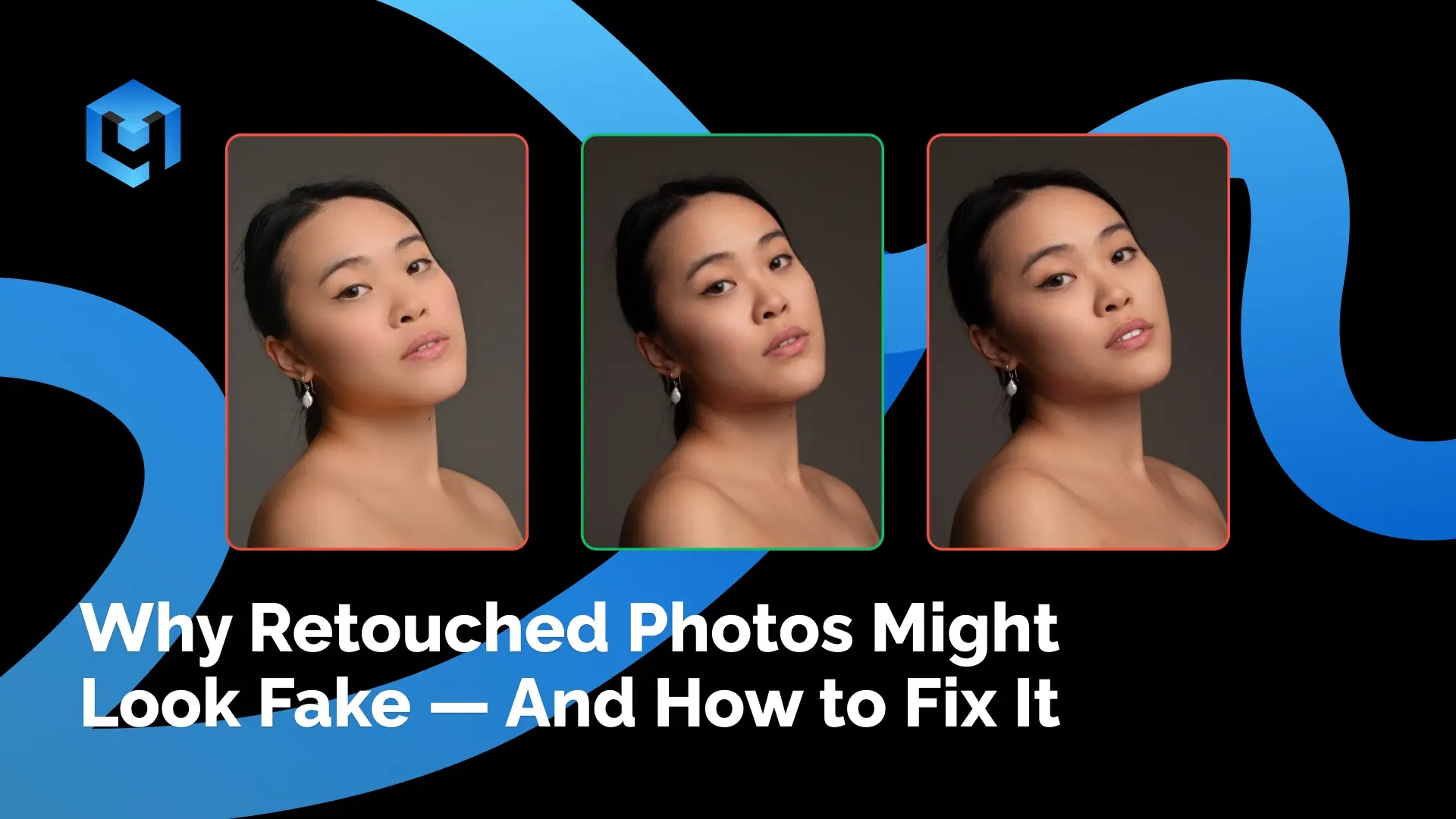
You finish a retouch, look at the result — and something feels wrong. The skin is too smooth. The face looks cast from wax. The client says thank you, but you can’t look at this image without discomfort. This isn’t a tool problem. It’s an approach problem.
We talked with expert photographers working in completely different genres and they’ve pointed to the same five causes. Here’s what they’ve each identified, and what they do instead.
Reason 1: You’re Using Retouching to Fix, Not Enhance
Many photographers think: ‘I shot it badly, I’ll fix it in Photoshop.’ But retouching exists to enhance a good image — not rescue a poor one. If you start with a bad source, AI won’t save it. It will amplify the problem.— Rafal Wegie
When you treat retouching as a repair tool, you apply more of it — more healing, more smoothing, more correction. Every additional pass removes information from the image. At some point, what’s left isn’t skin — it’s a surface.The fix: Invest in the shooting stage. Correct lighting, correct exposure. Retouching is the final polish — not the foundation.

Reason 2: You’re Overdosing on Intensity
If you’re working at 90% intensity — drop it to 60%. When you scale the image down, all the effects get amplified. What looked normal at 100% looks like plastic on a phone screen.— Rafal Wegiel
Victor Balogun runs Dodge & Burn at 100%, then reduces blend opacity to 50%.
Kate Kovtun applies all Retouch4me effects below their default values.
Olusola Abisagbo checks portrait retouching at phone screen size before approving. The consensus: less is more — especially when the final image will be viewed small.

Reason 3: You’re Smoothing Out Skin Texture
This is the most technically complex reason — and the most common. When a tool smooths skin, it does so in one of two ways:
| BLUR-BASED SMOOTHING Removes blemishes but also removes pores and natural texture. Result: plastic. The image looks rendered, not photographed. | AI-BASED ANALYSIS Identifies what is texture vs. what is defect. Removes the defect, keeps the texture. The skin looks smooth but still has life in it. |
Frequency Separation is the manual version of this principle — working on the Low Frequency layer (color/tone) without touching the High Frequency layer (texture).
Retouch4me works the same way — its algorithm was developed by professional retouchers who know that skin texture is not a flaw.
After retouching, the texture stays. The skin looks alive, not polished.— Kate Kovtun
Reason 4: You’re Not Checking How the Client Will See It
You retouch on a 27″ monitor at 100% zoom. Your client will look at the image on LinkedIn as a 200×200 pixel avatar. Or on a phone. When the image shrinks, all effects amplify.
The rule: Before approving any retouch, view it at the scale it will actually be used. What seems subtle at full zoom often becomes obvious at delivery size. This single check prevents most over-retouching complaints.
Reason 5: You’re Erasing What Makes a Person Themselves
Our job isn’t to ‘fix’ the client — it’s to reveal their beauty. We don’t erase someone’s skin. We help it glow.
Rafal makes the same point for headshots: some clients don’t want birthmarks removed — that’s part of who they are. The golden rule across all genres: the client should recognize themselves in the image. Plastic skin happens when the photographer decides what the client should look like, rather than helping them look like the best version of themselves.

What a Correct Workflow Looks Like
Put together, the four experts converge on a single approach — regardless of genre:
- Start with a good source image. Correct light, correct exposure. Retouching is the final step, not the rescue operation.
- Fix skin, backdrop and other noise with Retouch4me tools.
- Clean up the skin, enhance eyes and smile with Retouch4me Photoshop panel, but always reduce intensity. Run tools at 60–70%, not 100%. Less is almost always more.
- You can always polish your image with Free Frequency Separation tool
- Check at viewing size. See the image the way the client will see it — not only at full zoom.
- Keep what makes someone themselves. Birthmarks, freckles, individual features. These aren’t flaws.
Want to go deeper?
We have recorded lessons with experts that you can watch for free covering:
- Light, headshots & corporate photography
- Dark skin retouching
- Newborn & maternity photography
- Wedding workflow: culling to delivery
- Getting started with Retouch4me
Watch now: https://webinars.retouch4.me/