


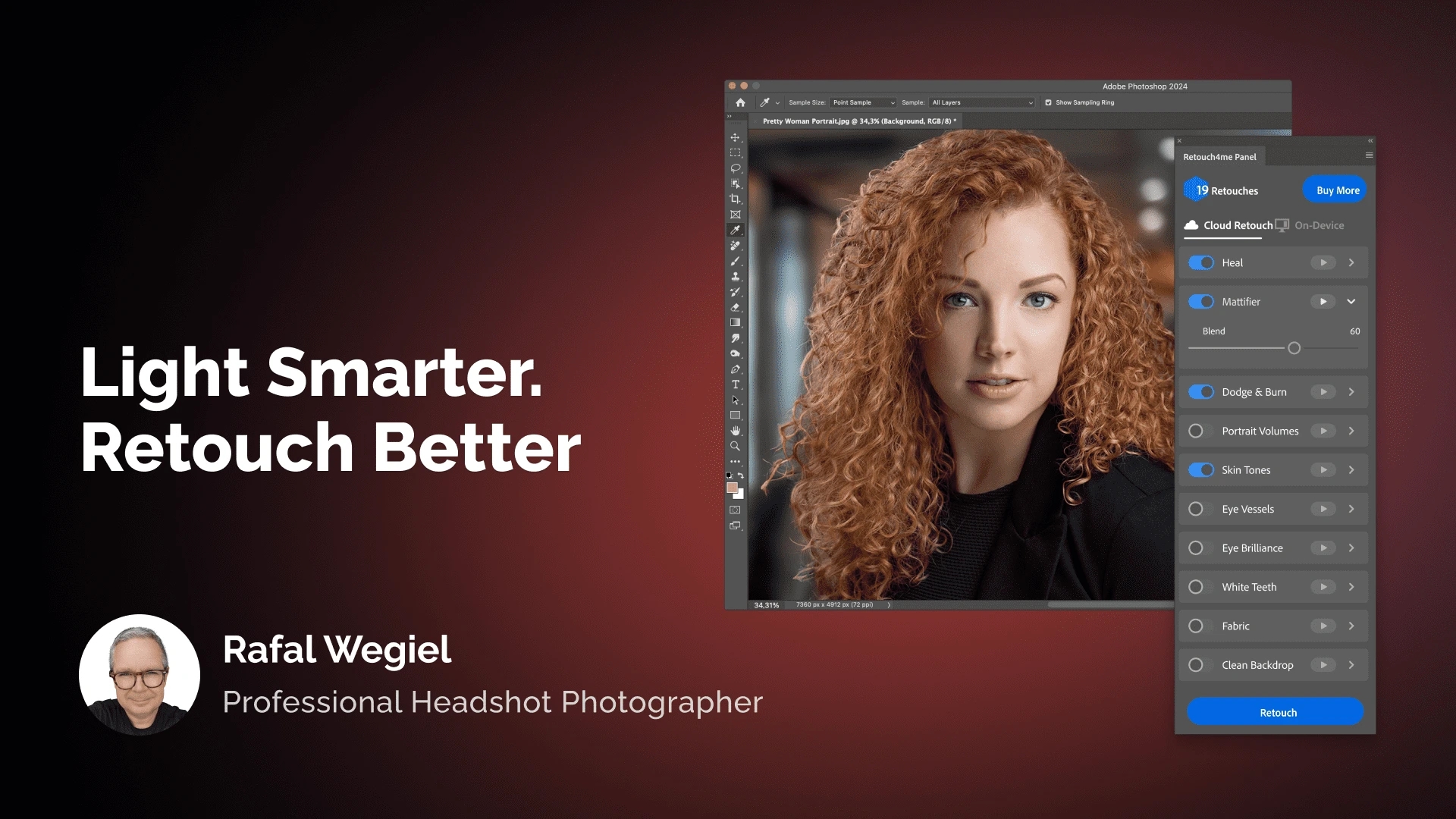
Modern AI-based tools can significantly speed up photo editing. However, many photographers make a critical mistake: they try to fix in software what should have been done correctly during the shoot.
Commercial portrait photographer Rafal Wegiel from Canada shares his experience with lighting. He believes that lighting is the first retoucher. When the light is set up correctly, AI doesn’t have to fix major mistakes — it simply enhances an already excellent image. As a result, you get more natural and professional photos while spending less time.
“I’ve been retouching images for the past 10–15 years. It used to be very labor-intensive. Nowadays, it’s quite the opposite: we can shoot more, and AI can handle almost all the retouching. Photographers all over the world feel the same way: “Oh my gosh, now I don’t have to sit in front of the computer for hours!” I’ll share with you the main rules and tips that will help you feel confident in your photos.”
MODEL PREPARATION
Professional makeup significantly reduces the time needed for portrait post-processing. When the model has the right makeup, retouching becomes much easier. An experienced makeup artist who understands the specifics of working with lighting in photography can help you:
- Create a smooth skin base: Makeup evens out the skin tone from the start, so AI doesn’t have to work extra to correct it.
- Reduce shine and redness: A good mattifying base removes highlights from sweat or oily skin, which are difficult to fix in retouching naturally.
- Enhance facial features: Contouring helps shape the face and highlight its best aspects before the shoot, adding volume that works perfectly with your lighting.
- Conceal minor imperfections: During retouching, you’ll only need the Heal tool, saving time on precise spot corrections.
Pro Tip:
Try to work with makeup artists who are eager to learn and want to understand what you’re aiming for. Teach them how lighting works and how it affects the model’s face. And a small recommendation: work with those who know how to listen to the client. The worst thing for a photographer is to hear something like, “I don’t recognize myself.” Over time, you’ll build a team of trusted professionals. Look for those with whom you understand each other.
Retouch4Me Hack:
If, for some reason, you shot without professional makeup, FaceMake comes to the rescue. It can adjust facial features and add makeup — from natural to creative — effortlessly.

LIGHTING SETUPS
Among classic portrait lighting setups, I use two: the so-called “Rembrandt” and “flat” light. With the Rembrandt setup, I like to add a light accent. Let’s look at the details with some examples.

Setup 1: “Rembrandt”
This lighting adds volume and a subtle 3D effect to your photo. Use three lights and a reflector for this setup.
- Main Light: A large softbox positioned at a 45° angle to the model. This is your primary light.
- Kicker Light: On the opposite side of the main light, slightly behind the model. It creates a bright contour on the cheek and hair, adding depth to the image.
- Background Light: Directed at the background to control its brightness and create a gradient.
- Reflector: Placed under the model’s face to fill shadows and give the face a beautiful, interesting glow.
Setup 2: Rembrandt Variation with Accent
To give your shot a modern and stylish look, try using a fourth light source. It makes the image more interesting.
- Accent Light: A colored LED tube (for example, a Nanlite PavoTube) placed near the kicker light to create a subtle colored line along the model’s contour. Blue is especially popular for corporate and business portraits.

Setup 3: “Flat” Light
This setup is simpler and more forgiving. It’s great for beginner photographers or for shooting older models when you want to soften wrinkles.
- Main Light: Two light sources positioned at 45° on either side of the model, creating even, “flat” lighting.
- Background Light: Directed at the background to control its brightness and create a gradient.

Pro Tips:
- Adjust gradually: Turn on and adjust your lights one at a time, not all at once. Start with the background light, take a shot, and see how the image looks. Then add the kicker light, and only after that — the main light. This way, you can see how each source affects the others. If you need to adjust the lighting (move lights or change brightness), follow the same step-by-step approach.
- Experiment: For the Rembrandt setup, try swapping the main and kicker lights. Every face is unique. For some people, main light on the left works better than on the right — and vice versa. This small trick can completely change your image. Move the lights physically, not just adjust the power: closer, farther, change the angle, to find the best position for each person.
- Analyze: Take a backstage photo so you can review and analyze your lighting setup after seeing the final result.
EQUIPMENT MATTERS
Continuous Light vs. Studio Flashes (Strobes)
Some time ago, I completely switched from strobes to continuous lighting for my shoots. I had resisted it for many years. But at one point, I did a test shoot and thought, “Let’s see how this works.” And you know what? It’s a completely different experience.
- What you see is what you get: With continuous light, you see the lighting setup on the model in real time without needing test shots. This allows you to make precise adjustments on the spot.
- Comfort for the client: Strobes can often make people nervous, cause them to blink, and tire them quickly. Continuous light creates a calmer and more comfortable atmosphere.

If you’re still shooting with strobes, you can rent continuous lights and see how it feels. I guarantee that once you try it, it will change your approach. Contrary to popular belief, continuous light works great not only with mirrorless cameras but also with DSLRs.
Softboxes: Why Bigger Is Better
The simplest thing you can do to improve your lighting is to use larger modifiers.
- For the main light, use the largest softbox available. If space allows, go for a 120-inch (about 3 meters) octobox. A large light source literally “wraps” the model, creating soft shadows and a more flattering result.
- For the kicker light, a 90-inch (about 2.3 meters) softbox works well.
Pro Tips:
- Use a single diffusion layer for the main light: I don’t try to make the light too soft for my portraits; I like to see skin texture.
- Avoid full power: Modern lights are extremely powerful. I usually use around 50% output.
BASIC RULES FOR SHOOTING WITH LIGHT
- Lens: Use a telephoto lens (160–200mm) to achieve pleasing compression and correct facial proportions.
- Aperture: Start around f/4.5 so the entire face, from the tip of the nose to the ears, is in focus. Open the aperture as needed.
- Shutter Speed: When shooting handheld, keep the shutter speed no slower than 1/200s to avoid motion blur.
- White Balance: Never use auto (AWB). Set the same color temperature manually on the camera and all light sources. A good option is 5000K for consistent results.
COMMON MISTAKES TO AVOID
- Overexposure: Blown-out highlights on skin contain no information and cannot be recovered, even with AI tools. It’s safer to slightly underexpose the RAW file and increase brightness in post.
- Mixing light with different color temperatures: Do not mix studio lights with ambient light (e.g., from windows or room lamps) if their color temperatures don’t match. This can create unwanted color casts on the skin.
- Stray light: Windows, ceiling lights, or other stray sources can ruin your photos if not controlled. For example, in an office, turn off all extra lights during the shoot.
- Ignoring catchlights in the eyes: The eyes are the main focal point in a portrait. Make sure your lighting setup creates clear, attractive highlights to make the gaze lively and expressive.
- Judging the image “by eye”: What you see with your eyes differs from what the lens captures. Always check the image on your camera screen or a connected monitor before shooting.
- Rushing during the shoot: The person you’re photographing doesn’t want to see you constantly adjusting lights and running between sources. Prepare the portrait setup in advance, then start shooting. Establish a good connection with the model to achieve results that satisfy both of you.
AI RETOUCHING:
Recommended Workflow with Retouch4Me Plugins
I enjoy working with Retouch4Me products. I like that they make images look natural. Many other programs fall short in this regard: they often process photos in a way that makes them look overly plastic. Retouch4Me has truly taken retouching to a whole new level.

Example of Photo Editing with Retouch4Me Plugins:
Heal | Dodge & Burn | Eye Brilliance | Skin Tone | Portrait Volumes | Face Make
- Run the Heal plugin
This is the first step to remove small temporary skin imperfections (pimples, scratches) while preserving natural texture. - Run the Dodge & Burn plugin
It gently evens out skin tone and brightness without “blurring” the texture. - Run the Eye Bundle plugin
Makes the eyes slightly brighter and more expressive, removing redness and adding sparkle and clarity in the most natural way. - Run the Skin Tone plugin
This tool effectively removes blemishes and evens out skin color where makeup didn’t fully cover. - Run the Portrait Volumes plugin
Adds subtle contrast and depth to the image, giving it a polished, finished look. - Run the Face Make plugin
The final touch. Adjust facial features — eyes, lips, overall volume — and add makeup in the style you prefer.
Retouch4Me Hack:
All the plugins mentioned above can be replaced by a single tool — Apex. It combines more than 10 of the most popular plugins for portrait photography. Simply adjust the intensity sliders, preview the result in real time, and apply the retouching in under a minute.
Pro Tip:
Whatever adjustments you make, reduce their intensity by at least 20%. What looks good on a large monitor can appear over-retouched in smaller formats for social media. Your goal is natural enhancement, not obvious retouching.

Lighting and retouching are wonderful tools for a photographer. Learn to use both. If you set up your lighting correctly, retouching becomes a simple and enjoyable final touch, and you won’t have to spend hours fixing your own mistakes. It becomes the cherry on top, and you get a great result.