

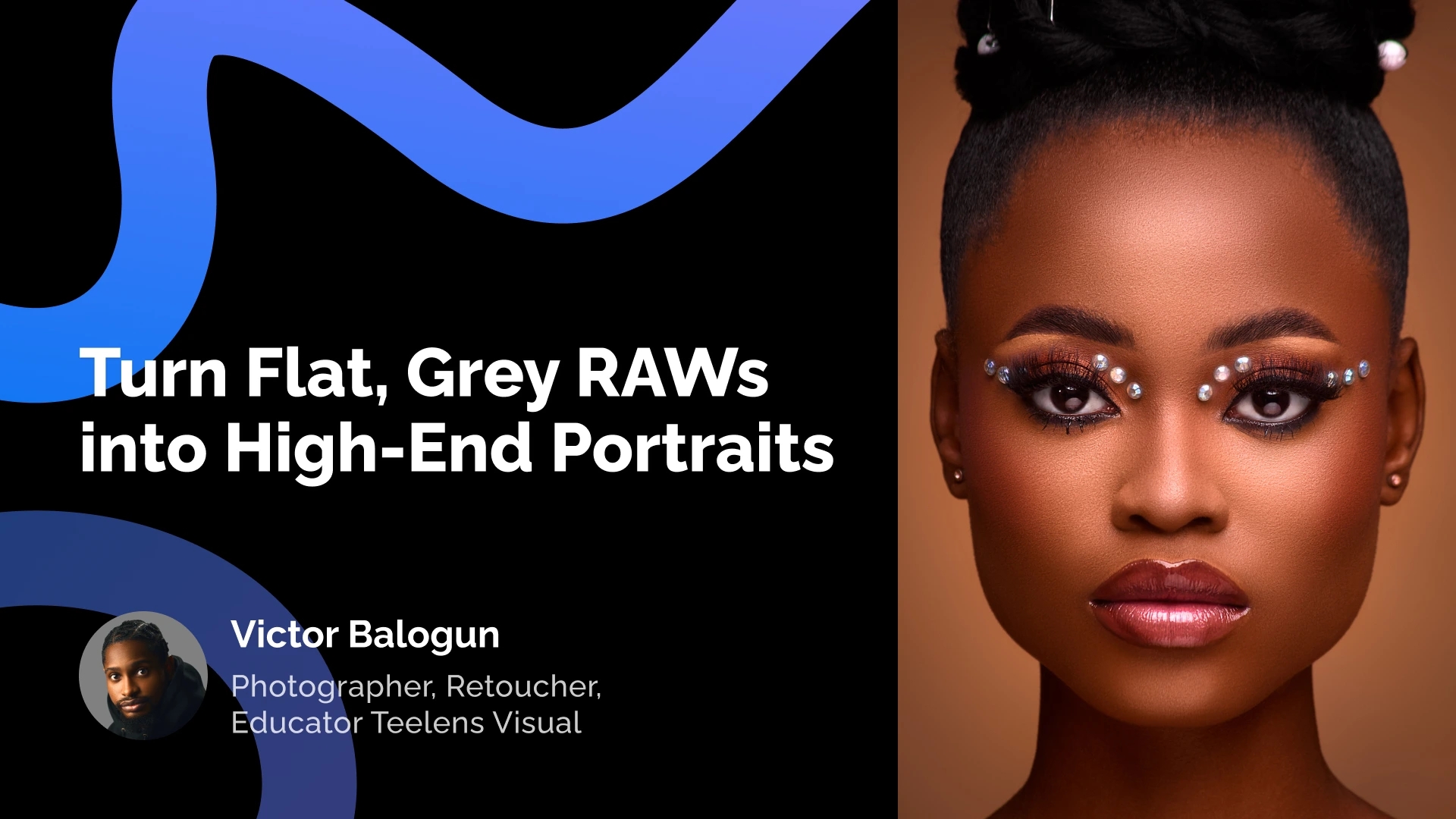
We want to start this article with a question most photographers don’t say out loud: “Why do some photographers hesitate when a dark-skinned client books them?” The honest answer: they don’t know how to edit those images well. Color goes ashy. Texture disappears. Skin looks uneven. This is a workflow problem — and it has a solution.
The good news: the problem is easier to fix than most photographers think. The reason it persists isn’t technical complexity — it’s a misconception about what dark skin retouching actually requires.
The Myth That Creates the Problem
Most photographers treat dark skin as a special case. A different genre with different rules. Victor’s lesson opens by dismantling this idea entirely.
| THE MYTH Dark skin requires a completely different approach — different tools, different techniques, different workflow from start to finish. | THE REALITY The workflow is identical. The only difference is knowing what color and tone you want to achieve — and moving toward it deliberately. |
| It doesn’t matter if it’s light skin or dark skin. What matters is: what color do you want? How warm or cool should the image be? That’s where every retouch starts.— Victor |

Step 1 — RAW Processing: Balance Before Retouching
Every image starts in Camera Raw or Capture One. Victor’s goal at this stage is a solid, balanced starting point — not a finished look. Over-processing here creates problems later; under-processing leaves you chasing tone through the entire workflow.
- Exposure — Increase if image is dark. Pull Highlights down (–30/–40) to recover bright areas.
- Whites & Blacks — Boost Whites for highlight glow. Pull Blacks down for contrast depth.
- White Balance — critical for dark skin — If image reads cool, shift toward warm. Green cast → adjust Tint toward Magenta.

Step 2 — Frequency Separation: The Technique That Keeps Skin Real
Frequency Separation splits the image into two layers: Low Frequency (color and tone) and High Frequency (texture — pores, fine details). You work on color without touching texture. The result looks smooth, but alive.
Mixer Brush Settings for Dark Skin
Victor works with the Mixer Brush Tool on an empty layer above the Low Frequency:
- Wet: 30
- Load: 20
- Mix: 0
- Flow: 30
Critical rule: Never drag highlights into shadows or shadows into highlights — this creates visible color patches. Work in circular motions and match brush size to the area.

Step 3 — Dodge & Burn: 40 Seconds vs. an Hour
Manual micro dodge & burn adds depth and dimension to a portrait. Done by hand, it’s the single most time-consuming step in a full retouch.
By hand: 20–60 minutes per portrait: Manual Dodge & Burn, variable quality.
With Retouch4me: Under 40 seconds, same result, consistent quality across the entire series.
The AI did a better job than me. I’m not joking. Look at the area under the eyes — before and after.— Victor
After Dodge & Burn, Victor adds Portrait Volumes — a second Retouch4me plugin that restores global contrast and facial dimension. Together they give back the depth lost during color correction.
fter Dodge & Burn, Victor adds Portrait Volumes — a second Retouch4me plugin that restores global contrast and facial dimension. Together they give back the depth lost during color correction.
Step 4 — Color Grading for Rich, Deep Skin Tones
This is where most photographers lose the plot. How do you get the rich, saturated depth of well-lit dark skin — without the grayness or the ashiness? Victor’s answer: the Calibration panel in Camera Raw (Filter → Camera Raw).
| Adjustment | Setting | Effect on Dark Skin |
|---|---|---|
| Blue Primary Saturation | +30 | Boosts all existing colors — first move toward saturation |
| Blue Primary Hue | Toward minus | Warm magenta tone; toward plus = cooler, greener cast |
| Green Primary Saturation | Down | Deepens and enriches dark tones, prevents ashiness |
| Vibrance | +30 | Adds vibrancy without over-saturating (unlike Saturation slider) |
Key distinction: Vibrance, not Saturation. Saturation lifts everything uniformly and blows out already-saturated tones. Vibrance targets less-saturated areas, creating richness without burning highlights.

Final Steps: Eyes, Sharpening, Export
After color grading, Victor finishes with eyes and export prep. Retouch4me’s Eye Vessels plugin clears vessels from the whites in seconds. A custom Curves action whitens and brightens the iris. Unsharp Mask sharpens eyes and lips without affecting skin.
- Instagram — Save for Web, 90% quality, sRGB
- Print — TIFF 16-bit, then JPEG 100% from Capture One
Master Dark Skin Tone Retouching
We’ve put together 2 lessons with Victor Balogun and Olusola Abisagbo to help you master professional retouching workflows that deliver rich, accurate skin tones.
Learn how to eliminate flat, ashy results, batch edit hundreds of images, and charge premium prices for premium work.