

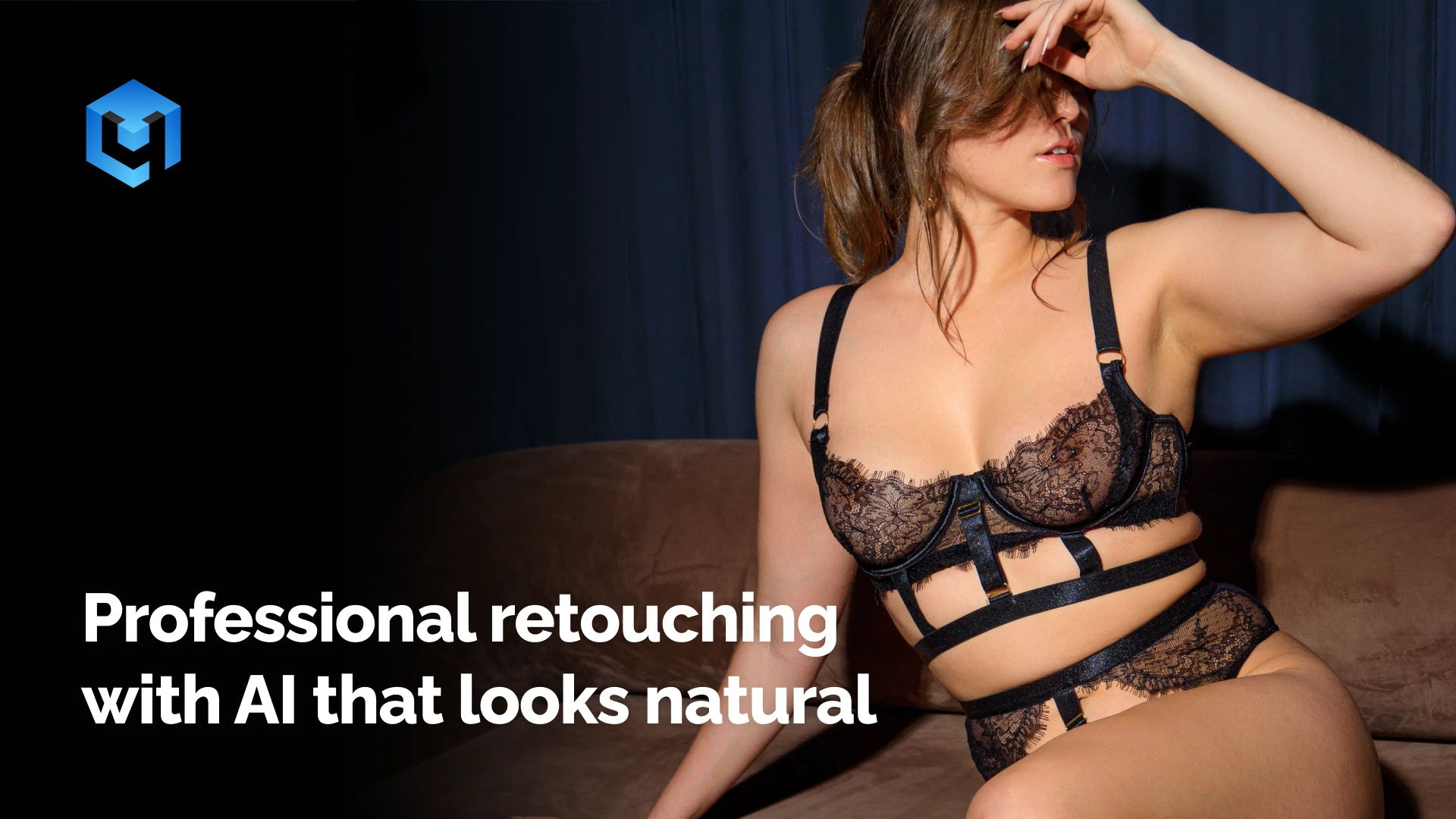
You’ve probably seen the failure mode.
A portrait where the skin is impossibly smooth. Eyes that are too bright and too perfectly round. A face that reads as processed before you can even locate the specific problem. The client gets the gallery, says nothing specific, but something is off and you both know it.
This is what AI retouching looks like when you apply it wrong. And it’s almost never the AI’s fault — it’s the settings.
Retouch4me plugins give you precise slider control over what each algorithm does to an image. The range runs from imperceptible to egregious, and the professional result lives in the lower half. This is a plugin-by-plugin guide to finding it.

Plugin-by-plugin: what it does, when to use it, when to skip it
Heal
What it does: Removes blemishes and pimples by reconstructing clean skin beneath the imperfection.
Use it for: Subjects with active acne or visible blemishes. Wedding, portrait, event — any work where skin clarity is a delivery expectation.
The limit you need to know: Heal doesn’t distinguish between blemishes and moles. It removes both. If your subject has a mole they’d want preserved, skip Heal or export as TIFF with layers and restore it by masking the Heal layer in Photoshop. This takes about 30 seconds. A sensitivity slider for moles is in development.
Starting intensity: 55–70%.

Mattifier
What it does: Suppresses oily-looking skin shine by reducing reflective highlights on skin surfaces.
Use it for: Images with visible skin shine — midday outdoor shoots, indoor events with unflattering flash, humid conditions. The shine from reflected light is what it’s trained to remove.
When to skip it — and this matters: When lighting is already flat. Applying Mattifier to even, diffused light doesn’t clean up the skin — it removes the tonal variation that makes skin look three-dimensional. The face comes out looking flatter and duller than the original. Ask yourself: is there actual shine in this image? If not, leave Mattifier off.
Starting intensity: 40–55% when you need it.

Dodge & Burn
What it does: Enhances facial dimension by lightening highlight areas and deepening shadow areas — the foundational skin retouching technique, applied by AI in 20–30 seconds instead of 15–30 minutes manually.
Use it for: Almost always. It’s the most consistently useful plugin in the set. The effect at moderate values is exactly what careful manual D&B produces: skin that looks like it was lit thoughtfully, regardless of how flat the original lighting was.
Gender split matters here: Female portraits, start at 55–65%. Male portraits, 25–35%. D&B at full strength on a male face reads as processed rather than groomed. The more pronounced facial structure that men typically have makes the effect more visible — which means it needs less of it to look intentional.
Starting intensity: 55–65% women, 25–35% men.
Quick tip: Double-click any slider to reset it to default.

Skin Tone
What it does: Normalizes color inconsistency between skin areas — corrects hands and arms that have gone slightly blue or yellow relative to the face, which happens regularly in mixed lighting or outdoor events.
Use it for: Galleries shot under changing light, outdoor events, situations where subjects’ extremities ended up a different temperature than their face.
Watch the interaction with makeup: Above 70%, Skin Tone begins affecting warm-toned cosmetics — lip color, blush, highlight makeup. If you’re applying it to wedding portraits with heavy makeup, check the lip area and drop the value if you see any color shift.
Starting intensity: 45–55%.

Portrait Volumes
What it does: Adds sculpted dimension to the face — simulates the effect of three-dimensional directional light on a face photographed in flat or shapeless conditions.
Use it for: Overcast outdoor portraits. Bounce flash event photography. Any shoot where flat light left the face looking two-dimensional. This is the plugin that transforms good-light photography from “fine” to “considered.”
Skip it when: You already have strong, directional light — studio strobes, golden-hour side light, hard window light. Adding Portrait Volumes to a well-lit face overdoes it. The sculpting compounds rather than creates.
The male portrait problem: At 100% intensity on male faces, Portrait Volumes adds volume that reads as distortion — facial features look exaggerated rather than enhanced. Keep male portraits at 15–25%. Female portraits tolerate more: 40–55% as a starting point.
When it’s most powerful: Overcast day outdoor portraits. Flat, shapeless light that left the face looking uninspiring in camera.
Starting intensity: 40–55% women, 15–25% men.
White Teeth
What it does: Brightens and whitens teeth.
Use it for: Any image where the subject is smiling with visible teeth. Even at conservative values, it contributes to the clean, professional impression of a delivered gallery — the kind of thing clients notice in the positive without being able to articulate why.
Skip it when: The subject’s mouth is closed or teeth aren’t visible. No teeth, no effect.
Starting intensity: 25–40%.
Eye Vessels
What it does: Reduces visible blood vessels from the whites of the eyes.
Use it for: As a standard default in most portrait presets. Visible eye vessels are more distracting at delivery size than they appear in culling thumbnails. A quiet default in every portrait preset earns its keep.
Starting intensity: 45–60%.
Eye Brilliance
What it does: Adds clarity and brightness to the irises — the quality of engagement that makes a subject appear to look directly at you with presence.
Use it carefully: This is the plugin most commonly over-applied. At full strength, eyes no longer look like eyes — they look like concept art. The goal is to add engagement, not brightness. Below 30% for natural results; below 25% if you’re uncertain.
Starting intensity: 15–25%.
Clean Backdrop
What it does: Removes marks, stains, dust specks, and minor imperfections from backgrounds and floors.
Use it for: Studio portraiture, venue photography, product photography with models. In a live wedding demo, it removed visible floor marks at a reception venue that would have taken several minutes of manual clone-stamping per image.
Skip it for: Complex outdoor backgrounds, intentionally textured environments, anything where the background is supposed to look natural and varied.
Starting intensity: 50–65%.
Fabric
What it does: Smooths wrinkles in clothing, linens, and soft fabric surfaces.
Use it for: Wedding gowns, formal shirts, table linens, studio fabric backdrops.
When backgrounds are complex: Enable “Exclude Skin” in the plugin settings to limit the effect to non-skin areas. Without it, Fabric may attempt to smooth areas it shouldn’t affect.
Starting intensity: 40–60%.
Building presets you’ll actually use
The preset is where efficiency compounds. You do the calibration once. Every subsequent shoot loads from the same starting point and requires only a quick preview check for lighting-specific adjustments.
Female portrait preset: Heal, D&B, Portrait Volumes, Skin Tone, Eye Vessels, White Teeth, Eye Brilliance — all at the moderate values from this guide.
Male portrait preset: Heal at moderate, D&B at low, Portrait Volumes at low-or-skip, Fabric.
Group / environment preset: Clean Backdrop, Fabric, D&B at low.
How to get the plugins:
Retouch4me plugins run natively inside Arams, which is free to download.
And with Starter Pack for $20 you get 100 professional cloud retouches and 4,500+ Smart Cull credits. Enough to put a full portrait session or wedding shortlist through every plugin and evaluate the results before committing to a local license.
Download Arams free and start with your next gallery.
Want to learn more?
Watch our YouTube series with step-by-step guidance on organising your projects, culling and batch retouching from our team. Or if you prefer long-form content, you can watch the webinar replay on how to process thousands of photos.