

The part of wedding photography no one talks about at workshops is the part that happens at home, after the shoot, starting around 10pm.
Cards imported. 847 images. Client email in your inbox asking about the timeline. And you haven’t started yet.
The work isn’t complicated. You know exactly what to do. It’s the volume of it — the hours of sequential decisions, the retouching queue that runs into the next day, the calendar block you’ve already mentally accepted because this is just what a wedding takes.
It doesn’t have to be this long. Here’s a workflow that cuts the hours without cutting your standards.
Phase 1: Import and project setup (5 minutes)
Open Arams and create a new project. Name it consistently — YYYY-MM-DD_ClientName keeps your projects sortable. Drag your image folder into the workspace. Arams supports RAW, JPEG, TIFF, and PNG.
For RAW files: go to Settings → General and check “Use embedded JPEG preview.” This uses the JPEG your camera bakes into every RAW file — your camera manufacturer’s color processing, the rendering you see on the back of the camera. Toggle it off if you prefer Arams to generate its own preview. Try both on a test gallery to see which you prefer for culling.
Phase 2: AI culling — from 800 to your shortlist (15–20 minutes active, ~10 minutes unattended)
Run image analysis first. Select all images and start the analysis. Arams sends small JPEG previews to the cloud — not your RAW files — for processing. One credit per image. For 800 images, plan 8–10 minutes. Start it and do something else.
After analysis, you have two culling approaches:
Smart Cull — when you have a fixed delivery count Set a target number (say, 400), and Arams selects the highest-rated images automatically. In a live demo, Smart Cull selected 50 images from 286 in under five seconds. Review the shortlist in Caps Lock mode — pressing P or X auto-advances to the next image — and override any AI pick with keyboard ratings 1–5.
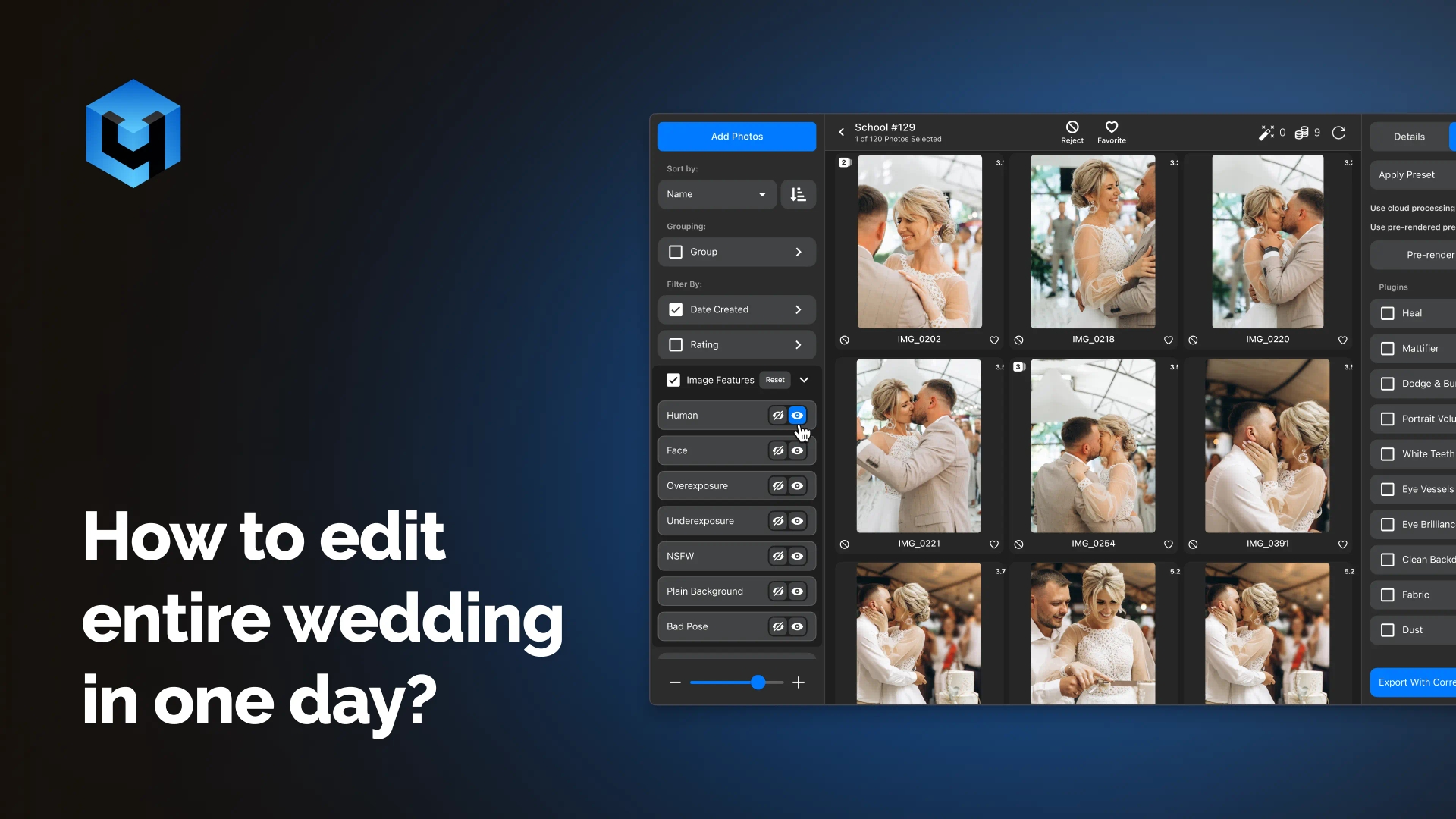
Feature filters — when you want more control Use the face feature filters in the left sidebar. Stack: no closed eyes, no bad eyes, no bad mouth, no out of focus, no bad light. From a 2,841-image event gallery, these five filters removed 457 images without a single manual review. Your editorial pass happens on what’s left.
Face identity filtering is free with no credits required. Enable automatic face search in Settings. Click a face thumbnail to filter by that person — adjust the similarity slider to 30% as a starting point for wedding work. Hold Option and click a face to exclude them from the filtered view. This is how you find every shot of the couple together, isolate a family group, or exclude venue staff who kept drifting into frame.
After AI filtering, do your editorial pass. This is the creative work — the decisions that require a human eye. Technically the images are already sound. You’re now looking for moments, expressions, the story the gallery needs to tell.
Phase 3: Retouching and building own presets
You do this once. After that, every shoot loads from the same presets.
Female portrait preset (starting point):
- Heal: 55–65%
- Dodge & Burn: 55–65%
- Portrait Volumes: 45–55%
- Skin Tone: 45–55% (watch above 70% — it affects warm makeup tones)
- Eye Vessels: 50%
- White Teeth: 30%
- Eye Brilliance: 20%
Male portrait preset (starting point):
- Heal: 50%
- Dodge & Burn: 25–35%
- Portrait Volumes: 15–25% (only if lighting was flat — skip in studio conditions)
- Fabric: 50%
Group and environment preset:
- Clean Backdrop: 60%
- Fabric: 40%
- Dodge & Burn: 25%
Save each as a named preset in Arams. Next wedding, they’re ready. The only adjustment you make per shoot is a preview check and any intensity tweaks for specific lighting conditions.
Phase 4: Retouch preview — check before you commit (15–20 minutes)
Apply your preset to all culled images (select all → click preset name). Before exporting, run retouch preview on a representative sample — your main couple’s portraits, one group shot, one environmental detail image.
Use the before/after toggle (hold the I key) on each preview. This is your quality control pass. Check:
- Is Portrait Volumes too heavy on the groom? Dial it back.
- Is Skin Tone shifting the bride’s lip color? Drop it to 40%.
- Is Clean Backdrop doing something unexpected with the venue decor? Disable it for this gallery or adjust.
Once you’re satisfied with the sample, you can batch-apply adjustments: Ctrl+C on your calibrated reference image, select all, Ctrl+V. Settings paste across the gallery. Then hit export.
For cloud users: once you’ve generated a retouch preview, subsequent exports of the same image don’t cost additional credits. Generate the layers first, export as many times as you need.
Phase 5: Export and delivery
Export settings:
- Location: Original files folder → subfolder named retouched
- Check “Add to current project” — this brings retouched files back into Arams so you can view originals and retouched side by side within the same project
- Format: JPEG for client delivery, or TIFF with layers if you’re doing a Photoshop handoff
Use TIFF with layers when:
- You want to adjust or mask any plugin effect in Photoshop after export
- Heal has removed a mole that needs to be restored (paint the mask back — takes about 30 seconds)
- You’re handing retouched files to a second editor
- You want a non-destructive archive of the retouched files
Phase 6: Color correction across the gallery (10 minutes)
Arams includes color correction: exposure, temperature, tint, contrast. Not Lightroom-depth, but sufficient for normalizing a gallery across changing light conditions.
Apply your color correction to one image, then Ctrl+C → select all → Ctrl+V to paste across the project. Color correction and retouching settings both paste simultaneously.
For galleries shot across dramatically different conditions — a bright ceremony exterior and a dimly lit reception interior — the Color Match plugin (available on subscription or retouching packs) matches your whole gallery to a single reference frame. Select your best-colored image as the reference, and Color Match pulls everything else toward it.
The one rule that keeps results looking professional
Before you export any gallery, run the before/after toggle on a few images and ask one question: does this look like a person was carefully retouched, or does it look like a filter ran over it?
The answer is almost always controlled by intensity, not by which plugins you used. Lower values produce more professional results. Moderate Portrait Volumes plus moderate D&B gives you three-dimensional, cleaned-up skin. Both at maximum gives you the uncanny valley.
The speaker in Retouch4me’s own workflow demo put it plainly: “Make sure to not put all the plugins on maximum settings. Review before you export, because it can look plasticky and really bad.”
That’s the whole rule. Everything else is slider adjustment.
Start with your next shoot
You can get the Starter Pack for $20 which gets you 100 professional cloud retouches and 4,500+ Smart Cull credits. Enough to run a full wedding gallery start to finish and see what your workflow looks like on the other side.
Want to learn more?
Watch our YouTube series with step-by-step guidance on organising your projects, culling and batch retouching from our team. Or if you prefer long-form content, you can watch the webinar replay on how to process thousands of photos.