

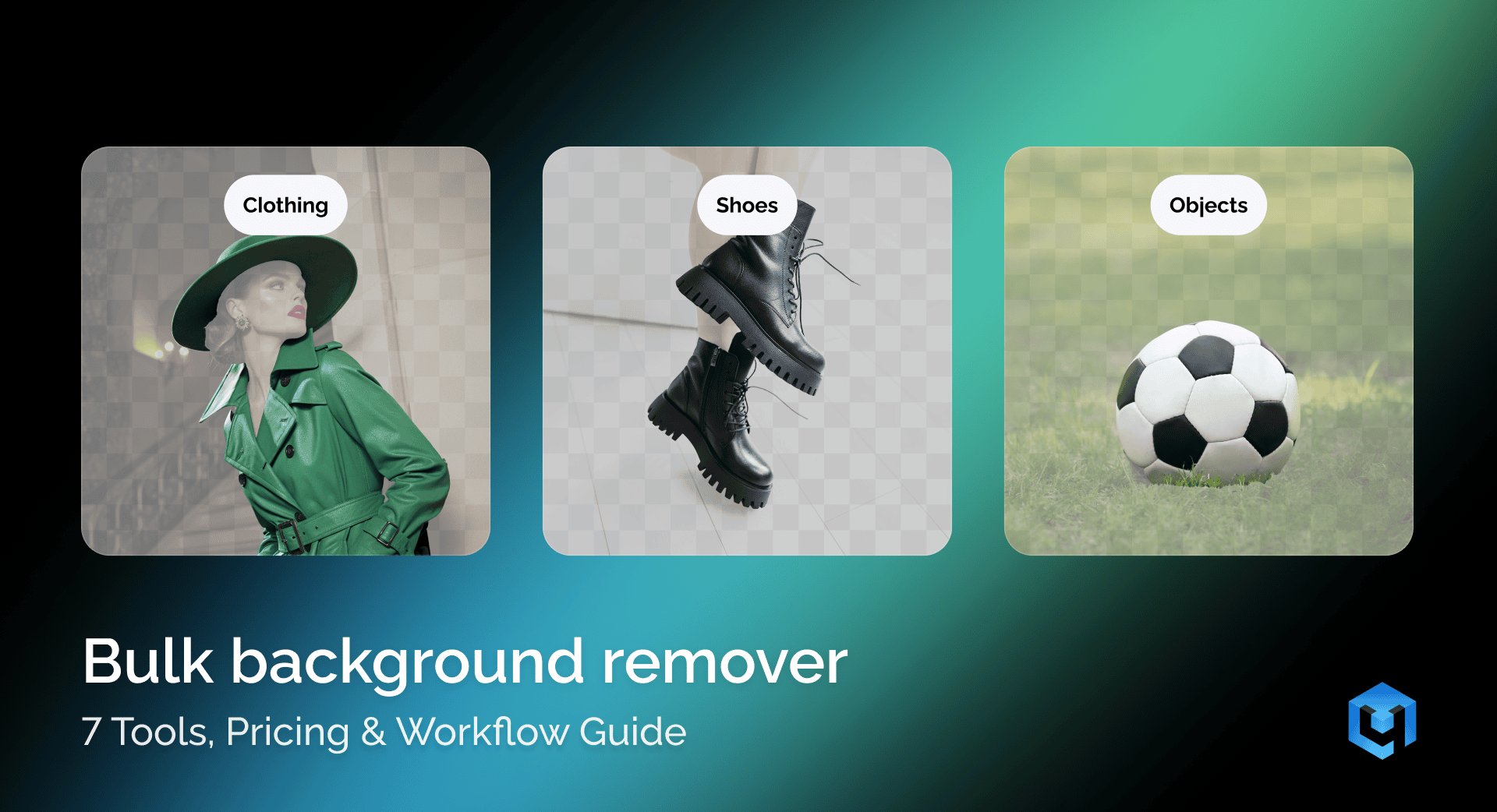
Ecommerce product photography has one consistent bottleneck: background removal at scale. When you process hundreds of SKUs a week, doing it image by image is not realistic. This guide covers everything you need to make bulk background removal work as a production process, from choosing the right tool, to building a workflow that matches your setup, to finishing your catalog correctly after removal is done. It includes an honest comparison of seven tools with verified pricing, three workflow scenarios, and a full breakdown of platform requirements for Amazon, ASOS, and Shopify.
Table of Contents
What Is Bulk Background Removal and When Ecommerce Needs It
AI vs. Manual: Where Each Approach Works
Top Bulk Background Remover Tools
Setting Up a Bulk Removal Workflow
After Background Removal: Building a Catalog-Ready Workflow
Common Mistakes in Bulk Background Removal
Platform-Specific Background Requirements
Bulk Background Removal — Coming to Retouch4me
What Is Bulk Background Removal and When Ecommerce Needs It
Bulk image background removal is the process of stripping backgrounds from multiple product images in a single batch, automatically, without opening each file individually. It is used in e-commerce when platform requirements, such as Amazon’s white background rule or ASOS’s transparent PNG standard, apply to hundreds or thousands of product images at once. At that volume, manual processing is no longer practical.
The difference becomes obvious at scale. Ten SKUs a week is manageable manually. Two hundred is not.

What the Platforms Require
Most major e-commerce platforms have strict background standards. They are not guidelines, non-compliant images get rejected or suppressed without notice.
Amazon requires a pure white background (#FFFFFF) on all main product photos. The product must fill at least 85% of the frame. Minimum resolution is 1000px on the longest side, though 2000px is recommended for zoom to work properly.
ASOS requires transparent PNG files. The background must be fully removed. Painting it white after the fact does not meet the specification.
Shopify does not enforce one standard, but consistency across your catalog matters. Mismatched backgrounds create visual noise and hurt conversion. Most merchants standardize on white or light gray and apply it across every product card.
AI vs. Manual: Where Each Approach Works
AI-powered tools handle most standard e-commerce shots reliably and at speed. Manual correction is still needed for specific problem areas: hair edges, transparent fabrics, fringe, color spills, and complex shadows. The most efficient bulk removal workflow combines both, AI for volume and manual refinement for exceptions.
Where AI Gets It Right
AI handles the majority of standard e-commerce shots without issues. These are the conditions where results are consistently clean:
- Simple, solid-color studio backgrounds
- High-contrast subjects: dark product on white, or vice versa
- Clean silhouettes: boxes, bottles, bags, shoes, folded garments
- Products shot consistently under controlled lighting
In these cases, AI delivers accurate cutouts at speed. For a well-run product photography studio with consistent setups, the error rate is low enough to trust most of the catalog.
Where AI Struggles
Be direct with yourself about the exceptions. Photos with fine hair, transparent fabrics, fringe, or color spills can require manual correction. In this case, AI may not work as expected.
Hair and flyaways. Fine strands at the edge of a garment or a model’s hair are difficult for AI to read accurately. Edges can come out jagged, blended into the background, or partially erased. The finer the detail the more difficult it is.
Transparent and semi-transparent fabrics. Organza, chiffon, lace, mesh, AI can misread these. It either removes the fabric along with the background, or leaves a halo where the background color shows through.
Fringe and tassels. Similar case to hair. Complex, repeating fine elements at the edge of a product are where AI-generated masks can break down.
Color spill. When a product is shot against a colored backdrop, the background color reflects onto the subject’s edges. AI removes the backdrop but leaves the color cast behind. A white bag shot against a red background may come back with a faint pink edge. This requires manual correction even after a clean cutout.
Shadows and ground contact. Drop shadows and natural ground shadows are handled inconsistently. Some tools remove them entirely or leave artifacts. If your platform or brand standard requires a specific shadow treatment, check results manually.
The Practical Rule
AI tools remove backgrounds from images reliably at volume. Manual work handles the exceptions.
Run your full batch through the tool. Then build a QC step into your pipeline, flag the problem categories before export. Hair, transparency, fringe, color spill, and shadows are the five areas worth checking every time. Everything else, AI can usually be trusted on.
Top Bulk Background Remover Tools
The most widely used bulk background remover tools for e-commerce are Remove.bg, Photoroom, Cutout.pro, Erase.bg, BG Eraser, Canva Pro, and Adobe Photoshop with Batch Actions. They differ in batch capacity, API availability, edge quality, and pricing structure. Remove.bg and Cutout.pro suit high-volume catalog operations best; Photoshop is the right choice for teams that need removal and manual refinement in a single application.
Pricing figures are accurate as of June 2026. Verify the current rates on each tool’s website before committing to a plan.
Remove.bg
Remove.bg is the most widely used dedicated background removal service. It works well for standard e-commerce product shots and offers multiple access points: a desktop app for Windows, Mac, and Linux, a Photoshop plugin, and a well-documented REST API.
Who it’s for: E-commerce teams of any size, developers building automated pipelines.
The web interface processes one image at a time and is not suited for bulk work. For batch processing, you use the desktop app. Drag your files in, select a background template, and it runs the full queue automatically at up to 500 images per minute. The API is the strongest option at scale, integrating directly into existing pipelines without any manual steps and handling unlimited volumes.
Quality is reliable for high-contrast product shots. Hair edges are handled better than most competitors, though not perfectly. Transparent fabrics remain a consistent weak point.
- Batch size: Unlimited via the desktop app and API. Web interface: single images only.
- API: Yes. REST API, well-documented.
- Price per image: Credit-based. For high volumes, the price drops below $0.07 per image. The higher the volume, the lower the per-image cost.
For teams that need reliable, high-quality bulk output across a large catalog, Remove.bg is the benchmark most e-commerce operations come back to.
Photoroom
Photoroom is built specifically for product photography. It combines background removal with background replacement, which is useful for teams that need to add studio or branded backgrounds immediately after the cutout step.
Who it’s for: Small to mid-size e-commerce stores, fashion brands, social media teams.
Batch Mode is available on paid plans. Since November 2025, the Pro plan caps batch exports at 500 images per month and the Max plan at 1,500. If your catalog exceeds those numbers, you will hit the ceiling before the month ends. API access is available and priced separately from the subscription at $0.02 per image for background removal, a practical route for teams that need to go beyond the monthly batch limit.
Quality holds up well on apparel and product shots against clean backgrounds. Results are consistent when shooting conditions are controlled.
- Batch size: 500 images/month on Pro, 1,500 on Max.
- API: Yes, priced separately at $0.02/image for background removal.
- Price per image: Pro at $7.99/month. At 500 images/month, that works out to approximately $0.015/image.
The batch caps introduced in late 2025 make Photoroom less suitable for high-volume operations, but for smaller catalogs it remains a strong all-in-one choice.
Adobe Photoshop — Remove Background + Batch Actions
Photoshop is not a dedicated background removal tool, but it is a valid bulk option for teams already in the Adobe ecosystem. The Remove Background button uses AI to isolate subjects in one click. Combined with Actions and the Batch function, it processes an entire local folder automatically, as many images as your hardware can handle.
Who it’s for: Retouchers and photographers already working in Photoshop. Studios that need removal and manual refinement in the same application.
For bulk work, the setup requires building a reliable Action first, which takes configuration time upfront. Once running, it processes folders locally without upload limits or per-image costs. When AI results need correction, you can refine the mask immediately without switching tools. Remove.bg also offers a Photoshop plugin if you want a dedicated AI model inside the same interface. Throughput is slower than cloud-based tools, but there are no batch caps and no recurring per-image costs.
- Batch size: Limited only by local hardware and storage.
- API: No direct API. Scriptable via Actions and Droplets.
- Price per image: No per-image cost. Included in Adobe Creative Cloud (around $22.99/month for the Photoshop single-app plan).
For studios where quality control matters as much as speed, Photoshop is the right choice for bulk removal with built-in refinement as long as you are prepared for the setup.
Canva Pro
Canva Pro includes a background remover as part of its broader design suite. It works on individual images inside the Canva editor. Just upload your photo, click BG Remover, and download the result as a transparent PNG.
Who it’s for: Marketing and content teams that already use Canva for design work and marketing materials. Not suited to high-volume catalog production.
Canva does have a developer API, but it is a design creation and asset management tool, not a background removal API. Background removal is not exposed as an API endpoint. Native bulk background removal is not supported in the editor either. Third-party Chrome extensions attempt to automate the one-by-one flow, but that is not a Canva-native feature. Quality is acceptable for simple product shapes on solid backgrounds, but it does not handle complex edges, fine detail, or transparent fabrics reliably.
- Batch size: No native bulk background removal. Single images only in the editor.
- API: Yes, but for design automation and asset management only. Background removal is not an API function.
- Price per image: Included in Canva Pro subscription (approximately $14.99/month).
If you already use Canva for design work and need occasional background removal from simple product shots, it covers the basics. However, it is not a bulk tool and should not be treated as one.
BG Eraser
This BG Eraser is a free browser-based tool with no sign-up required. It is one of the few tools in this category that costs nothing and imposes no account requirement.
Who it’s for: Small sellers and individuals who need occasional batch removal without any commitment.
You can upload up to 20 images at once and download your results as a ZIP. That covers a small product drop or a quick catalog update, but not a weekly production workflow. Uploaded files are automatically deleted within 2 hours. There is no API, which rules it out for automated pipelines. Quality is reliable on clean studio shots with clear subject separation.
- Batch size: Up to 20 images per session via web.
- API: No.
- Price per image: Free. No paid tiers.
For small sellers who need to process an occasional batch of images without any account or cost, BG Eraser is the most straightforward entry point in the category.
Erase.bg
Erase.bg is an AI-powered background removal tool with a clean web interface and API access. It is built around single-image processing. Straightforward to use, no heavy setup required.
Who it’s for: Individual sellers and small teams that need occasional background removal with API access available for integration.
The web interface processes one image at a time. For bulk processing, Erase.bg directs users to Pixelbin.io, their separate parent platform, which offers batch capabilities and broader image transformation tools. If bulk is your primary need, that is where the conversation moves.
The free plan gives 3 credits on sign-up. Beyond that, credits are purchased as one-time payments valid for one year, with no monthly commitment required. Results are consistent on apparel, footwear, and electronics against clean backgrounds.
- Batch size: Single images on Erase.bg. Bulk processing available via Pixelbin.io (separate platform).
- API: Yes, through Pixelbin.io.
- Price per image: One-time payment. $6.00 for 10 credits (~$0.60/image), $12.00 for 100 credits (~$0.12/image), $50.00 for 1,000 credits (~$0.05/image). Credits are valid for one year. Enterprise pricing available on request.
For teams that need true bulk throughput, Erase.bg alone will not cover it. However, its pay-as-you-go pricing and API access through Pixelbin.io make it worth considering for lower-volume workflows.
Cutout.pro
Cutout.pro handles high-volume batch processing with consistent quality on fashion and product imagery. It suits larger catalog operations that need both API integration and scale.
Who it’s for: Mid to large e-commerce operations, fashion studios, teams with high SKU volumes.
Background removal costs 1 credit per image at full resolution. The subscription model includes credit rollover, unused credits carry over up to 5x your monthly budget, which is useful for teams with uneven processing volumes. Pay-as-you-go credits never expire, making it a practical choice for seasonal catalog work. API access is available and makes it straightforward to remove background from images directly from your existing pipeline.
- Batch size: Large batches supported via web and API.
- API: Yes.
- Price per image: Subscription from $5.00/month for 80 credits (~$0.063/credit). Pay-as-you-go from $4.99 for 30 credits (~$0.166/credit), down to ~$0.047/credit at 30,000 credits. Free plan: 5 credits and free previews.
The combination of credit rollover, API access, and competitive per-image pricing at scale makes Cutout.pro one of the strongest options for operations processing large volumes consistently.
How the Tools Compare
Choosing a bulk background remover comes down to four practical factors: how many images you need to process, whether you need API access, how well the tool handles difficult edges, and what it costs per image. The table below puts all seven tools side by side across those criteria.
Pricing accurate as of June 2026. Verify current rates before committing.
| Tool | Speed per Image | Images per Session | Monthly Cap | Transparency | API | Hair & Edge Quality | Price per Image | Free Tier |
|---|---|---|---|---|---|---|---|---|
| Remove.bg | ~5 sec | Unlimited (desktop/API) | None | Yes (PNG) | Yes | Good | $0.07 to $1.00 | 50 low-res previews/month |
| Photoroom | Seconds | 250 (all paid plans) | 500 (Pro), 1,500 (Max), 5,000 (Ultra)/month | Yes (PNG, WebP) | Yes | Good | ~$0.015 at 500 images/month | 250 watermarked exports/month |
| Photoshop + Batch | Hardware-dependent | Unlimited (hardware) | None | Yes (PNG, PSD) | No | Excellent | No per-image cost (~$22.99/month) | No |
| Canva Pro | Seconds | 1 (no native bulk) | — | Yes (PNG) | No (not for BG removal) | Basic | Included in $14.99/month | No |
| BG Eraser | Seconds | 20 | None | Yes (PNG) | No | Basic | Free | Fully free |
| Erase.bg | Seconds | 1 (bulk via Pixelbin.io) | — | Yes (PNG) | Yes (via Pixelbin.io) | Good | $0.05–$0.60/image (volume-dependent) | 3 credits |
| Cutout.pro | Seconds | No stated limit | Credit-based | Yes (PNG, WebP) | Yes | Good | $0.047–$0.17/image (volume-dependent) | 5 credits + free previews |
A few things worth noting when reading this table.
Photoroom’s session cap is separate from the monthly cap. On any paid plan, a single batch cannot exceed 250 images. For a catalog update of 300 images, that means running at least two sessions. The monthly cap then limits total volume.
Hair and edge quality is rated relative to the category. “Good” means reliable on 80–90% of standard e-commerce shots. “Excellent” applies to Photoshop specifically, where AI-generated masks can be refined immediately without leaving the editing workflow. “Basic” means consistent results on simple silhouettes and solid backgrounds, with noticeable degradation on complex edges.
Canva’s API exists but does not expose background removal as a function. It is a design automation tool, listed here as “No” for background removal purposes.
Erase.bg processes single images natively. Bulk requires moving to Pixelbin.io, a separate platform.
Photoshop has no per-image cost, but throughput is hardware-dependent and slower than cloud tools. Setup requires building a batch Action upfront.
Setting Up a Bulk Removal Workflow
There are three practical ways to run bulk background removal: web upload with ZIP download, API integration into an automated pipeline, and Photoshop Actions processing a local folder. The right approach depends on your technical setup, the volume you handle, and how much of the process you want to automate.

Scenario 1: Web Upload and ZIP Download
This is the simplest approach. No technical setup required, and it works across all tools that support batch uploads.
The workflow runs like this:
- Prepare your image folder and rename files by SKU if you haven’t already, matching output files back to products is much easier when filenames are consistent before you upload
- Upload your batch to the tool of your choice
- Apply your background settings, transparent PNG for ASOS, and white fill for Amazon, across your photos from multiple images in a single pass.
- Download the ZIP, extract, and run your QC pass before sending to catalog
This approach suits teams without resources that processes a few thousands images per week. The ceiling is the tool’s per-session or monthly limit, so check those against your actual volume before committing to a plan.
Important: Downloaded files are usually held on the tool’s server for a limited window — 60 minutes on Remove.bg, 2 hours on BG Eraser. Build your download step into the workflow immediately, not as an afterthought.
Scenario 2: API Integration into an Automated Pipeline
For teams processing high volumes consistently, or operations running on Linux-based infrastructure, the API approach removes the manual upload step entirely and saves time across every batch . Images flow in, processed results flow out, without anyone opening a browser.
Most tools in this category, such as Remove.bg, Photoroom, Cutout.pro, Erase.bg via Pixelbin.io, offer REST APIs that follow the same basic pattern:
- Authenticate with your API key
- Send a POST request with the image file or URL
- Receive the processed image in the response
- Write the output to your destination folder or storage bucket
This integrates cleanly into existing image pipelines, Shopify product upload workflows, or DAM systems. It also works on any operating system, including Linux servers, which makes it the standard choice for teams running automated catalog processing without a desktop GUI.
A few practical considerations before you build:
- Rate limits matter at scale. Photoroom’s default API rate is 60 images per minute. Cutout.pro’s business tier allows 100 concurrent requests. Build retry logic and throttling into your code from the start, hitting rate limit errors midway through a 2,000-image batch is avoidable.
- Track credits programmatically. Most APIs return your remaining credit balance in the response headers. Log it. Running out of credits mid-batch silently fails jobs without warning.
- Carry filenames and SKUs through the pipeline. Strip nothing from the original filename. Your future self will need to match output files back to products.
Scenario 3: Photoshop Actions and Batch Processing
This approach suits studios that already work in Photoshop and need both removal and manual refinement in one application. No cloud uploads, no per-image costs, no rate limits, just local processing at the speed of your hardware.
The setup works like this:
- Apply Remove Background (under Properties) and save the result as a PNG
- Open File → Automate → Batch
- Select your Action, set the source folder, set the destination folder
- Run
Photoshop processes every image in the folder sequentially. For complex subjects that need mask refinement, such as hair edges, transparent fabrics, color spill, you can add a Stop to the Action, which pauses on each image and lets you make corrections before continuing.
The trade-off is speed. A cloud tool processes 200 images in minutes. Photoshop takes longer, and throughput depends entirely on your machine. For studios where edge quality and manual control matter more than raw throughput, this is still the right choice.
After Background Removal: Building a Catalog-Ready Workflow
Removing the background produces a cutout, not a finished product image. Before catalog images are ready for Amazon, ASOS, or Shopify, they still need retouching, color consistency, shadow treatment, standardized framing, and a quality check. This section covers each step in order and explains what it takes to turn a batch of cutouts into a publishable catalog.
Start With Image Selection
Not every image deserves processing. Before running bulk background removal, select the best frame for each SKU and remove duplicates. Processing unnecessary images increases costs and slows down production.
Retouch4me Arams can help streamline this stage by grouping similar images and simplifying image selection across large shoots.
Retouch What Matters
Once the background is gone, product imperfections become more noticeable. Depending on the category, this may include:
- Clothing wrinkles
- Dust and sensor spots
- Product scuffs
- Stray hairs
- Minor fabric issues
For fashion catalogs that include models, Retouch4me Apex can automate many common retouching tasks, helping teams process large volumes of apparel images more efficiently.
The goal is not perfect retouching. The goal is consistent, publishable results across the entire catalog.
Check Color Consistency
Once images sit on a uniform background, color shifts across the set become easy to spot. Products shot under slightly different lighting conditions, or processed in separate batches, can vary in white balance and tone even when the background matches. On a catalog grid, these inconsistencies are immediately visible.
Compare images side by side at this stage and normalize white balance and tone across the set. Retouch4me Arams can automatically correct color and white balance across the entire batch using AI. If you need every image to match the same look, Retouch4me Color Match Free lets you copy the color grading from a reference image and apply it across the batch automatically. Choose the most accurately balanced image from the set as your reference.
Compare images side by side at this stage and normalize white balance and tone across the set. Retouch4me Arams can automatically improve color and white balance across the entire batch using AI. Retouch4me Color Match lets you match color from a reference image, create and save custom LUTs for future projects, or use looks from LUT Cloud to maintain a consistent style across the entire catalog. Choose the most accurately balanced image from the set as your reference.
Handle Shadows
Background removal strips shadows along with the background. For platform listings that require a pure white result, Amazon in particular, that is correct. But a completely shadowless product can look flat and detached, especially for footwear, furniture, and larger objects.
Decide on shadow treatment before export. A soft drop shadow or a subtle ground contact shadow can make a significant difference in how grounded and realistic a product looks. Some removal tools, including Photoroom, include shadow generation as part of the editor. If you need shadows applied at batch scale, handle this step within the removal tool rather than adding them manually afterward.
Standardize Framing
Even perfect cutouts look unprofessional when products are positioned differently across a catalog.
One image may sit too high in the frame. Another may have excessive whitespace. Across hundreds of listings, these inconsistencies become obvious.
Retouch4me Crop helps standardize framing and subject positioning so every product follows the same visual structure.
This step often has a bigger impact on catalog quality than many teams expect.
Clean Backdrops When Removal Is Not Required
Not every workflow requires complete background removal. Many studios shoot products on white or light-gray backdrops and simply need those backgrounds cleaned rather than removed.
Retouch4me Clean Backdrop automatically removes background contamination such as dust, folds, uneven tones, and minor shadows while preserving the original background. Unlike an image background remover, it improves the existing backdrop rather than creating a cutout.
Run a Final Quality Check
Before exporting, review a sample of images at full resolution. Pay particular attention to:
- Hair and fine edges
- Transparent materials
- Color spill from the original background
- Missing shadows
- Crop consistency
- Correct file format
Most bulk background removal failures are predictable. A short quality-control pass catches problems before they reach your storefront.
A Practical Finishing Sequence
For most e-commerce teams, the workflow looks like this:
- Select the best frame for each SKU
- Run bulk background removal
- Retouch visible imperfections
- Check and normalize color consistency across the set
- Handle shadows. Add, adjust, or confirm removal based on platform requirements
- Standardize framing and crop
- Clean studio backdrops where applicable
- Perform final quality control
- Export for the target platform
The exact tools may change, but the principle stays the same: background removal creates a cutout. A finishing workflow turns that cutout into a catalog-ready product image.
Common Mistakes in Bulk Background Removal
Most bulk background removal errors fall into predictable patterns. Knowing what to look for before you run QC saves time and prevents bad images from reaching your catalog.

Jagged Edges on Hair and Flyaways
Hair and fine flyaways remain one of the more challenging cases for AI tools. Depending on the image, some fine strands may require additional refinement, especially against clean white backgrounds.
The fix often involves manual mask refinement. In Photoshop, use the Select and Mask workspace with the Refine Edge Brush to recover lost strands. Retouch4me Stray Hairs can automatically remove distracting flyaway hairs, reducing the amount of manual cleanup required. For batch workflows, flag all hair-adjacent images during QC and group them for review rather than applying extra refinement to every image.
Semi-Transparent Fabric Loss
Organza, chiffon, lace, and mesh confuse AI tools. The model cannot reliably distinguish between a transparent fabric and the background showing through it. Results vary: the fabric is removed entirely, or a colored halo from the original background bleeds through the remaining fabric.
If your catalog includes sheer or semi-transparent garments, test your chosen tool on representative samples before committing to a full batch. Some tools handle transparency better than others. Where AI fails, manual masking with a luminosity-based selection in Photoshop gives more accurate results.
Color Spill on Product Edges
When a product is shot against a colored backdrop, the background color reflects onto the subject’s edges. AI removes the backdrop but leaves the color cast behind. A white ceramic shot against a red background may come back with a faint pink fringe. A black shoe shot against a blue wall may have a subtle blue outline.
Color spill is invisible on the original image but obvious once the background is gone. Check for it specifically during QC by viewing images against a white canvas before export. Correct it with targeted Hue/Saturation adjustments or by painting the edge manually on a separate layer.
Color spill is invisible on the original image but obvious once the background is gone. Check for it specifically during QC by viewing images against a white canvas before export. Correct it with targeted Hue/Saturation adjustments or by painting the edge manually on a separate layer. If a thin halo or remnants of the original background remain along the edges, you can also contract the object selection by a few pixels in Photoshop before applying the final mask.
Missing Ground Contact Shadow
A product sitting on a pure white background with no shadow at all looks like it is floating. The eye expects some visual connection between the object and the surface beneath it, even a very subtle one. This is especially noticeable for footwear, bottles, and furniture.
Before exporting, decide whether the listing needs a shadow and which type fits the platform and product category. Completely shadowless is correct for Amazon. A soft ground contact shadow is often used for lifestyle-adjacent listings and branded catalog work. Make the decision intentionally rather than defaulting to whatever the removal tool outputs.
Inconsistent Crop Across the Catalog
Background removal tools do not standardize subject position. One image may have the product centered with tight margins. Another may leave the subject low in the frame with excess space above. A third may clip slightly at the edge. Across a catalog grid, this creates a visually chaotic layout that no amount of correct background removal can fix.
Run crop alignment as a dedicated step after removal, not as an afterthought. Check the full catalog grid at thumbnail size before export. Problems that are invisible at full resolution become obvious at grid scale.
Wrong Output Format for the Platform
Exporting a JPEG when the platform expects a transparent PNG is a straightforward mistake that still appears regularly in bulk workflows. JPEG does not support transparency. If your removal tool outputs JPEG by default, it strips the background from every image with a cutout and replaces it with white, regardless of how cleanly the removal was done.
Check your export format setting before every batch. PNG for transparency. JPEG for white-fill or color-fill outputs where file size matters. WebP where the platform supports it and compression is a priority.
Not Checking Output at Full Resolution
Preview images from most tools are low resolution. An edge that looks clean at thumbnail size can show fringing, jagged artifacts, or background bleed at full resolution. Always download and inspect the full-resolution output on at least a sample of images from each batch before approving the entire set for catalog upload.
A practical QC method: view the image at 100% zoom against a black canvas and then against white. Problems invisible on one background often become obvious on the other.
Platform-Specific Background Requirements
Each major e-commerce platform has different background standards for product images. Meeting them is not optional — non-compliant images are suppressed, rejected, or flagged without warning. This section covers the technical requirements for the three platforms most relevant to e-commerce catalog work, with the specific values you need before export.
Amazon
Amazon has the strictest and most enforced background requirements of any major marketplace. Non-compliant main product images are suppressed from search results automatically.
Main product image requirements:
- The background must be pure white. Off-white or near-white fails compliance checks
- The product must fill at least 85% of the image frame
- Minimum image size is 1000px on the longest side. Zoom functionality requires at least 1600px; 2000px is the recommended working size
- No text, watermarks, borders, or graphic overlays on the main image
- No lifestyle backgrounds, props, or environmental context on the main image
- Multiple images and lifestyle shots are permitted in secondary image slots
File format: JPEG is the standard. PNG and TIFF are accepted but result in larger file sizes with no quality benefit for white-background images.
What happens if you miss it: Amazon’s automated compliance system suppresses non-compliant listings from search results. The suppression is not always immediate, and Amazon does not always notify sellers. Many catalog problems go undetected until a manual audit.
Practical note: Even a slightly warm or cool white background, common after AI removal on images shot under studio lighting, can fail the pure white check. After background removal, verify the background reads as #FFFFFF in Photoshop’s eyedropper before export.
ASOS
ASOS requirements vary by product category and supplier agreement, but transparent PNG is the standard format for most apparel submissions. Unlike Amazon, ASOS does not require white-fill, it expects the background to be removed entirely, leaving a clean transparent layer.
Key requirements:
- Transparent PNG output for most product categories
- Ghost mannequin or flat lay presentation depending on category guidelines
- Consistent framing and subject position across all images in a product listing
- High resolution, ASOS works with large catalog images that are resized at the platform level
Why it matters: The file needs to contain actual transparency, confirmed by opening it in an application that renders the transparent background as a checkerboard pattern. A white background saved as a PNG looks identical to one with a transparent layer on screen but is a different file entirely.
If you are supplying directly to ASOS or working for a brand that does, confirm the exact current specifications against their supplier portal. Requirements vary by product type and are updated periodically.
Shopify
Shopify does not enforce a single background standard. Merchants set their own visual guidelines. However, Shopify’s platform behavior makes consistency a practical requirement regardless of what the standard is.
Technical limits:
- Maximum file size: 20 MB per image
- Maximum resolution: 4472 × 4472 pixels
- Supported formats: JPEG, PNG, GIF, WebP
- Recommended working resolution: at least 2048 × 2048 pixels for zoom quality
What consistency means in practice: Shopify renders product images in a grid. If background colors, image proportions, or subject positions vary across products, the grid looks fragmented. Most Shopify merchants standardize on either white (#FFFFFF) or a consistent light gray, applied uniformly across all product cards.
Aspect ratio matters here too. Shopify themes typically display product images in a fixed ratio — commonly 1:1 square or 4:5 portrait. If your images are inconsistent aspect ratios, the platform crops them differently per card, which breaks the visual grid.
Practical note: Square images with consistent subject positioning and a uniform background color are the lowest-risk format for Shopify. Set the crop ratio before bulk export, not after.

Quick Reference
| Platform | Background | Format | Minimum Size | Key Rule |
|---|---|---|---|---|
| Amazon | Pure white #FFFFFF | JPEG | 1000px (2000px recommended) | Product fills 85% of frame |
| ASOS | Transparent | PNG | High resolution | No white fill, actual transparency required |
| Shopify | Merchant-defined | JPEG, PNG, WebP | 2048px recommended | Consistency across catalog |
Bulk Background Removal — Coming to Retouch4me
Retouch4me is currently developing a bulk background removal tool aimed at e-commerce catalog workflows. Based on the direction of their existing product suite, it is designed to handle the same use cases covered in this guide — batch processing, catalog-scale throughput, and e-commerce output standards. Stay tuned!
Key Takeaways
- Bulk background removal is a production decision, not just a tool choice. The right approach depends on your volume, technical setup, and whether you need API access, local processing, or a simple web interface.
- AI handles the volume. Manual work handles the exceptions. Hair, transparent fabrics, fringe, color spill, and complex shadows are predictable AI failure points. Build a QC step into every batch workflow specifically for these categories.
- No single tool suits every operation. Remove.bg and Cutout.pro lead for high-volume catalog work with API access. Photoroom suits smaller operations but carries monthly batch caps. Photoshop is the right choice when removal and manual refinement need to happen in the same application.
- Background removal is one step, not the final one. A clean cutout still needs retouching, color consistency, shadow treatment, and crop alignment before it is catalog-ready. Skipping these steps produces a batch of processed images, not a publishable catalog.
- Platform requirements are specific and enforced. Amazon requires pure white #FFFFFF with the product filling at least 85% of the frame. ASOS requires actual transparency, not white-fill saved as PNG. Shopify has no enforced standard, but catalog consistency is a practical requirement.
- Retouch4me is developing a bulk background removal tool aimed at e-commerce catalog workflows. Stay tuned!
Frequently Asked Questions
Q: Can background removal be done without AI?
A: Yes, but not at bulk scale. Manual masking in Photoshop using the Pen tool, Select Subject, or channel-based selections, produces the highest quality results and gives full control over difficult edges. The trade-off is time. A skilled retoucher might spend 5–15 minutes per image on a complex subject. At 500 SKUs a week, that is not a sustainable workflow. AI handles the volume. Manual work handles the exceptions that AI gets wrong things like hair, transparent fabrics, color spill, and fine fringe detail.
Q: What do you do with transparent or semi-transparent fabrics?
A: AI tools struggle with sheer and semi-transparent materials, such as organza, chiffon, lace, and mesh. The fabric is either removed along with the background or left with a color halo from the original backdrop. There is no AI tool that handles this reliably at batch scale. The practical approach is to flag these images during culling, run them through AI as a first pass, and then refine manually in Photoshop using a luminosity-based or channel selection. For catalogs with a high proportion of sheer garments, budget for manual correction time before committing to an automated-only workflow.
Q: Are there offline tools that do not require cloud upload?
A: Yes. Photoshop with Batch Actions processes images locally without any upload. The Remove.bg desktop app for Windows, Mac, and Linux also runs bulk removal locally, though it still sends images to Remove.bg’s servers for processing and requires an active internet connection and credits. For fully offline processing with no external server dependency, Photoshop is currently the main viable option for bulk work. It requires more setup but imposes no per-image cost and keeps images entirely on your local system.
Q: Is grid remover the same thing?
A: No. Grid remover refers to removing ruled lines or grid patterns from scanned documents or school photos. A different problem entirely, unrelated to e-commerce product background removal.