


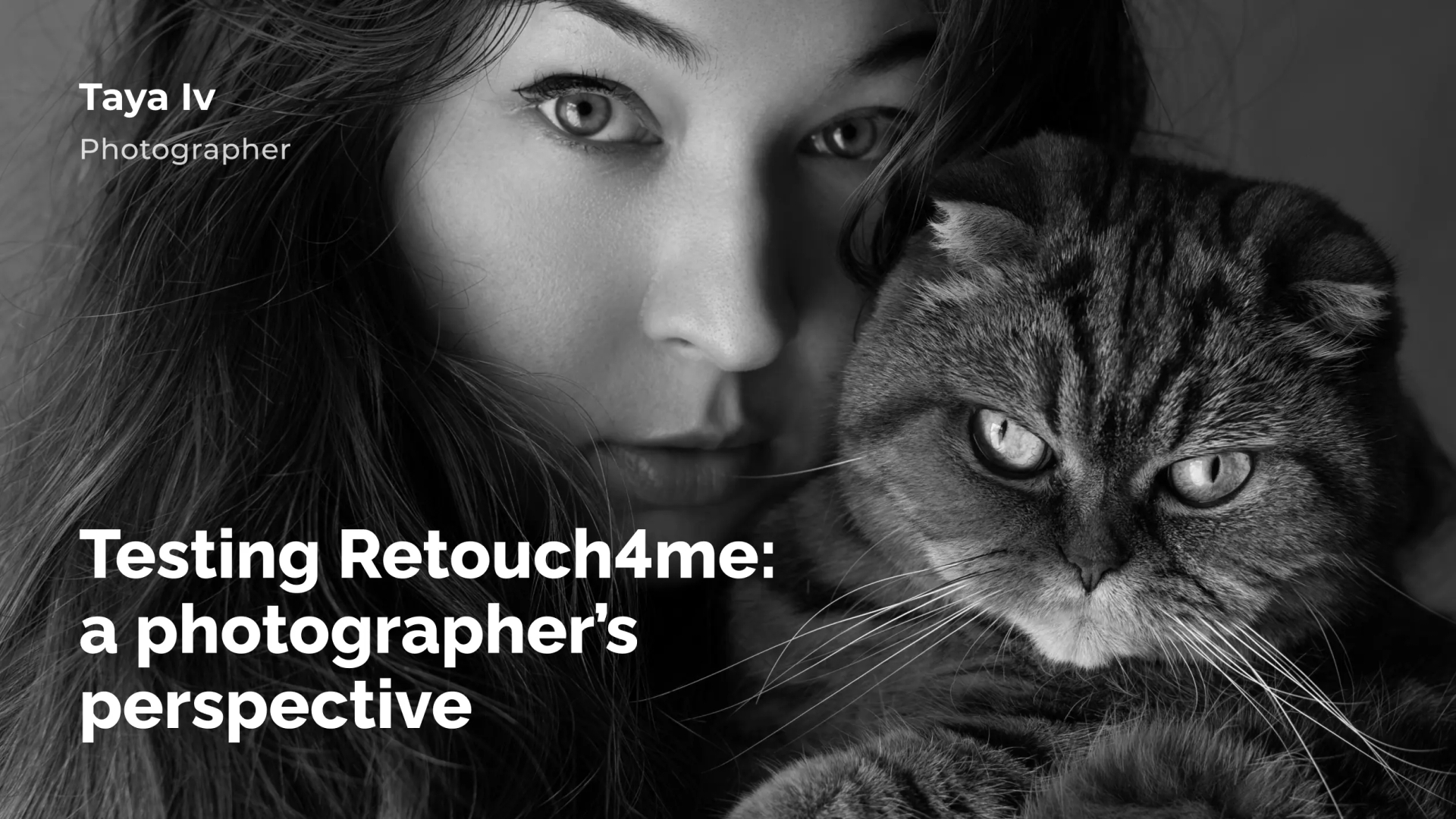
When I became a photographer, I was fascinated by the world of post-processing. I dreamed about creating perfect skin in Photoshop and experimenting with different colour grading techniques. For many years, this was an important and enjoyable part of my work.
However, times change. As I got busier with my professional work, I found retouching to be a very tedious and intimidating part of photography.
In my opinion, photography is separate from retouching. Both require very different skills, even though they complement each other. I used to feel guilty for not wanting to retouch as much as I used to, but now I recognize that it’s okay to just enjoy photography.
Technical limitations are another issue. I have a computer that works relatively well, but it’s no longer powerful enough to quickly handle the latest versions of Photoshop and Lightroom. This means that retouching has become even more time-consuming.
Given all this, I was naturally relieved and curious when Retouch4me sent me an email. I had always assumed that any kind of AI retouching software would be as heavy as Photoshop, but I was pleasantly surprised to find that Retouch4me’s standalone software is lighter. It takes less than a second to launch and just a few seconds to process my images. This has given me the opportunity to focus more on my photography, knowing full well that I’ll be able to enhance my images very quickly.
In this post, I’ll share my honest thoughts on Retouch4me’s Photoshop plugins and standalone software.
Retouch4me Plugins in Photoshop: First Impressions

Retouch4me offers a couple of editing options in Adobe Photoshop: cloud retouching and on-device retouching. Personally, I had a lot of fun experimenting with cloud retouching as it allowed me to play around with a variety of editing tools simultaneously. Above is an unretouched photograph that I recently took. Let’s see how it changes after Retouch4me’s adjustments.

Within 30 seconds, Dodge & Burn, Portrait Volumes, Skin Tone, and Eye Brilliance worked their magic on my photo. It would’ve taken me 30 minutes to get a similar look on my own, and even then, it probably wouldn’t have looked exactly the same.
I changed the layer opacity of Dodge & Burn to 65%, Portrait Volumes to 50%, and Eye Brilliance to 43%. Everyone’s preferences are different; personally, I don’t mind it when a few skin imperfections are visible. I consider this a good base for further editing. The flyaway hairs need to be removed manually, but at least I don’t need to worry about the way the skin looks.

Let’s take a look at a photo with more skin texture. When I take a photo using a wide aperture like f/1.2, skin texture is less visible. A narrower aperture captures more detail, which means that more retouching is required. Here’s a before and after, this time using Heal, Dodge & Burn, Portrait Volumes, and Eye Brilliance. The layer opacity is at 100%. The texture is still visible and the skin is glowing, which is exactly what I need.
Experimenting with Color Match for Creative Grading

I was very excited to try Color Match because it’s not limited to portrait photography. Using this tool, you can use a reference photo, film still, or even a painting to enhance the colours in any photograph. If you’re a fan of colour grading, you’ll have a lot of fun with Color Match!

The process is simple: upload a reference photograph. Within seconds, Color Match will analyze the colours in the photo and recreate them in your own image. My references were a stock photo and an old painting.
I wish there were more adjustment tools in Color Match. For example, it would be great if you could edit individual colours after the software analyzed the images. There’s always room for progress, and I look forward to seeing where Retouch4me goes next with Color Match.
Trying Face Make: AI Makeup for Studio Portraits
Face Make has an interesting concept: enhance facial features and apply makeup with the help of artificial intelligence.

Before you start making adjustments, I recommend going to Edit Face Mesh and making sure that your model’s face is aligned properly, as pictured above.

As someone who takes a lot of indoor self-portraits in which my face is partly hidden, I found it challenging to create a natural makeup look in my photos. Either the outline was misaligned or the makeup look was too intense, even after I adjusted its opacity. In my experience, Face Make is more suitable for studio portraits with clean and even lighting.
Having said that, I do want to point out that the software has a lot of interesting makeup looks that can significantly enhance your photoshoots. From smoky eye makeup to light and airy blush effects, there’s something for everyone here.
Conclusion
Retouch4me has a brilliant collection of software for all kinds of photographers. Even though it mostly caters to portrait photographers, I appreciate its efforts to inspire photographers from other genres through software like Color Match.
Subscription-based programs might not be the perfect fit for everyone; Retouch4me offers both on-device software and cloud retouching tools, so you don’t need to commit to an entire program if you want to use a few specific tools. This is where the company exceeds greatly.
Based on a few weeks of testing, I can confidently say that I’ve been taking more photos than usual because I know that Retouch4me will do most of the time-consuming retouching work for me. Both my shooting and editing sessions have become more fun, and for that, I’m immensely grateful as a photographer. If you’re looking for AI photo retouching that works fast and fits naturally into your photography workflow, Retouch4me is definitely worth a try
All the tools I mentioned in this review are available for testing. Try them for free and see the difference in your own work.