

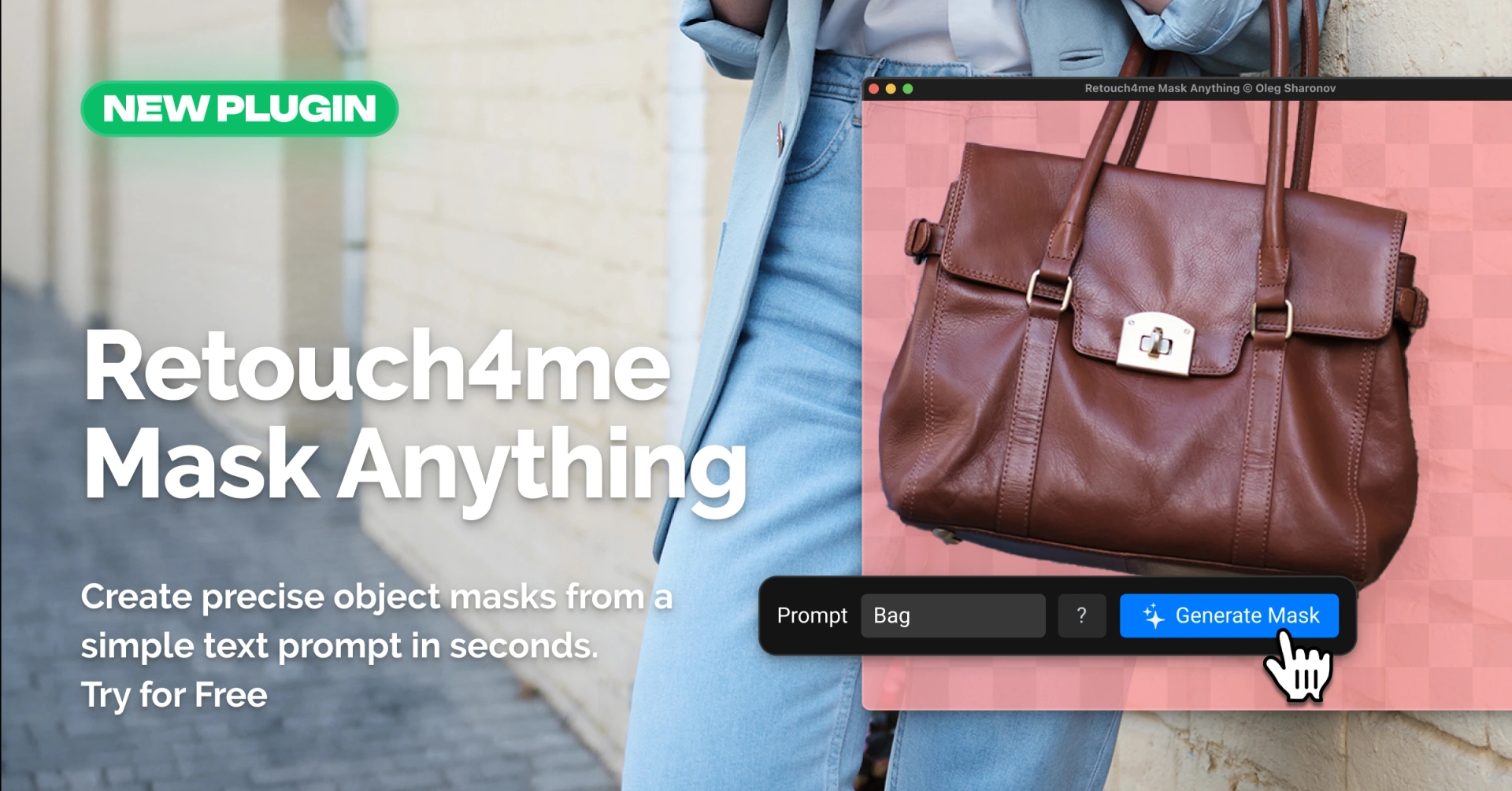
Creating a mask can often become a separate task within the retouching workflow. You need to select an object, carefully define its boundaries, check the result, and only then move on to the actual editing.
Retouch4me Mask Anything simplifies this process to a text prompt. Describe what you want to select, and AI will automatically create a mask for the object.
Create masks with text
There is no need to manually trace objects or switch between multiple selection tools.
Enter a text prompt with one or more objects you want to select. Mask Anything will automatically find them in the image and create ready-to-use masks.
For example, you can enter:
persondresscarbagshoes
If there are multiple objects matching your prompt, you can select them individually.
Text prompts are currently supported in English. To make the workflow easier, the plugin includes a library of ready-to-use prompts translated into multiple languages. Select the prompt you need, and it will automatically be translated into English before processing.
Select exactly the object you need
The same prompt can match multiple objects in a photo. For example, if there are several cars or people in the frame, Mask Anything lets you choose the specific object you want to mask.
This is especially useful for local editing when changes need to affect only one element of the image.
Improve mask accuracy
Mask Anything includes a High Precision mode for more challenging images. It takes longer to process, but can produce more accurate results.
You can also use Boundary Refinement when you need to improve the edges of smaller objects.
Use masks in your existing workflow
Mask Anything supports several ways to save and use the result.
In Photoshop, you can save the generated mask:
- as a Layer Mask;
- as an Alpha Channel.
Text prompts can also be recorded as Photoshop Actions, making them useful for automated workflows.
In Standalone, masks can be exported as PNG or TIFF files and used in other image editing applications.
What can you use Mask Anything for?
Object masks are useful in many editing workflows:
- local retouching;
- changing the color of specific objects;
- background replacement;
- compositing;
- product photography;
- eCommerce;
- advertising;
- localized color correction.
For example, if you want to change the color of clothing, darken a car, or edit a single object in a scene, you first need to separate that object from the rest of the image. Mask Anything lets you create that selection quickly with a text prompt.
How Retouch4me Mask Anything works
The workflow takes just a few steps:
1. Enter a text prompt.
Describe one or more objects you want to select.
2. Choose the object.
If multiple matches are detected, select the one you need.
3. Get a ready-to-use mask.
If necessary, use High Precision mode, Boundary Refinement, or invert the mask.
4. Continue editing.
Save the mask in Photoshop or export it from Standalone.
Let AI handle the repetitive part
Retouch4me Mask Anything helps reduce the time spent creating selections so you can move on to editing faster.
Instead of manually building a mask, simply describe the object you need in words. The plugin automatically finds it in the image and creates a mask ready for further editing.
Retouch4me Mask Anything — create object masks with text prompts.