

Manual masking is still one of the most time-consuming parts of professional retouching. It slows down object recoloring, local corrections, compositing, and batch edits—especially when the same object appears in different positions across a series.
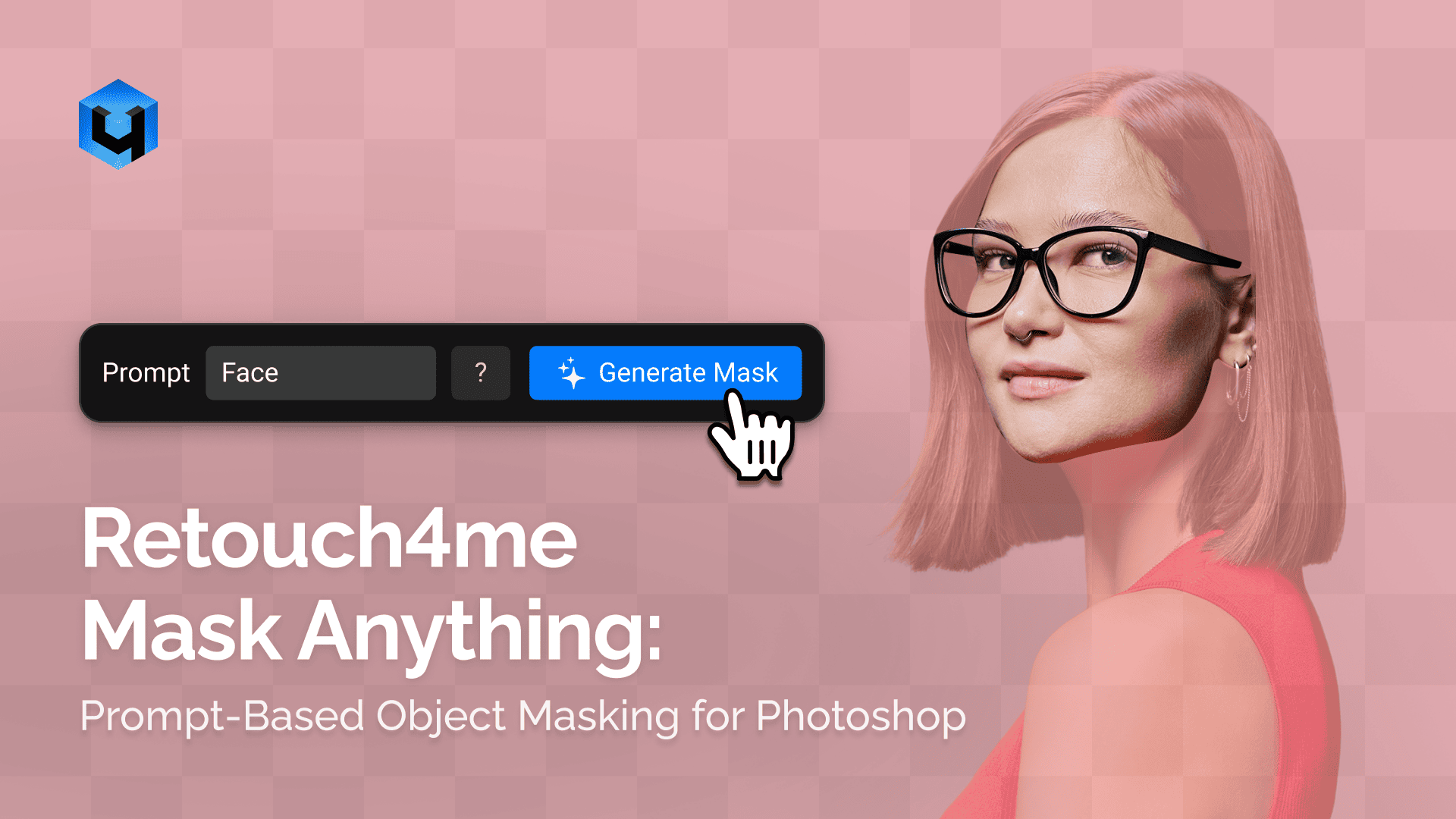
Retouch4me Mask Anything is a Photoshop plugin that creates an object mask from a text prompt. Type what you need to select in English—such as “taxi,” “light gray dress,” “jacket,” or “product label”—and the plugin finds matching objects in the frame and creates a mask.
It is built for photographers and retouchers who need to work faster without giving up control over the final image.
Learn more about Retouch4me Mask Anything and download the demo: Retouch4me Mask Anything
Start with the object, not the selection tool
A traditional selection workflow begins with a tool: Pen Tool, Object Selection, Quick Selection, channels, or manual brushing. Mask Anything starts with the editing task instead.
If the task is to recolor every taxi in a street image, type “taxi.” If a fashion series requires the same gray dress to become blue in every frame, describe the garment with a prompt. The plugin generates the initial mask, which remains editable in Photoshop.
This approach is particularly useful when a frame contains many instances of the same object. Instead of clicking each subject separately, Mask Anything can identify matching objects throughout the scene.

Use descriptive prompts when precision matters
A short prompt is often enough for a clear object: “taxi,” “chair,” “jacket,” or “background.” But more specific language can help when objects are visually similar.
For example, “gray dress” may select more than one garment in a scene with dark clothing. A prompt such as “light gray dress” gives the model more context and can produce a more targeted mask.
Use prompts that describe visible attributes:
- Object type: “dress,” “car,” “bottle,” “jacket”
- Color: “yellow taxi,” “light gray dress”
- Material or detail: “leather bag,” “glass bottle”
- Location or context where relevant: “background building,” “left shoe”
The goal is not to write a long sentence. It is to give the model enough visual information to distinguish the intended object from similar elements in the frame.
Refine the mask before applying it
Mask Anything includes controls for selection behavior, mask accuracy, and edge refinement. These settings matter most when the subject is small, distant, partially obscured, or surrounded by visually complex details.
A higher refinement value can smooth the mask edge and align it more closely with visible contours. However, excessive smoothing may remove fine details. For a clean object with clear edges, a lower setting is often sufficient. For intricate boundaries, inspect the mask at 100% zoom before applying it.

As with any AI-generated mask, the result should be treated as a strong starting point—not an unquestionable final selection. Photoshop layer masks remain editable, so you can refine missed areas with a brush, remove unwanted regions, or adjust the mask for a particular creative treatment.
Recolor objects without flattening the image
Once the mask is created, use it as the basis for a non-destructive adjustment workflow.
For recoloring, apply a Hue/Saturation, Solid Color, Curves, or Selective Color adjustment layer and clip it to the masked layer. This keeps the color change separate from the original pixels and makes future revisions straightforward.
For fabric, a blend mode such as Soft Light can help preserve folds, shadows, and reflected color. The result retains the original material structure instead of looking like flat paint placed over the subject.
This workflow works well for:
- Fashion recoloring and wardrobe corrections
- Product color variants for ecommerce
- Vehicle, furniture, or packaging recoloring
- Targeted cleanup or exposure adjustments
- Object-specific effects in editorial and commercial images
Build repeatable batch workflows
The main advantage of prompt-based masking appears when the same task must be repeated across a series.
A global Photoshop adjustment cannot reliably target an object that changes position, pose, scale, and background from frame to frame. A recorded action with Mask Anything can. Record the prompt, generate the mask, add the required adjustment, and save the result. Then run the action through Photoshop Batch processing.
For example, a fashion photographer can record an action that finds a “light gray dress” and recolors it blue. Photoshop then processes each image in the folder: Mask Anything detects the dress in that frame, the action applies the color treatment, and the file is saved to the chosen destination.
This is useful for editorial series, ecommerce catalogs, fashion campaigns, school photography, event branding, and any project where the same object needs consistent treatment across a large number of images.
Keep control in Photoshop
Fast masking should not mean locked-in results. Mask Anything works within a familiar Photoshop workflow: the output is a mask that can be inspected, edited, inverted, combined with other masks, or discarded.
That flexibility matters in professional retouching. The AI handles the repetitive selection work; the photographer or retoucher decides how the mask is used and how far the adjustment goes.

Your familiar workflow. Any scale. Precise control.
Work locally, without per-image fees
Mask Anything processes images locally on your computer. Your photos do not need to be uploaded for processing, and the plugin is available with a perpetual license rather than a subscription or per-image payment.
The plugin costs $29 and is designed as a practical tool for the parts of masking that are repetitive, time-consuming, and difficult to standardize across a series. The final review remains essential: complex edges, transparency, small accessories, and highly detailed scenes may still require manual mask refinement.
For full details, supported workflows, and examples, visit the
Retouch4me Mask Anything product page
A practical masking workflow
- Duplicate the source layer or add a layer mask before processing
- Open Filter > Retouch4me > Mask Anything
- Enter an English prompt describing the object
- Choose the selection mode and adjust edge refinement if needed
- Generate and inspect the mask at 100% zoom
- Apply the result as a layer mask
- Add clipped adjustment layers for recoloring or local corrections
- Record the process as a Photoshop Action when the same edit is needed across a series
- Run File > Automate > Batch to process the folder
- Review exported files before delivery
Mask Anything helps automate the selection stage—not replace professional judgment. For photographers and retouchers, that means less time drawing masks and more time shaping the final image.
Learn more: watch the complete Mask Anything workflow on