Export photographs to MyShot
What you will do
Section titled “What you will do”When a set of photographs is ready for a client, send it from Arams to an existing MyShot album instead of creating another local folder. You will know the upload is complete before you decide whether the album is ready to share.
MyShot export uploads files to an online destination. It is separate from exporting to your hard drive, and uploading photographs does not by itself share the album with a client.
Before you start
Section titled “Before you start”- Sign in to Arams with the account connected to the MyShot storage you intend to use.
- Create or choose the destination album in advance.
- Decide which photographs belong in this delivery. Rejected photographs are not included in the export count.
Select the photographs and open MyShot export
Section titled “Select the photographs and open MyShot export”- In the project grid, select the photographs you want to deliver.
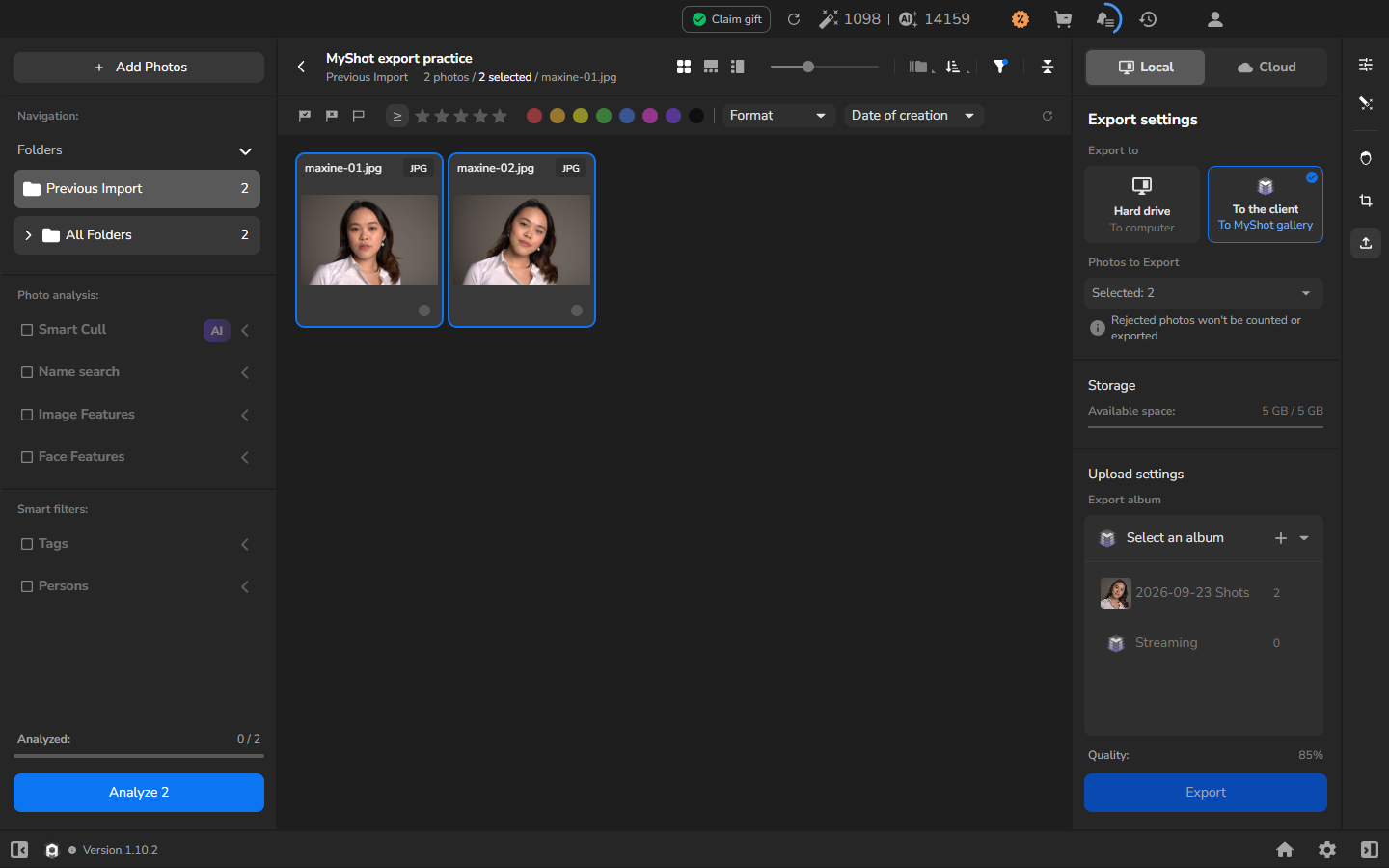
- Open the export workspace and choose Local.
- Choose the local retouching tools and settings you want applied. Keep every wanted tool enabled; the MyShot destination is a delivery choice, not a reason to turn off processing.
- Open Export settings.
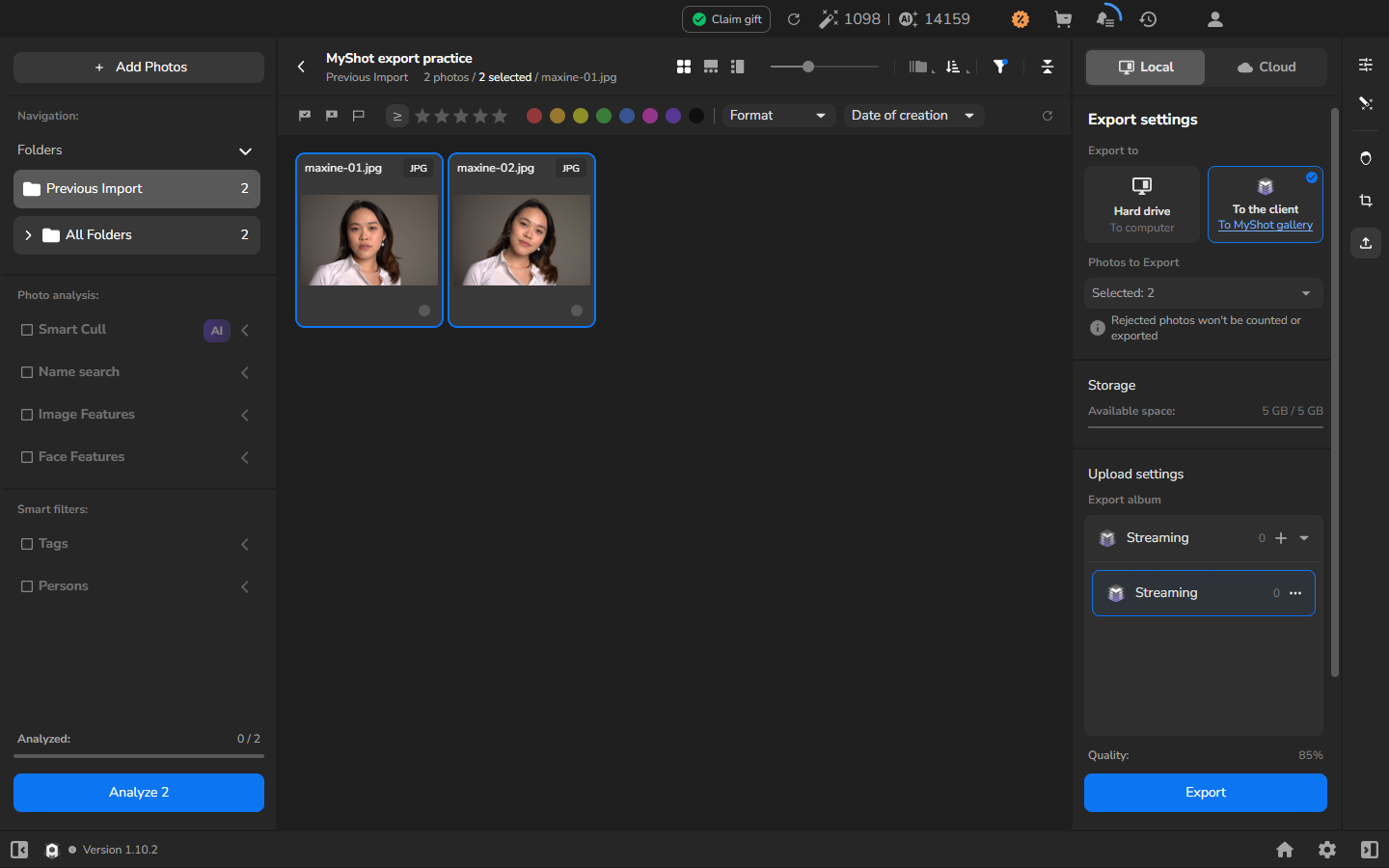
- Under Export to, choose To the client — To MyShot gallery.
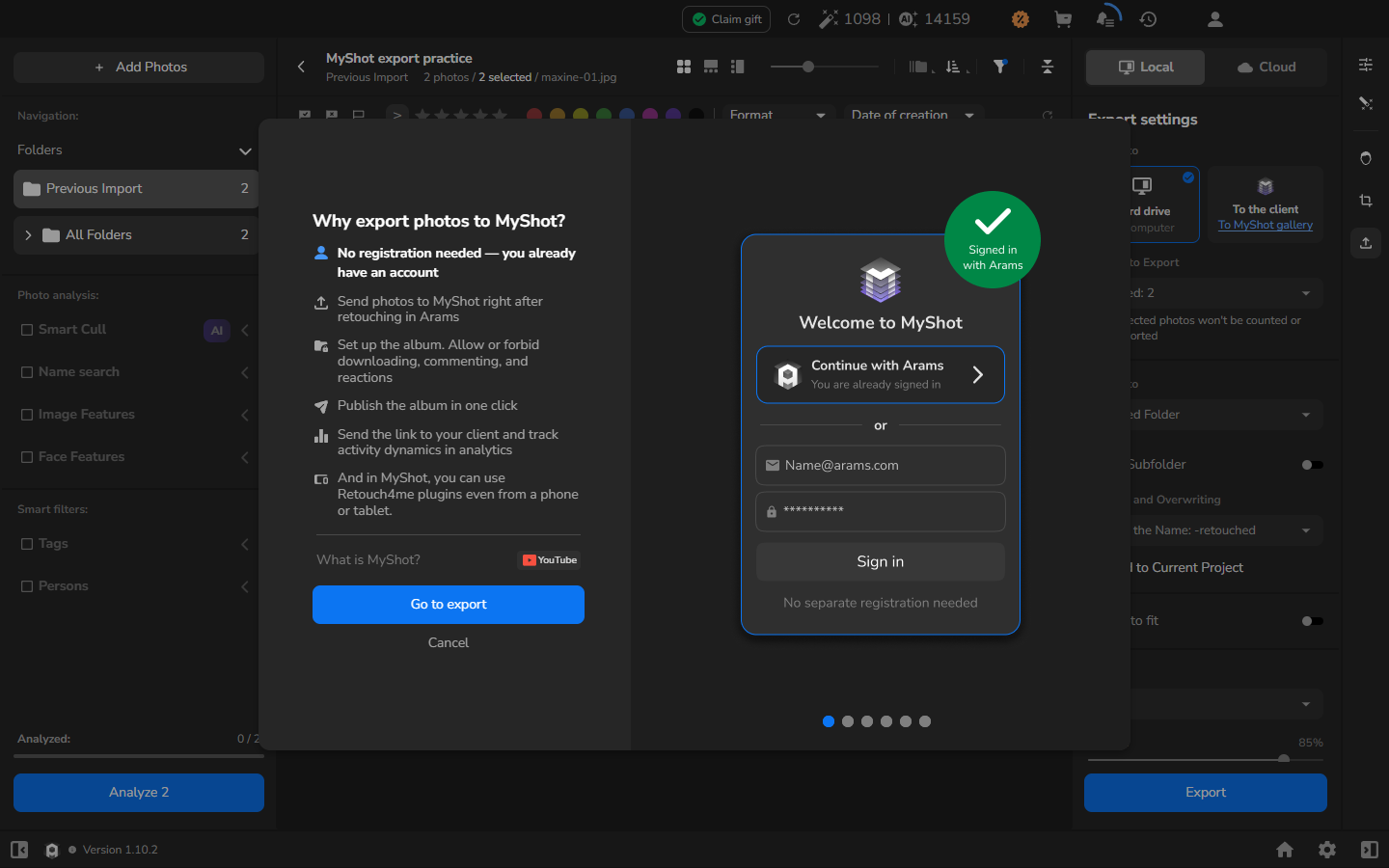
- If the MyShot introduction opens, review it and select Go to export. Arams can hand the signed-in account to MyShot without a separate registration step.
Choose the album and review the delivery
Section titled “Choose the album and review the delivery”- Under Photos to Export, choose the selected photographs and make sure the Selected count and visible thumbnails match the delivery.
- Under Upload settings, open Export album and choose the destination album.
- Check Available space. If it is insufficient, reduce the selection or use another destination you are allowed to upload to; the upload does not make room automatically.
- Set Quality for this delivery. A lower value can reduce transfer and storage use; use a higher value when the client needs to inspect photographs more closely. The displayed value is an example, not a universal recommendation.
Upload and follow progress
Section titled “Upload and follow progress”- When the album, selection, available space, and quality are correct, select Export.
- Open export history with the history/clock icon in the top bar. Wait for the new Export task to show Completed and 100%, then check that it names the intended album and photograph count.
- Open MyShot with the same account and confirm that the new photographs are in the destination album. The delivery is complete when the Arams task has finished and the photographs appear in that album.
Verify the photographs in MyShot
Section titled “Verify the photographs in MyShot”The full-viewer check below is optional. Use it before sharing when you need to judge processing or delivery quality, or when an important photograph deserves closer inspection.
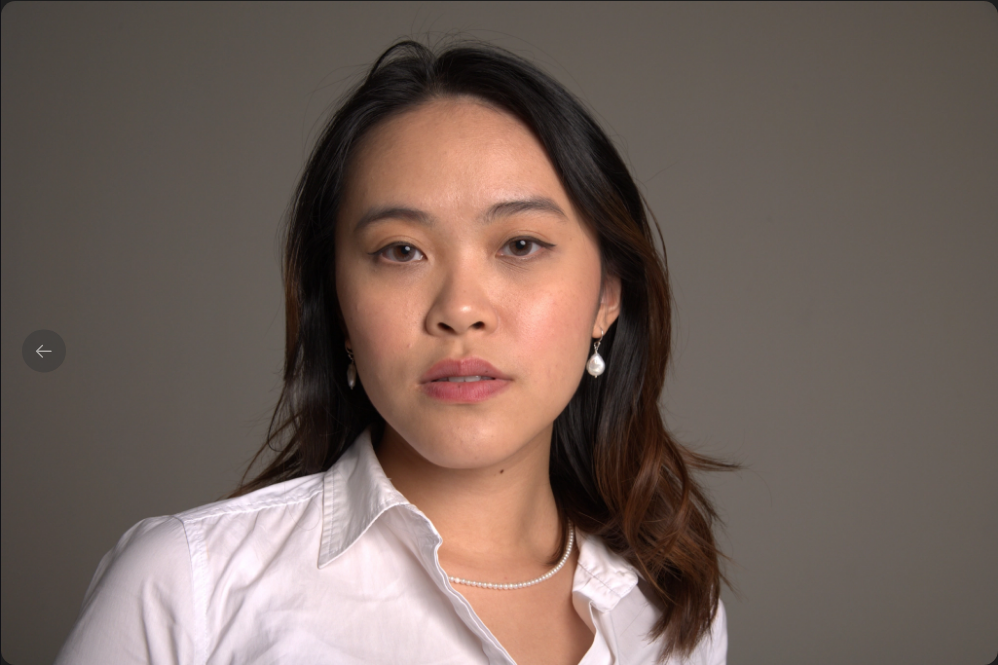
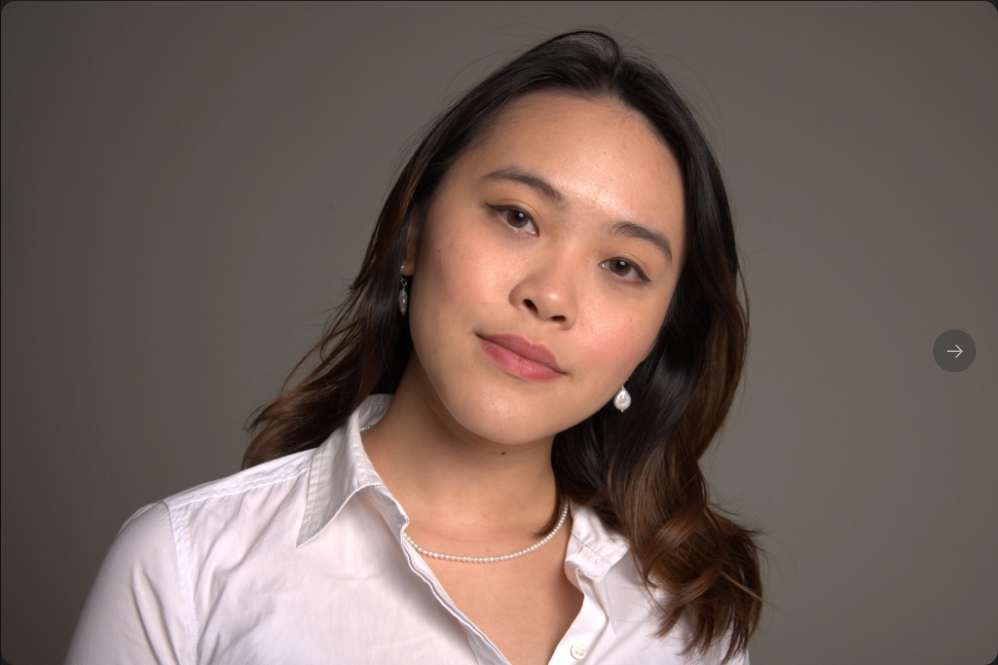
- In the destination album, open a photograph you want to inspect in the full viewer.
- Check that it is the intended photograph, displays completely, and is sharp enough for the delivery.
- Preview as many photographs as the delivery requires. If a result is unsuitable, return to the source project and revise the processing or Quality choice before exporting a clearly identified replacement.
Review access before sharing
Section titled “Review access before sharing”Uploading and sharing are separate decisions. If you intend to give a client access, open the album’s Access settings in MyShot. Choose whether to enable Allow comment, Allow reaction, Allow download, Show avatar, or Access by contact according to your agreement with the client. Enable Moderated only when unapproved photographs should remain hidden until you approve them.
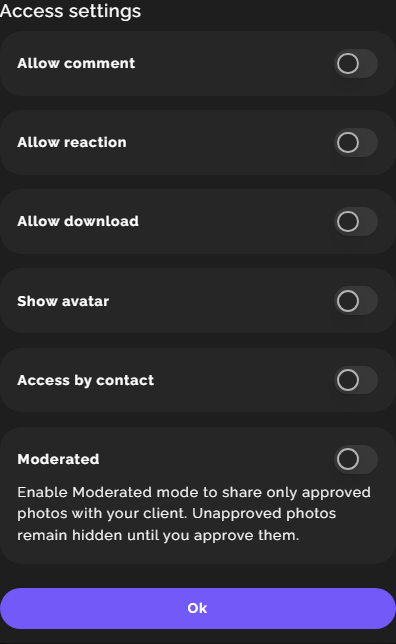
The switches shown above are an example, not a recommendation. Share a link only when the album contents and access settings are ready.
Retry and cancellation limits
Section titled “Retry and cancellation limits”If the task and album do not seem to agree, reopen Export settings, choose To the client — To MyShot gallery, and open the Export album list. Compare the album name and photograph count with the completed task, then inspect that album in MyShot.
If it does not work
Section titled “If it does not work”- MyShot does not show the account handoff: confirm that you are signed in to the intended Arams account, then reopen Export settings.
- The destination album is missing: check the MyShot account and album first. Avoid choosing a similarly named album simply to continue.
- The selected count is wrong: close the settings, rebuild the selection, and reopen Export settings. Rejected photographs are excluded.
- Available space is insufficient: reduce the selection or save the photographs to your hard drive instead.
- The task fails or appears to stall: inspect the destination album before retrying. Start another export only after confirming that the intended photographs are absent; repeating a completed export can create duplicates.
- Arams reports completion but the photographs are not where expected: use the comparison above before retrying.
- An uploaded photograph looks wrong: do not share it. Correct the processing or Quality choice and create a clearly identified replacement delivery.
Closing settings or leaving the project is not a confirmed way to cancel an upload. Check the task and destination before trying again. Removing task history also does not remove photographs from MyShot.