Sign in to Arams
When Arams opens to the sign-in screen, sign in to reach the workspace and start a project for your photos.
Before you start
Section titled “Before you start”You need Arams installed, an internet connection, and an existing account with an email address and password.
Sign in
Section titled “Sign in”If you use an email address and password for your account, use the E-mail and Password fields below the or divider.
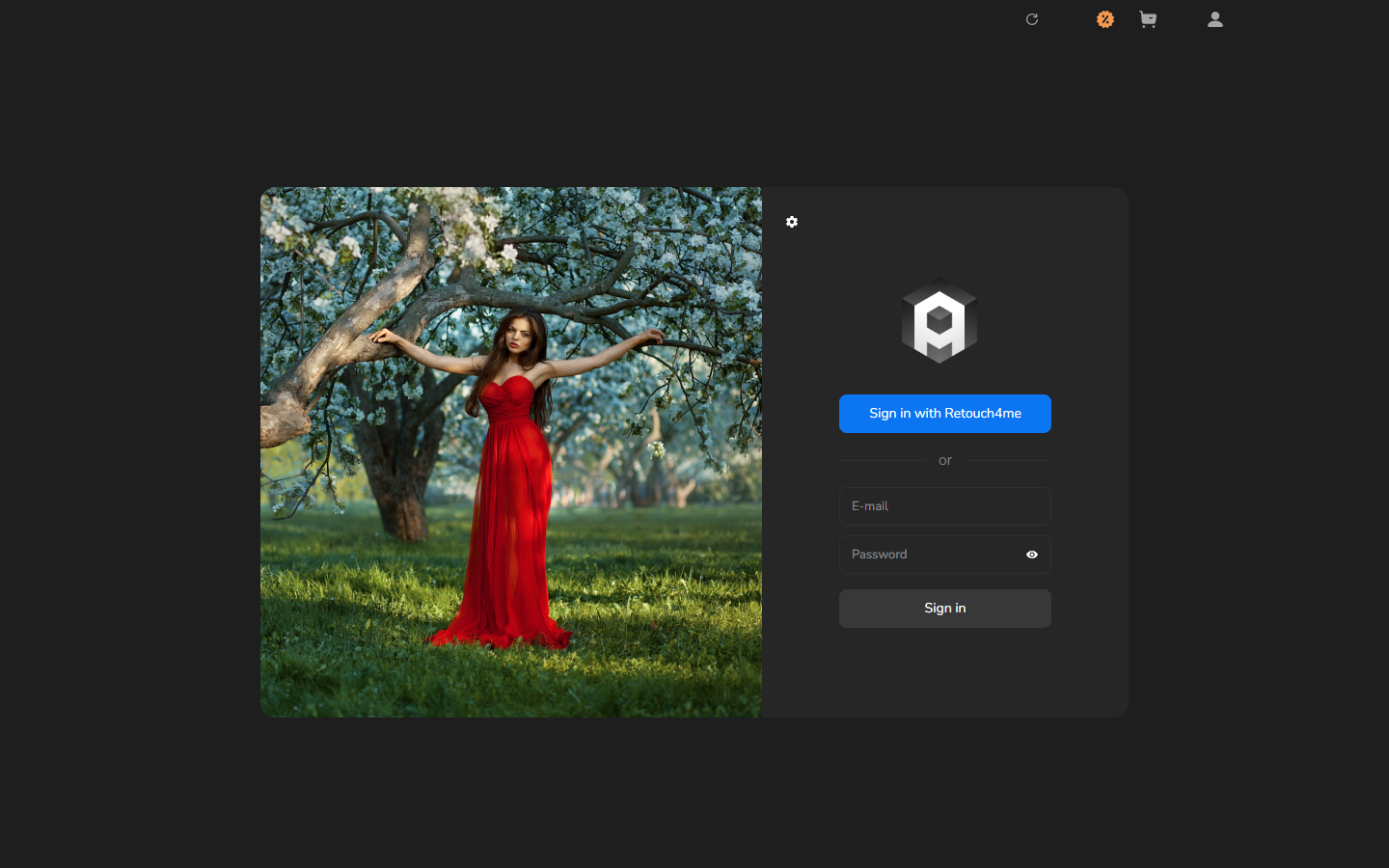
- Open Arams. If the What’s new in version dialog appears, close it with OK.
- On the sign-in screen, enter your email address in E-mail.
- Enter your password in Password.
- Click Sign in.
- Wait until the sign-in screen closes and the workspace appears.
Your account email address appears on the right of the workspace. You can now select Create a project or open Settings.