Select and deselect photographs
What you will do
Section titled “What you will do”Select the photographs you want the next action to affect. Start with one photo, then either replace that selection, adjust it one photo at a time, or select every photo in the grid. When you no longer need an active selection, you can clear it without removing any photographs from the project.
Before you start
Section titled “Before you start”Open a project with imported photos visible in the grid. Keep the grid active when using the keyboard shortcuts below. These shortcuts apply to Windows.
Select one photograph
Section titled “Select one photograph”Click a photo card once. This replaces any existing selection with that photo. The counter below the project name shows 1 selected, and the selected card has a blue outline.
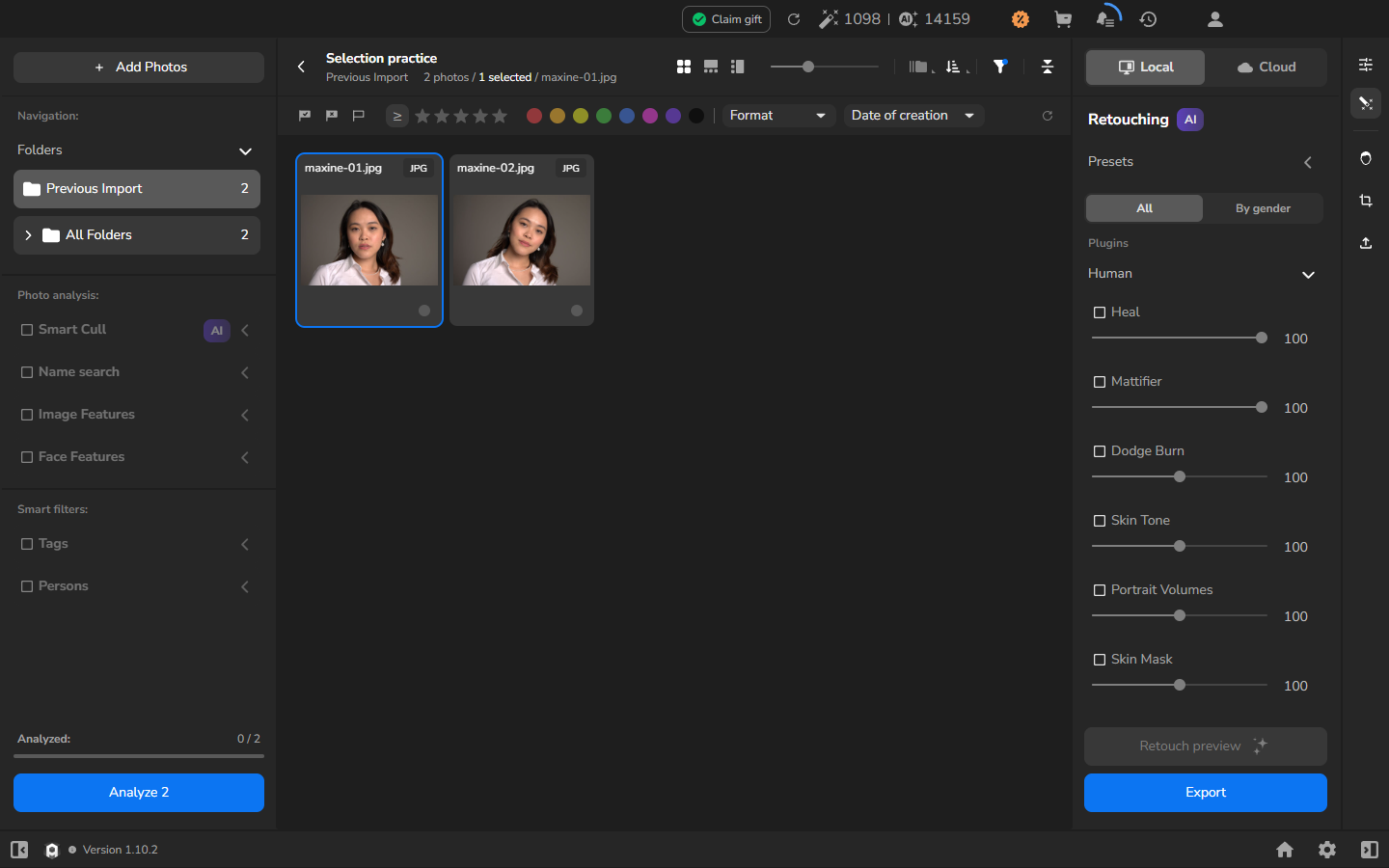
Add or remove an individual photograph
Section titled “Add or remove an individual photograph”Use Ctrl-click when you want to keep the rest of the selection and change only one photo. A plain click is faster when you want to discard the current group and start again with one photo.
- Hold Ctrl and click an unselected photo. The photo is added to the selection, and the selected counter increases.
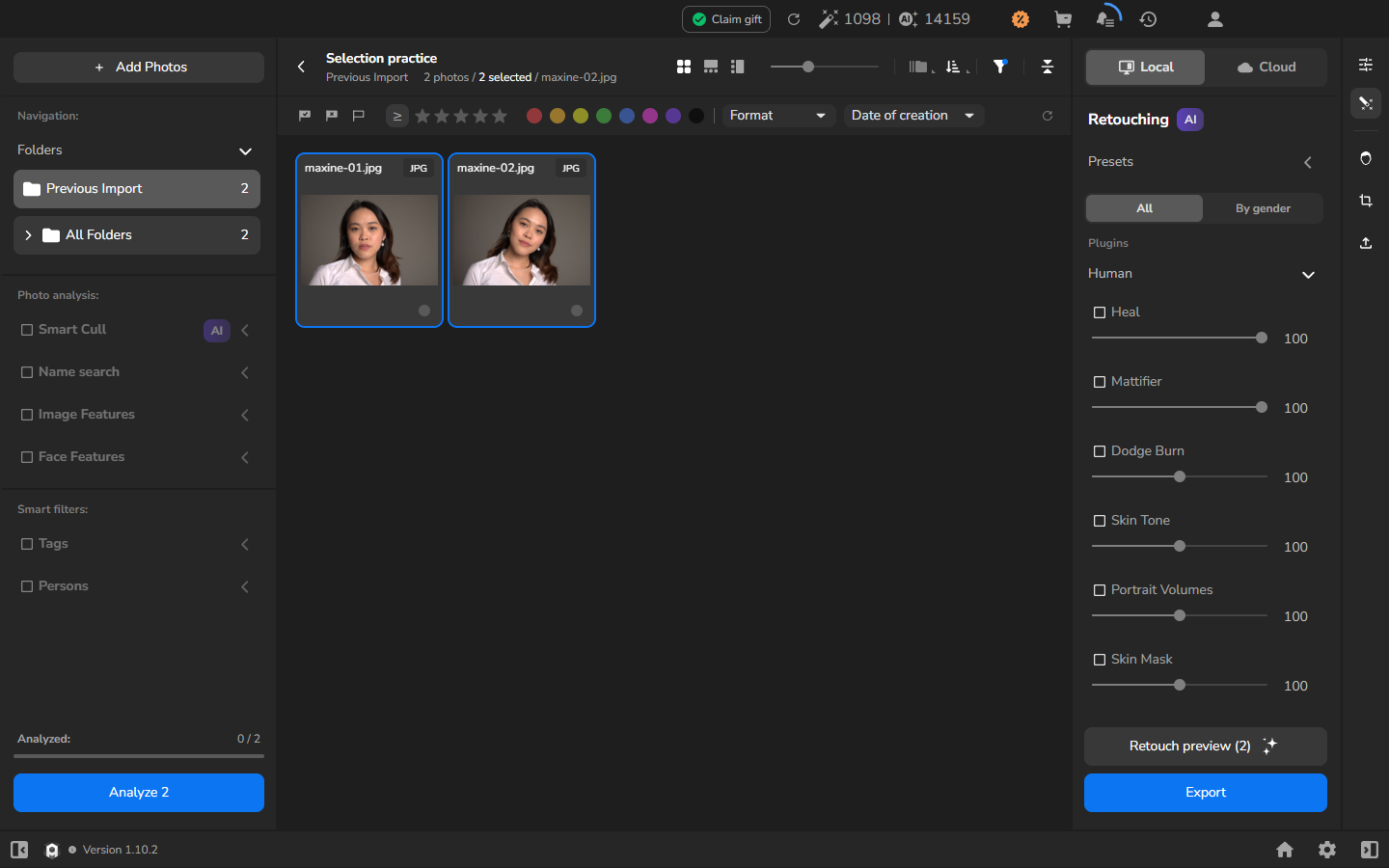
- To remove one photo from the group, hold Ctrl and click the selected photo.
- To replace the group with a single photo, click that photo without holding Ctrl.
Select all and clear the selection
Section titled “Select all and clear the selection”- If the next action should affect every photo currently in the grid, keep the grid active and press Ctrl+A.
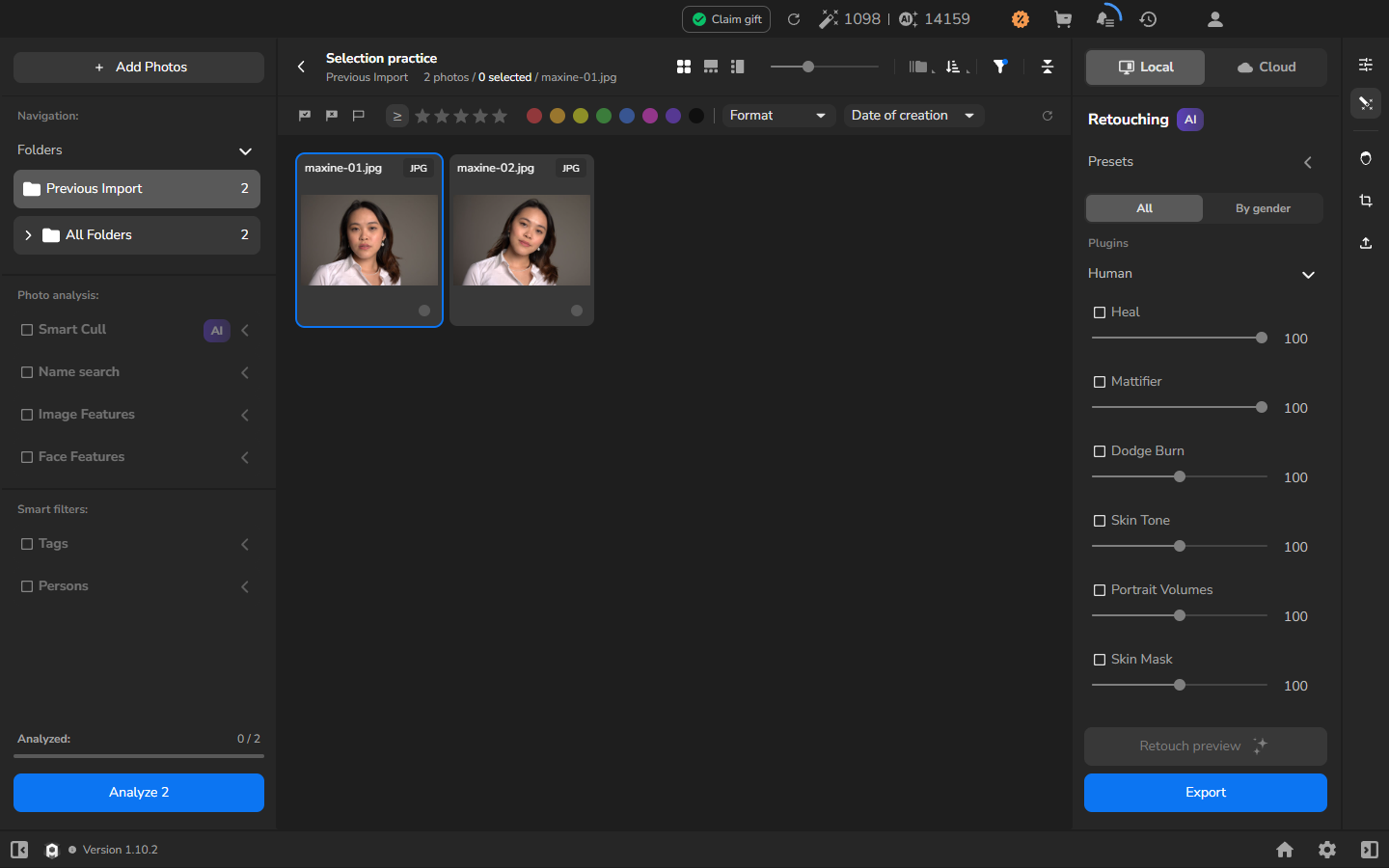
- When you no longer want any photos selected, press Ctrl+D. The counter reads 0 selected, and the photographs remain in the project.
Check the result
Section titled “Check the result”The selection is ready when the selected counter below the project name matches the number of photos you intend to use. A blue outline can remain on the first card after you press Ctrl+D. In that case, 0 selected is the completion signal: the selection is empty, and the photos are still in the project.
If it does not work
Section titled “If it does not work”- Clicking another photo replaces your selection: hold Ctrl while clicking to add that photo. A plain click selects it alone.
- You removed a photo from the selection by mistake: Ctrl-click that photo again to add it back.
- The grid is empty: import photos before trying these steps. Wait until their thumbnails and filenames appear.