General settings
Check your account and choose a language
Section titled “Check your account and choose a language”Open General when you want to confirm which account is signed in, check the available credit balances, or change the interface language. You can review the page without changing any settings. It also shows where to find the automatic analysis and filter options.
Before you start
Section titled “Before you start”Sign in to Arams. The instructions below use the English interface labels.
- On the home screen, click Settings on the right.
- Make sure General is selected in the left menu.
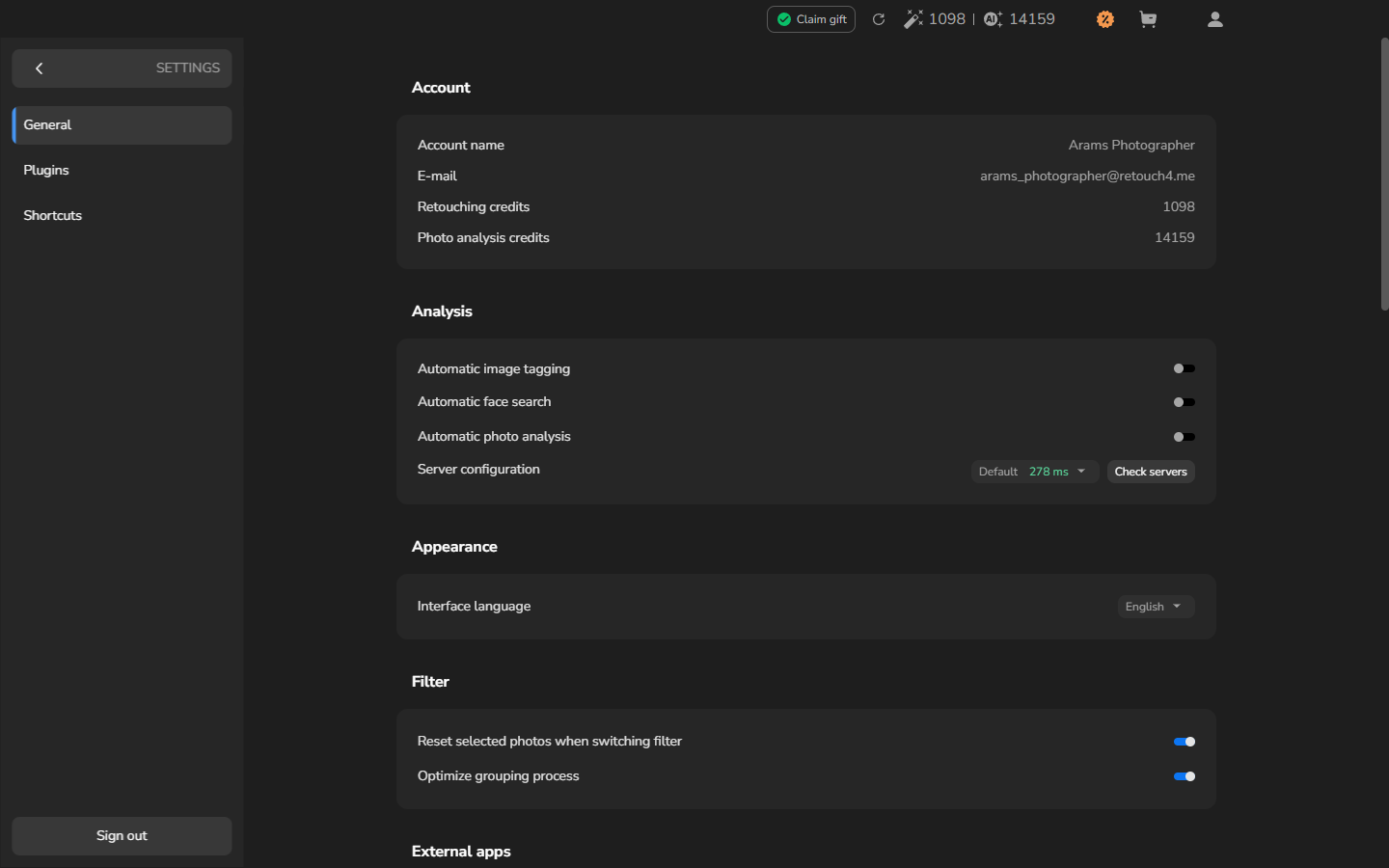
- In Account, check Account name and E-mail to confirm that you are using the intended account. Retouching credits and Photo analysis credits are separate balances, so check the one that applies to the work you plan to do.
Optional: change the interface language
Section titled “Optional: change the interface language”If you only needed to review the account or credit balances, leave Interface language unchanged.
In Appearance, open Interface language and choose the language you want to use. The settings labels change immediately.
Return to the workspace
Section titled “Return to the workspace”Click the left arrow at the top of the menu, beside SETTINGS. You are finished when the workspace reappears; if you selected another language, its labels now appear there.
What the section shows
Section titled “What the section shows”| Section | Fields and controls |
|---|---|
| Account | Account name, E-mail, Retouching credits, and Photo analysis credits |
| Analysis | Automatic image tagging, Automatic face search, Automatic photo analysis, Server configuration |
| Appearance | Interface language |
| Filter | Reset selected photos when switching filter, Optimize grouping process |
Credit balances belong to the current account. The balances and displayed server response time can change over time. The controls are listed for orientation; the steps above do not change the analysis, filter, or server settings.
If it does not work
Section titled “If it does not work”To return to the workspace without ending your session, use the arrow beside SETTINGS, not Sign out. To restore the English interface, reopen the language selector and choose English.