Use the Arams plugin with Lightroom
Use this workflow to select photographs in your Lightroom Classic catalog, retouch them in Arams, and save the finished files to a folder you choose. The transfer is one way: Arams does not add the saved results to the Lightroom Classic catalog automatically.
This workflow is for Lightroom Classic. The cloud-based Lightroom application is a different product and does not use this Lightroom Classic plugin workflow.
Check that the plugin is ready
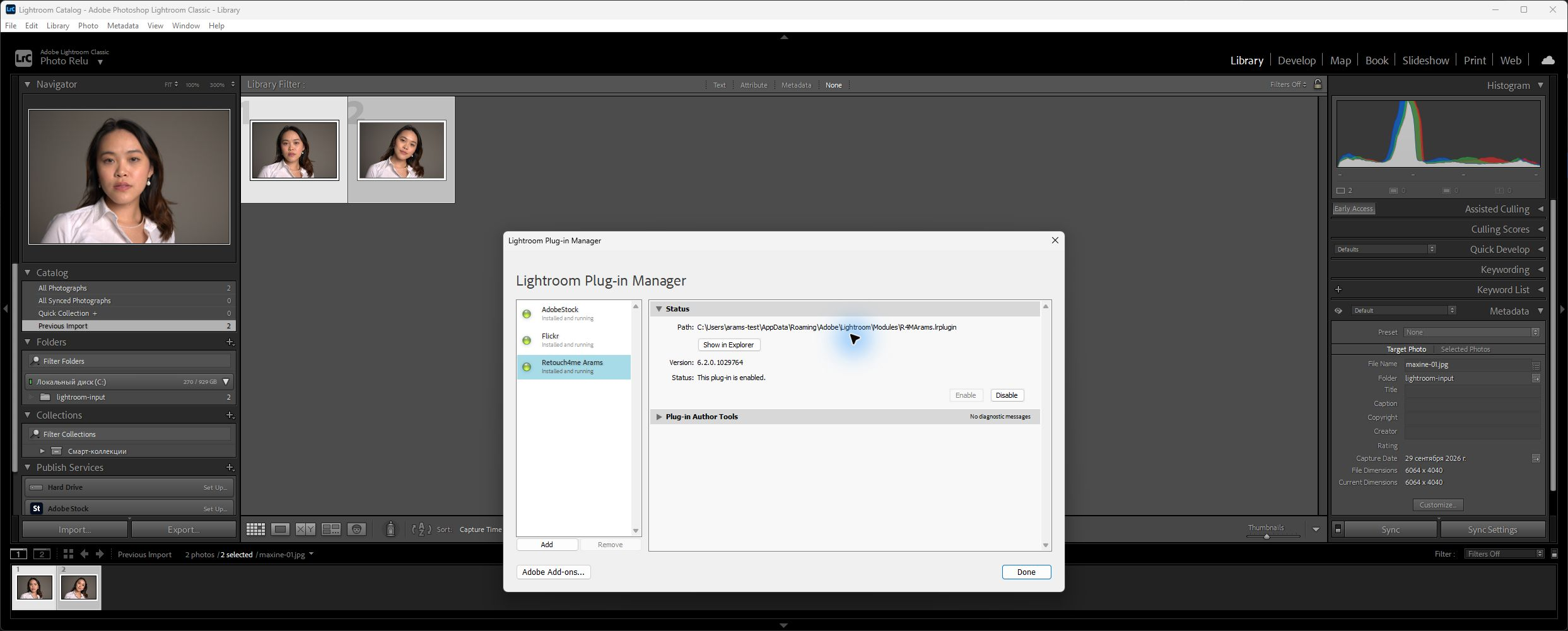
Section titled “Check that the plugin is ready”You need the enabled Retouch4me Arams plugin. If Export to Retouch4me Arams already appears under File → Plug-in Extras, continue to Send photographs to Arams. For a first use, or if the command is missing:
- Open File → Plug-in Manager in Lightroom Classic.
- Select Retouch4me Arams.
- Check that the status says This plug-in is enabled.
- If the plugin is disabled, select it and use Enable. If it is absent or reports a load error, see If it does not work.
Send photographs to Arams
Section titled “Send photographs to Arams”The plugin sends the selected source files as they are stored on disk; it does not render Lightroom Classic catalog adjustments into them. If you want those adjustments in the files that Arams receives, first create rendered copies in Lightroom Classic and select the copies instead.
- In Lightroom Classic, select the photographs you want to retouch.
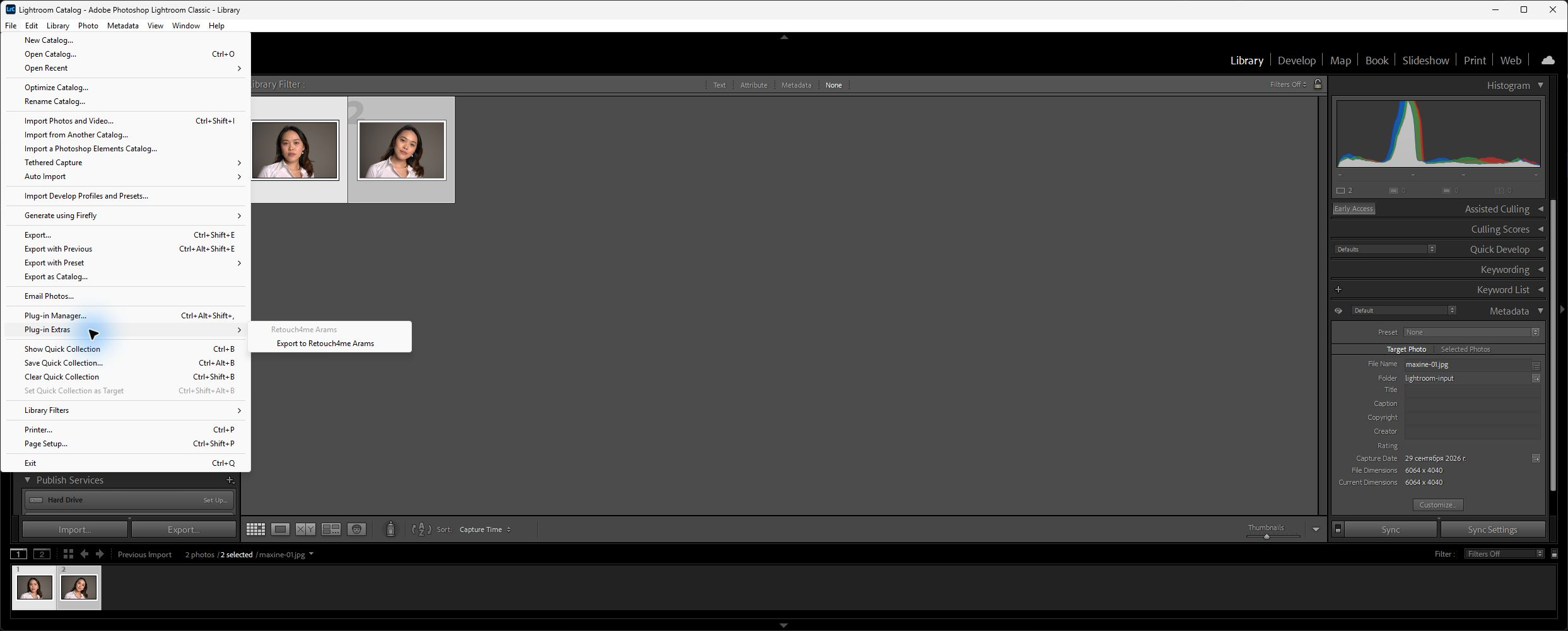
- Choose File → Plug-in Extras → Export to Retouch4me Arams.
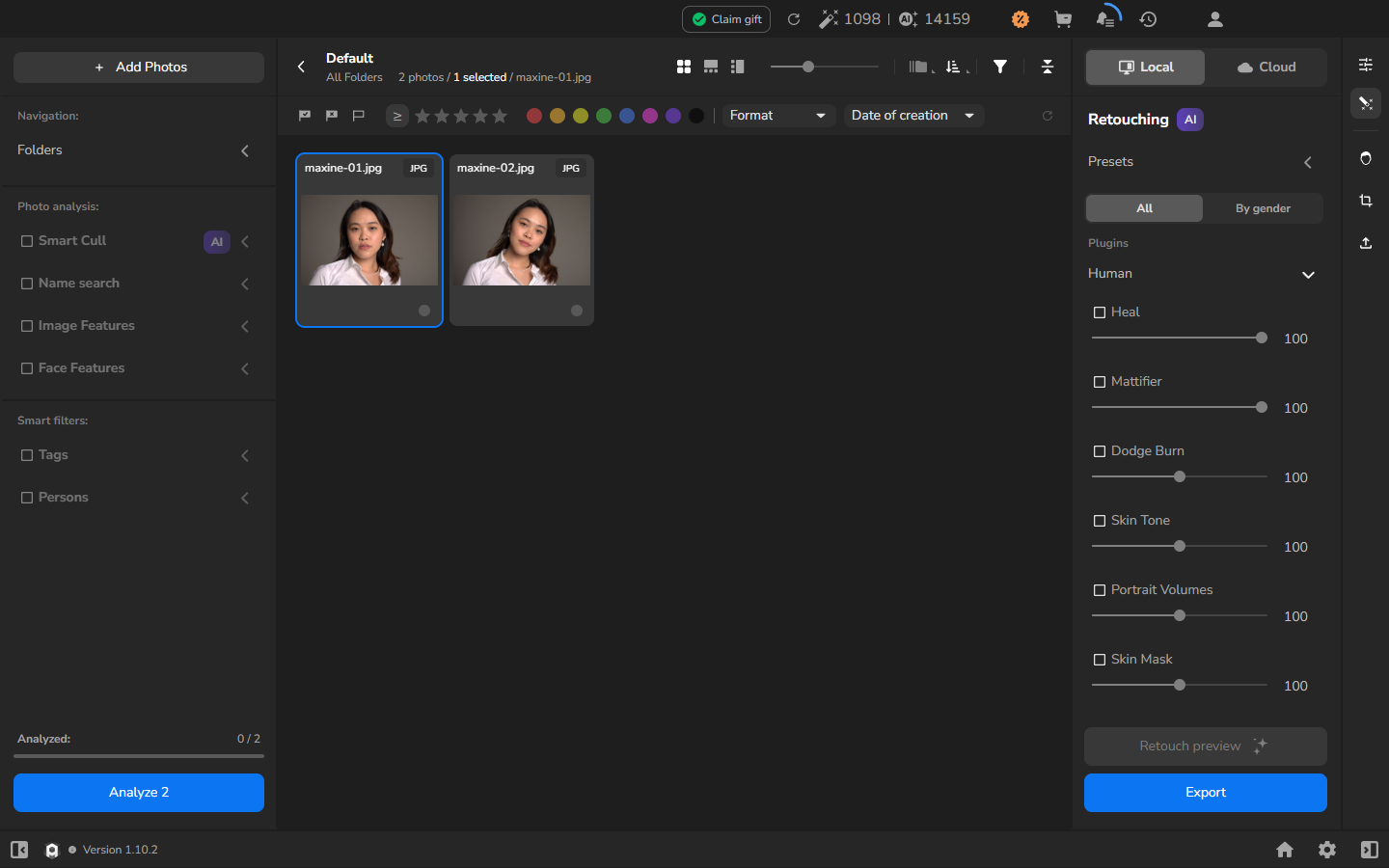
- Wait for Arams to open and display the transferred photographs. Check that the filenames and photograph count match your selection.
Retouch and save a result
Section titled “Retouch and save a result”- In Arams, select the photographs you want to process.
- Choose Local or another processing mode available to your account. Enable every retouching plugin you want in the saved result, and adjust each amount while watching the affected detail. Lower an amount if the result removes texture or character you want to keep.
- Open the export settings and choose Hard drive.
- Choose which photographs to export, the destination, filename, and format. To keep the Lightroom source folder organized, you can save to a new subfolder. Leave Resize to fit off if you want to preserve the original pixel dimensions.
- Select Export and wait for the files to be written to the chosen folder.
The saved results remain in the folder chosen in Arams. Import them separately if you want to manage them in the Lightroom Classic catalog.
Optional: preview the saved result
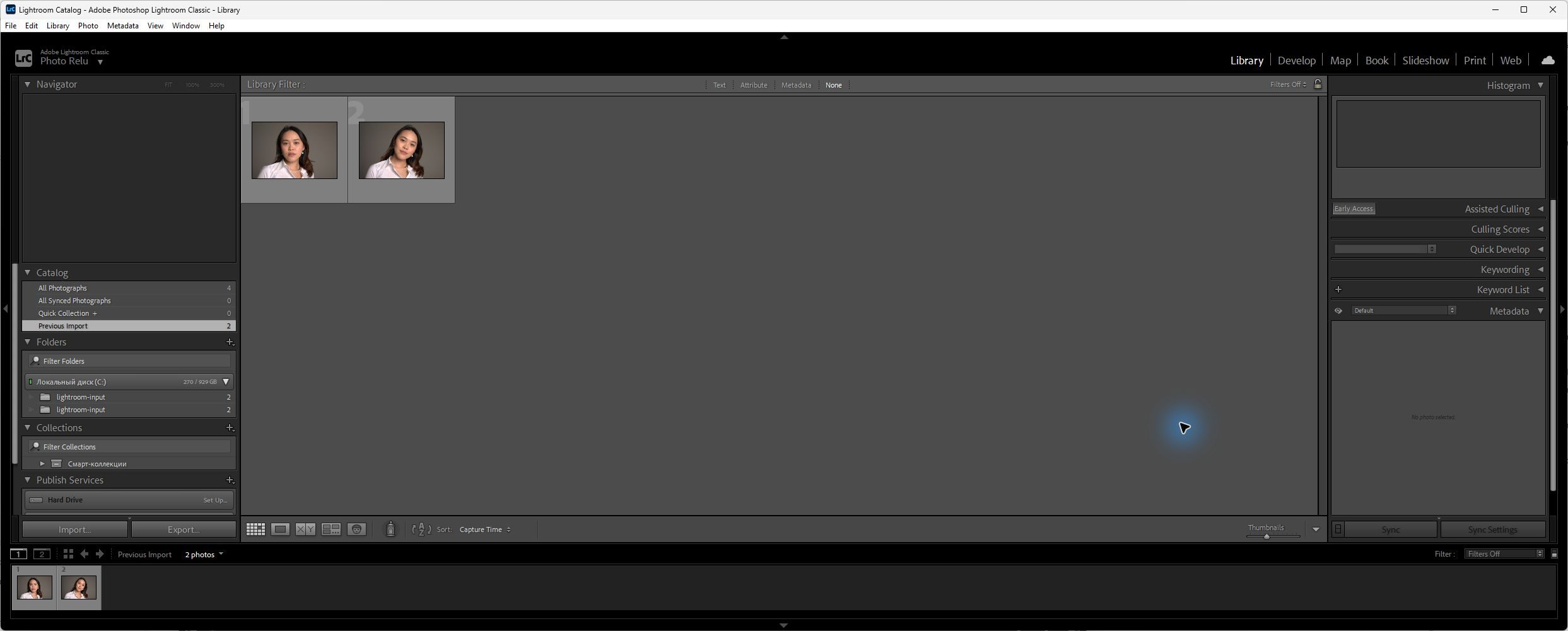
Section titled “Optional: preview the saved result”This preview is optional; the export is complete when the files have been written to the chosen folder. Before importing or delivering a result, you can open it at a useful magnification and inspect the whole frame and the detailed areas affected by retouching. If you want to change the effect, adjust the enabled plugins in Arams and export again.
If it does not work
Section titled “If it does not work”- Retouch4me Arams is missing from Plug-in Manager: start Arams once, close and reopen Lightroom Classic, then check File → Plug-in Manager again. If the entry is still absent, update or reinstall Arams through its normal installer rather than copying plugin files between user profiles.
- The plugin is present but disabled: select Retouch4me Arams in Plug-in Manager and choose Enable. Preserve any load-error message if Lightroom Classic cannot enable it.
- Export to Retouch4me Arams is missing: confirm that you are using Lightroom Classic, that the plugin is enabled, and that you are looking under File → Plug-in Extras.
- Arams opens without all selected photographs: wait for the current transfer to finish. Then return to Lightroom Classic, select the missing photographs, and invoke the command again.
- A saved result does not appear in Lightroom Classic: this workflow does not add the exported file to the catalog automatically. Locate the folder selected in Arams and import the result into Lightroom Classic if you want it in the catalog.
- Processing is unavailable: use a plugin and processing mode already available to your account. Check plugin availability separately from the photo transfer.