Keep projects and source photographs available
What you will do
Section titled “What you will do”Keep a project usable by leaving imported source photographs where Arams expects to find them. If a photograph becomes unavailable after it is moved or renamed, you can restore its original path without importing it again.
Before you start
Section titled “Before you start”Sign in to Arams and open the affected project. Do not move or rename a source to test this procedure. The unavailable state below is shown only so that you can recognize it if it occurs.
Distinguish project data, sources, and exports
Section titled “Distinguish project data, sources, and exports”Before moving any project-related file, identify which kind of file it is:
- Project data is the catalog and other application-managed information. On Windows, a project created with Location set to Default stores this data below Pictures\Retouch4me Arams\Projects, including a hidden .retouch4me folder. Let Arams manage these files.
- Source photographs are the files you import. Importing does not move them into project storage. Keep them at the imported path so that Arams can continue to read them.
- Exported copies are new files created by an export. Their location, names, and dimensions depend on your export settings. They do not replace the imported sources or restore an unavailable source path.
This project view shows photographic thumbnails before a source was moved:
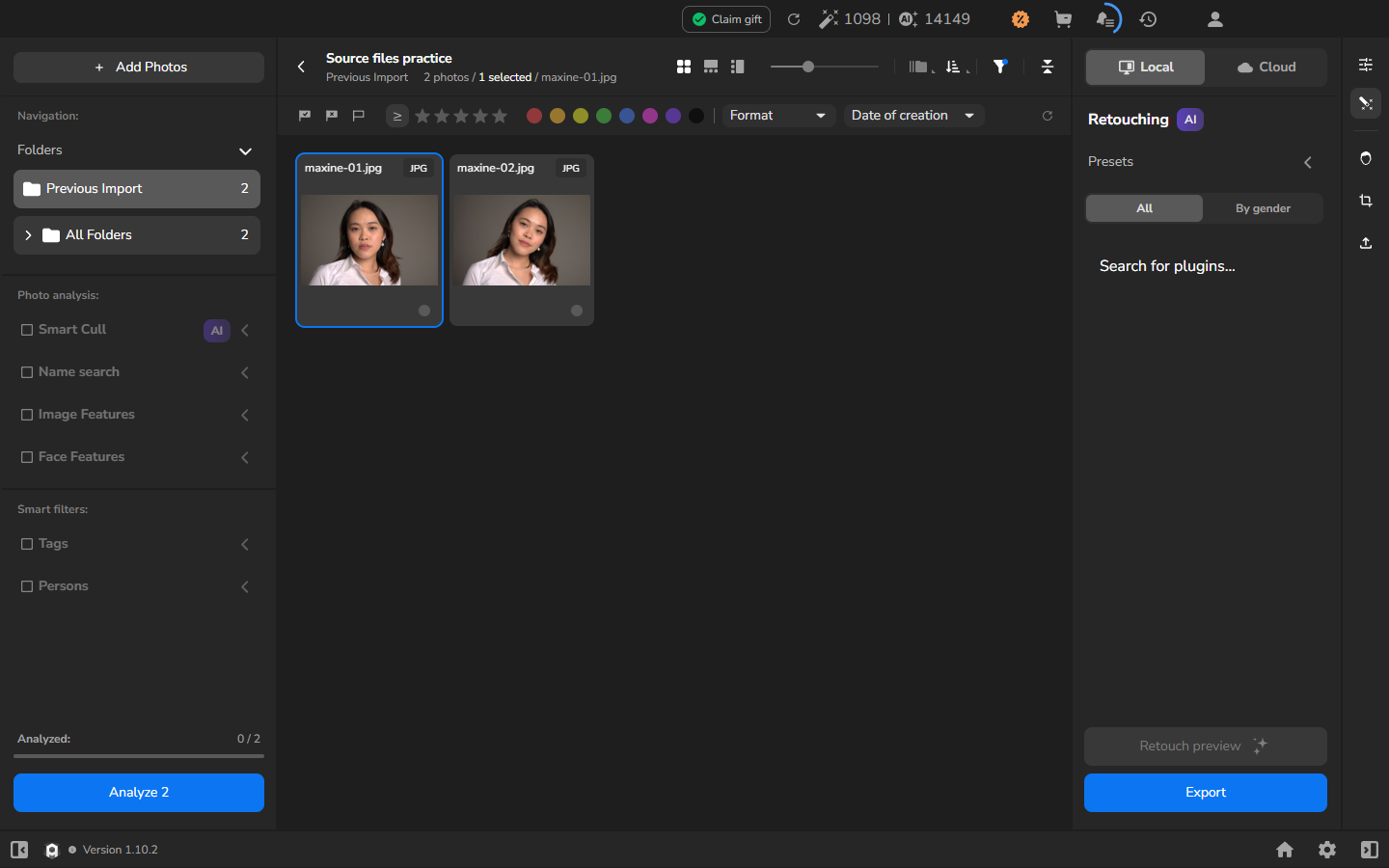
If your sources remain at their imported paths and Arams has not marked any as unavailable, no path recovery is needed. A normal thumbnail alone does not prove that a source is still available. For export instructions, see Prepare files for delivery. Do not move, rename, or delete files inside .retouch4me.
Recognize an unavailable source
Section titled “Recognize an unavailable source”If an imported source photograph has been moved or renamed outside Arams, its card remains in the project but appears dimmed, with an unavailable-image symbol over the cached preview. Other available photographs continue to appear normally. In this project view, Arams does not show a separate error message or a control for choosing the file at a new location.
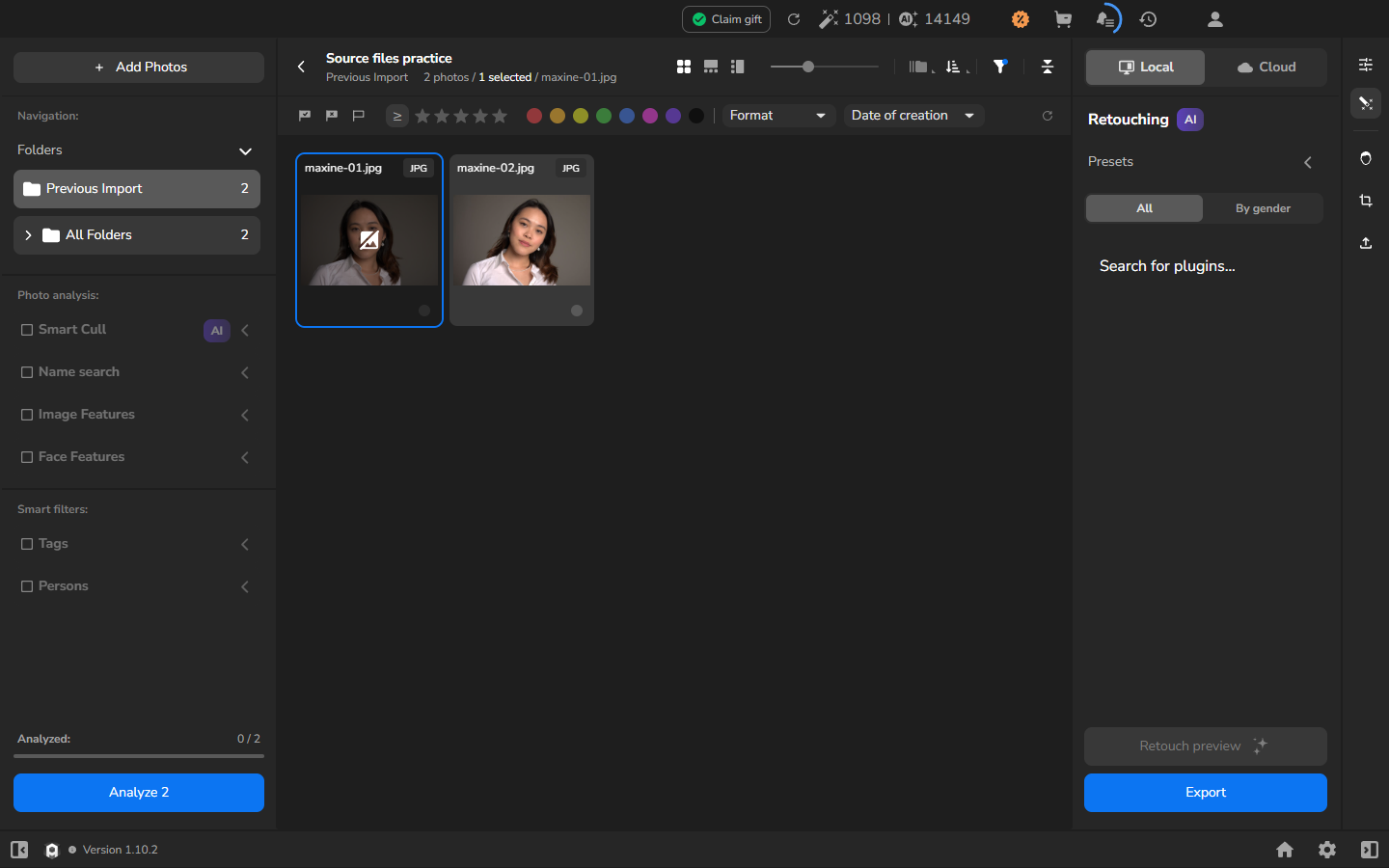
A cached preview, filename, or unchanged photo count does not mean that Arams can still read the full-resolution source. Restore the path before starting analysis, retouching, or export for that photograph.
Restore the exact path and reopen the project
Section titled “Restore the exact path and reopen the project”- Return to the home screen so that the project is closed.
- In Windows File Explorer, return the photograph to its original source folder with its exact imported filename and extension.
- Reopen the project. Do not import the photograph again.
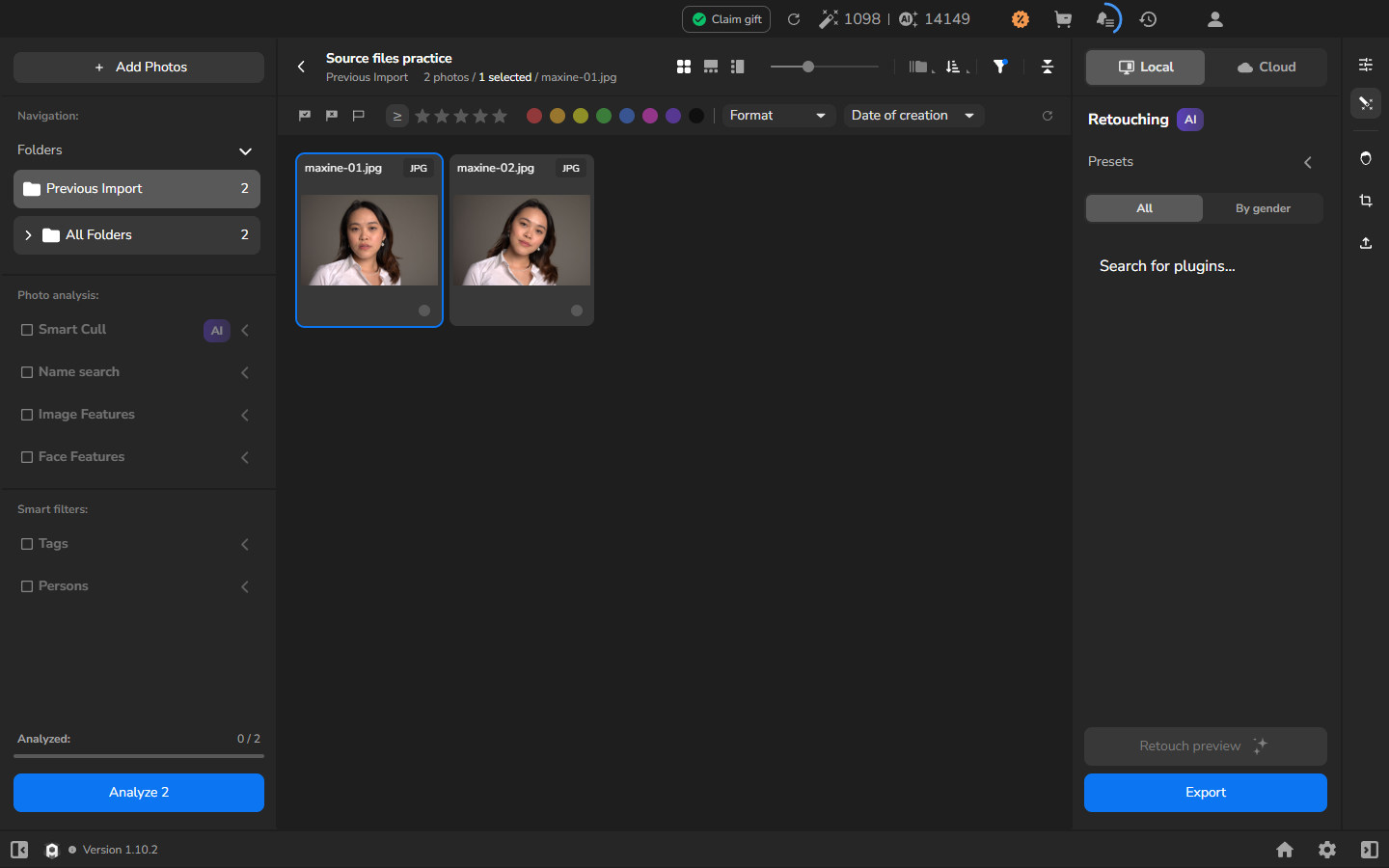
- Wait until its photographic thumbnail has loaded and the unavailable-image symbol has disappeared.
After the exact path is restored, the preview recovers without a separate recovery command.
Check the result
Section titled “Check the result”The recovery is complete when the normal photographic thumbnail appears without the unavailable-image symbol. Arams can read the restored photograph again; the catalog remains in Arams project storage, while the source remains in its original folder.
This procedure covers restoring a source at its original path. It does not establish a workflow for moving a source permanently to a new folder or relinking it from Arams.
If it does not work
Section titled “If it does not work”- The restored card still shows the unavailable-image symbol: check the source folder, exact filename, and file extension. Close and reopen the project after the file is back at its imported path.
- The filename or cached preview remains visible while a source is absent: do not treat either one, or the photo count, as proof that Arams can read the original.
- You moved project data instead of a source photograph: stop. Do not move files inside .retouch4me or attempt catalog repair as part of this procedure.
- You cannot restore the source photograph to its imported path: preserve the file you still have and stop.
- An exported copy is missing: check the destination and naming settings in Prepare files for delivery. Restoring a source path does not recreate an export.