Rate photographs for culling
What you will do
Section titled “What you will do”Use manual star ratings to mark your choices while culling. Decide what each rating means for your workflow, then use the same scale throughout the project so that you can compare individual photographs and groups of similar shots consistently.
Before you start
Section titled “Before you start”Sign in and open a project with photographs visible in the grid.
The keyboard shortcuts below are for Windows. Keep the photo grid active when you use them. Rating does not require Analyze, Retouch preview, or Export.
Choose the first route for one photograph or the second route when several photographs should receive the same rating. The values in these examples illustrate the controls; apply the meaning you chose for your own scale.
Rate one photograph
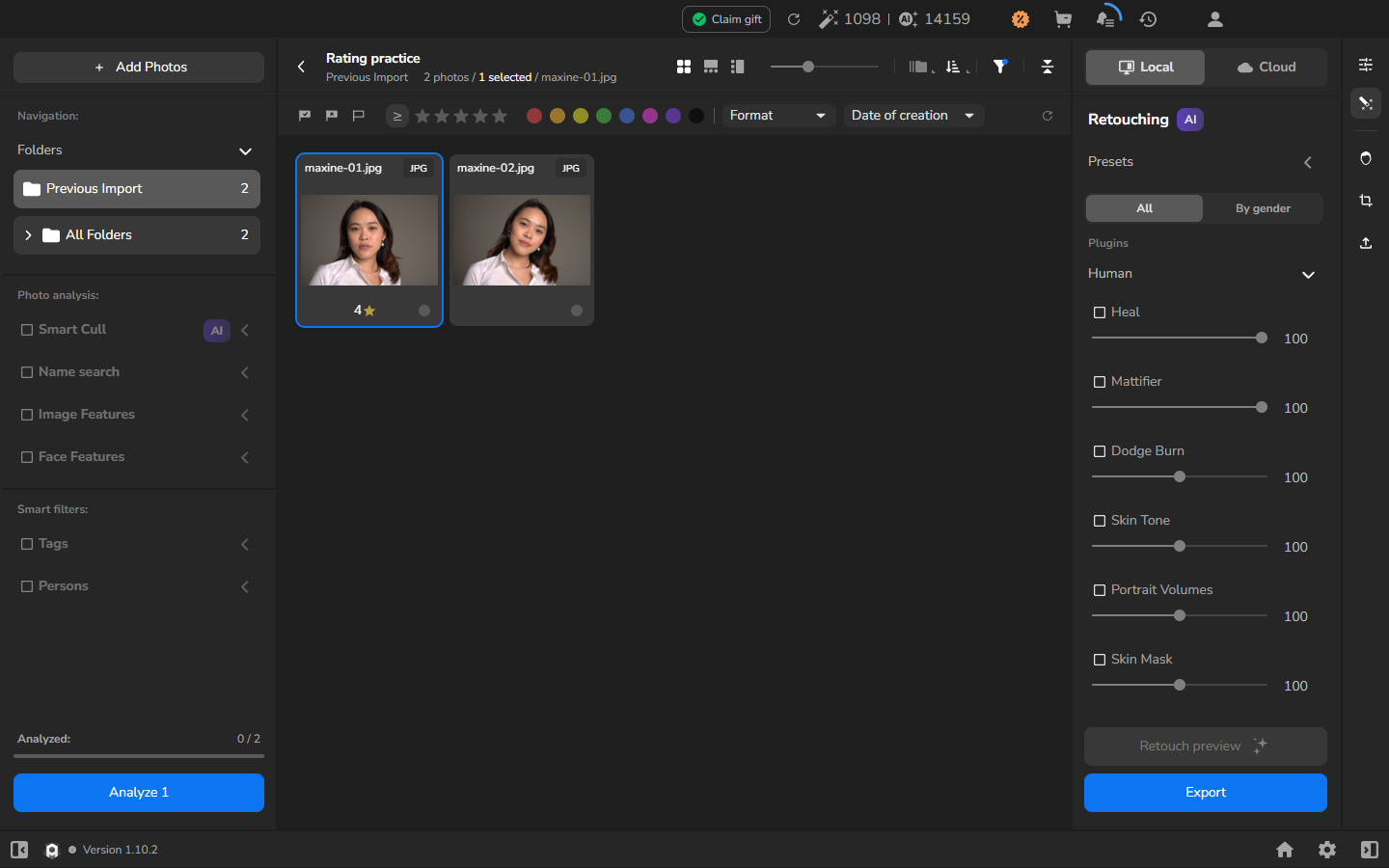
Section titled “Rate one photograph”- Click the photograph’s card once.
- Press 4 to give the selected photograph a rating of four.
The rating appears beneath the thumbnail. In the compact card display shown here, the number appears beside a single gold star.
Give selected photographs the same rating
Section titled “Give selected photographs the same rating”Use this route when a group of photographs should have the same rating.
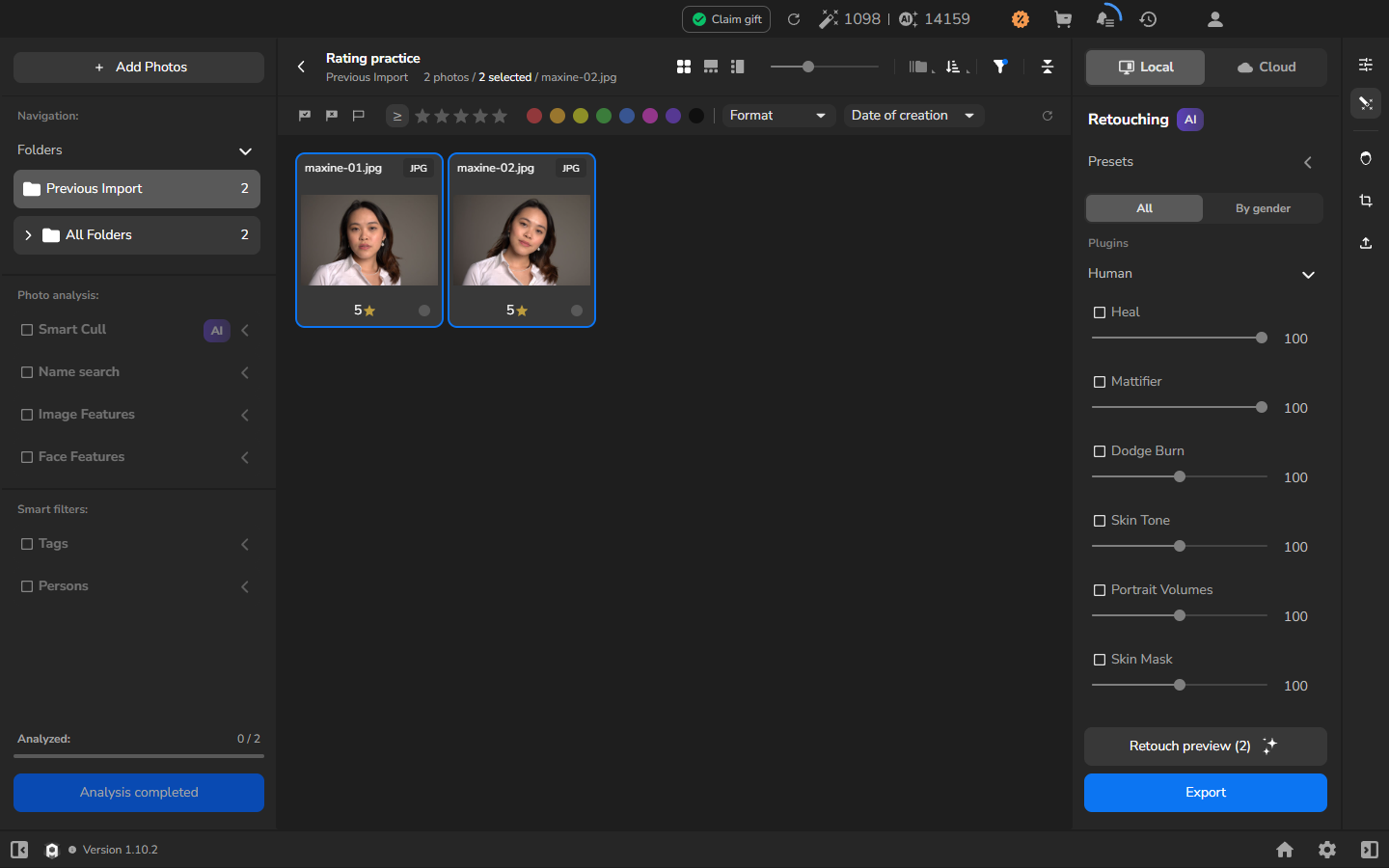
- Click the first photograph that you want to rate.
- Hold Ctrl and click each additional photograph, then release Ctrl.
- Check the selected counter to make sure the group contains only the photographs you intend to rate.
- Press 5. Every selected photograph receives the same rating.
Your rating pass is complete when the intended photographs show the values from your chosen scale.
Change the rating on a card
Section titled “Change the rating on a card”This is optional. Use the card control when a rating needs correcting or you prefer a visible menu to the demonstrated keyboard shortcuts.
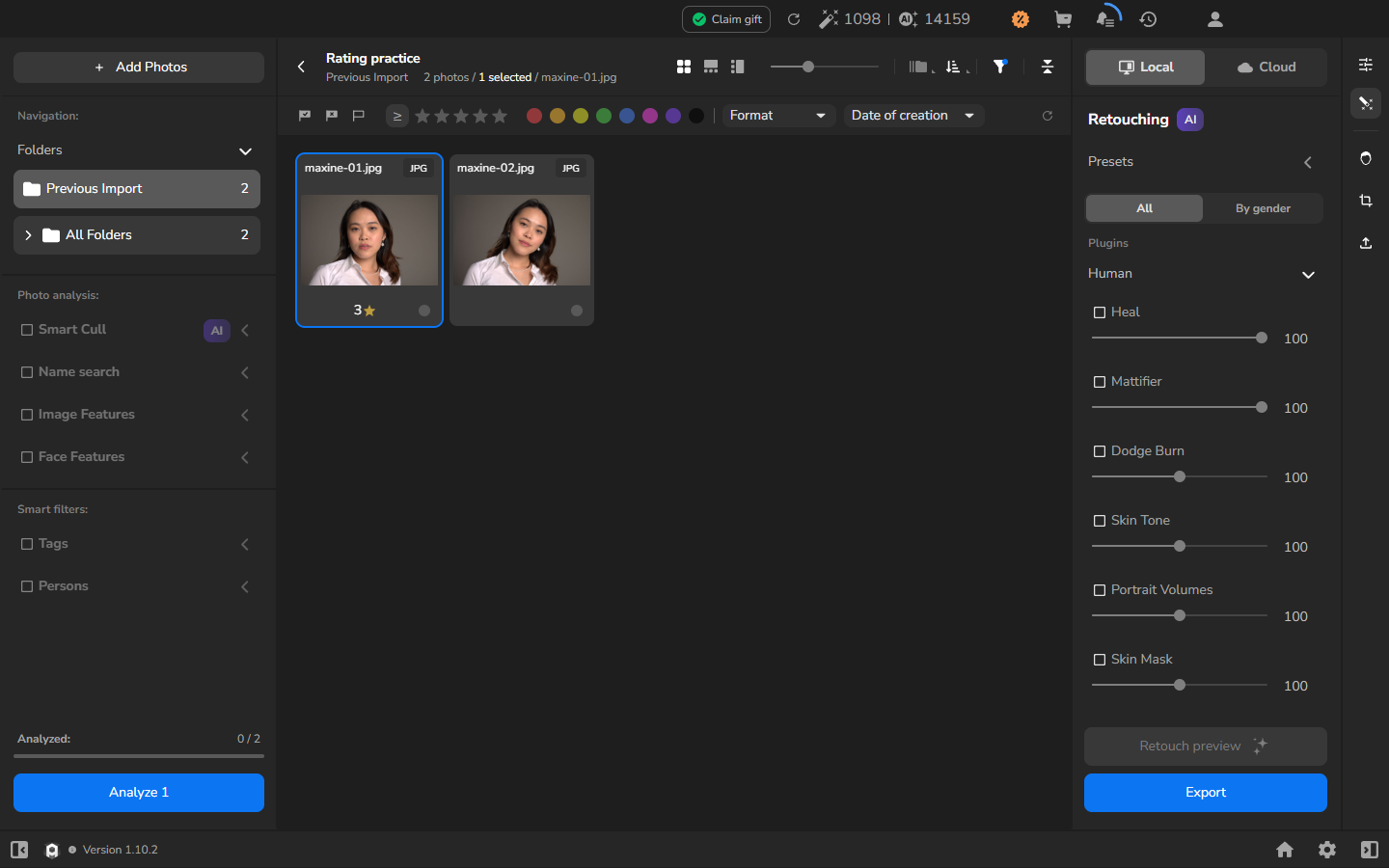
- Click the rating number and gold-star control beneath the photograph.
- Choose 3 from the rating menu.
The card now shows 3 beside the gold star.
Clear the ratings
Section titled “Clear the ratings”Clear ratings only when you no longer want the selected photographs to carry a rating; this is not required to finish a rating pass.
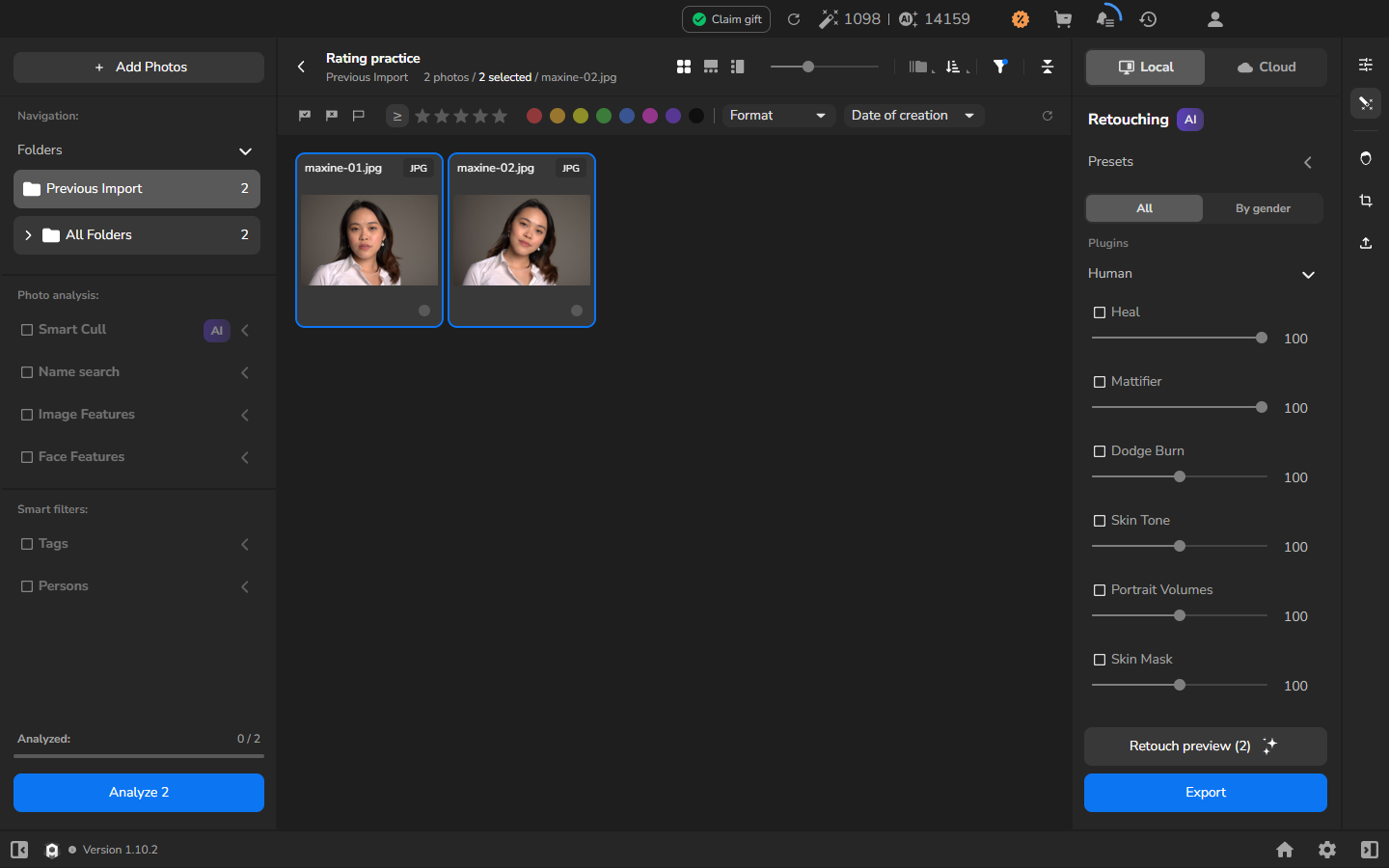
- Select the photographs whose ratings you want to clear.
- Press Shift+Backspace.
The rating numbers and gold stars disappear, but the photographs stay selected and remain in the project.
If it does not work
Section titled “If it does not work”- Several photographs received a rating when you meant to rate one: click the intended photograph without Ctrl before assigning its rating. To clear a rating from another photograph, select that photograph alone and press Shift+Backspace.
- The rating is a number and one star rather than a row of stars: this is the compact card display used in the screenshots. Click that number/star control to change the rating through its menu.
- You cleared ratings by mistake: keep the intended photographs selected and assign the rating again.
- No photographs are visible: import photos and wait for the thumbnails and filenames before continuing.