Exchange ratings and labels through metadata
What you will do
Section titled “What you will do”Write ratings and color labels to XMP sidecar files so that another photo application can read your selections without Arams changing the image files. You can keep the preset label names or adapt them to the terms your team uses.
Before you start
Section titled “Before you start”Sign in to Arams on Windows and import the photographs whose ratings and labels you want to share. For your first exchange with another application, use copies of a few photographs until you have confirmed that it interprets the XMP fields as expected.
Choose how Arams saves metadata
Section titled “Choose how Arams saves metadata”- Click Settings and make sure General is selected.
- Scroll to Metadata sync.
- Open Save metadata to. Arams 1.10.2 offers auto and xmp in this menu.
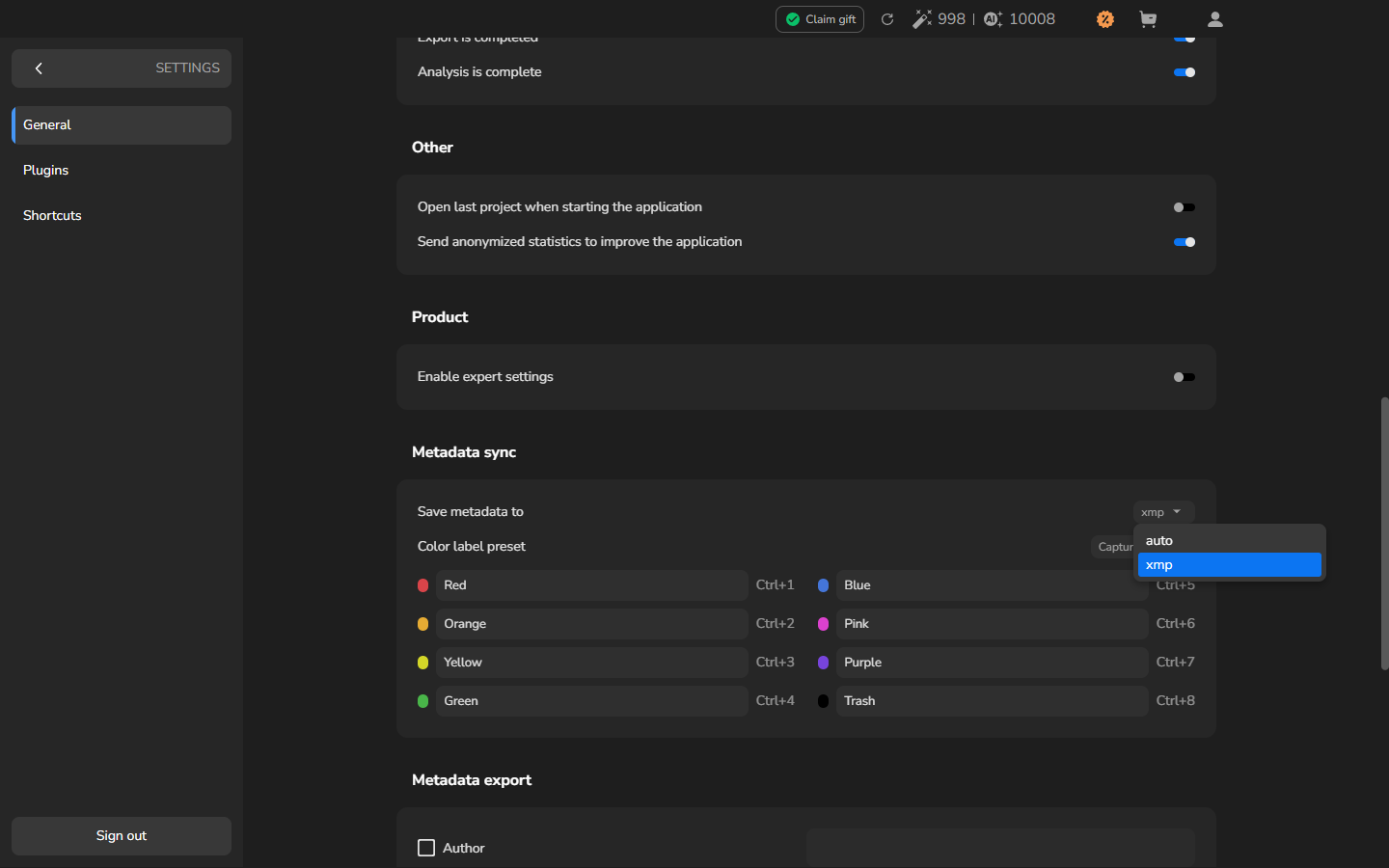
- Choose xmp.
For this workflow, xmp stores the values in separate sidecar files beside your photographs and leaves the image files unchanged.
Optional: Customize color-label names
Section titled “Optional: Customize color-label names”Skip this section if the preset names already match the labels used in your receiving application. Customizing a name changes the text written for that color; colors you do not customize keep their preset names.
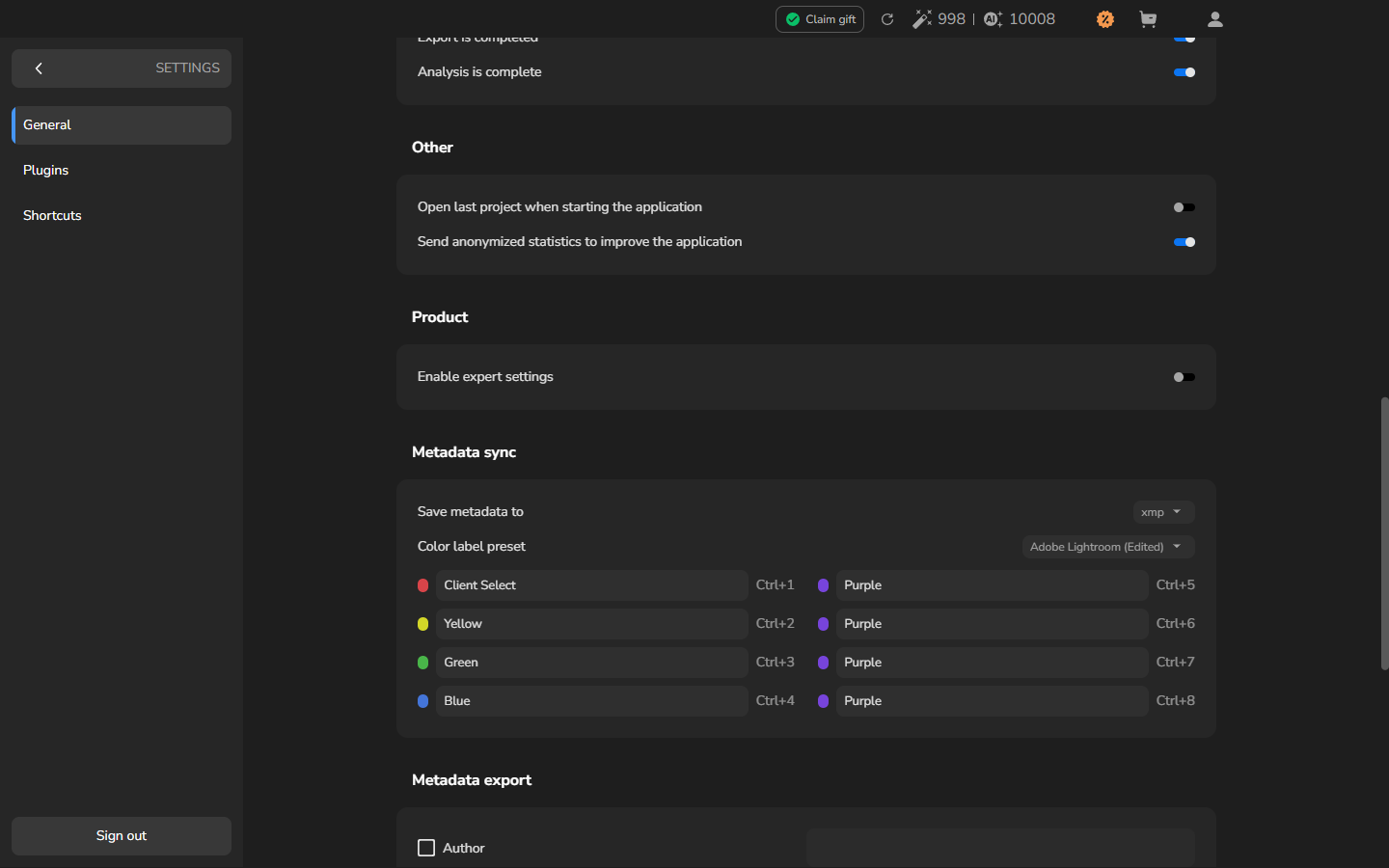
- Under Metadata sync, open Color label preset.
- Choose Adobe Lightroom.
- Replace a label name with the term you use in your workflow, then press Enter. For example, change Red to Client Select.
- Confirm that the new name appears in the field and the preset menu shows Adobe Lightroom (Edited).
Assign ratings and labels
Section titled “Assign ratings and labels”- Return to the home screen and open the project containing your photographs. If you have not added them yet, see Import photos.
- Click a photograph and press a number key to assign its rating.
- Press Ctrl plus a number key to assign a color label. For example, Ctrl+1 applies the first label and Ctrl+2 applies the second.
- Repeat for the photographs whose selections you want to share.
The name configured for each color is the label text written to XMP. If you changed the first label to Client Select, photographs marked with Ctrl+1 will carry that text.
Save ratings and labels to XMP
Section titled “Save ratings and labels to XMP”- Select the photographs whose ratings and labels you want to save. To select several, hold Ctrl while clicking their cards.
- Right-click one of the selected cards and choose Update metadata.
- Wait for the Updated metadata confirmation.
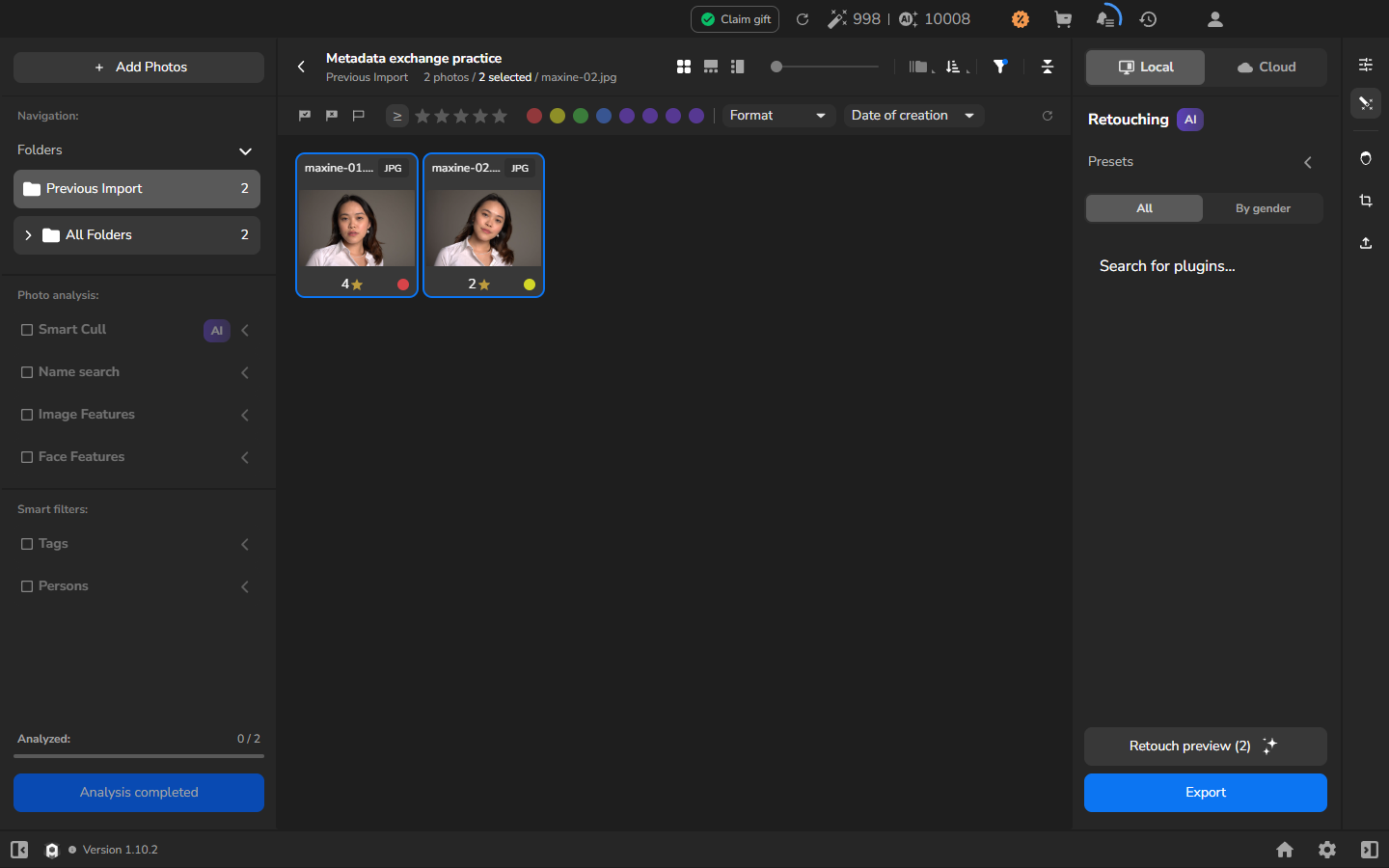
Arams creates an .xmp sidecar beside each selected photograph, using the same base filename. The Updated metadata confirmation marks completion; the cards continue to show the ratings and label colors in Arams.
Confirm the first exchange in the receiving application
Section titled “Confirm the first exchange in the receiving application”The first time you exchange metadata with an application, open the folder containing your small batch of photographs and their sidecars in that application. Confirm that its displayed ratings and labels match the cards in Arams before using the workflow for a larger job. Other applications may interpret XMP fields differently.
If you want to inspect the sidecars without opening the receiving application, you can optionally use ExifTool. Open PowerShell in the folder and run:
exiftool -Rating -Label *.xmpExifTool displays the Rating and Label values stored in each sidecar. This confirms what the files contain; the receiving application remains the useful compatibility check.
If it does not work
Section titled “If it does not work”- No
.xmpfiles appear: return to Settings and confirm that Save metadata to is xmp. Select the photographs again, choose Update metadata, and wait for the confirmation message. - A custom label name is missing: check the relevant field under Color label preset and confirm that the preset shows Adobe Lightroom (Edited). Select the affected photographs and choose Update metadata again.
- The values belong to the wrong photograph: compare the sidecar’s base filename with the photograph’s filename, then compare its rating and label with the card in Arams.
- Your other application shows different or missing values: confirm that it reads XMP
RatingandLabelfields. Repeat the first exchange with copied photographs before using the workflow for a full job.