Customize keyboard shortcuts
What you will do
Section titled “What you will do”Assign an easier key combination to an action you use often. When the action’s row shows your chosen keys, the shortcut is ready to use.
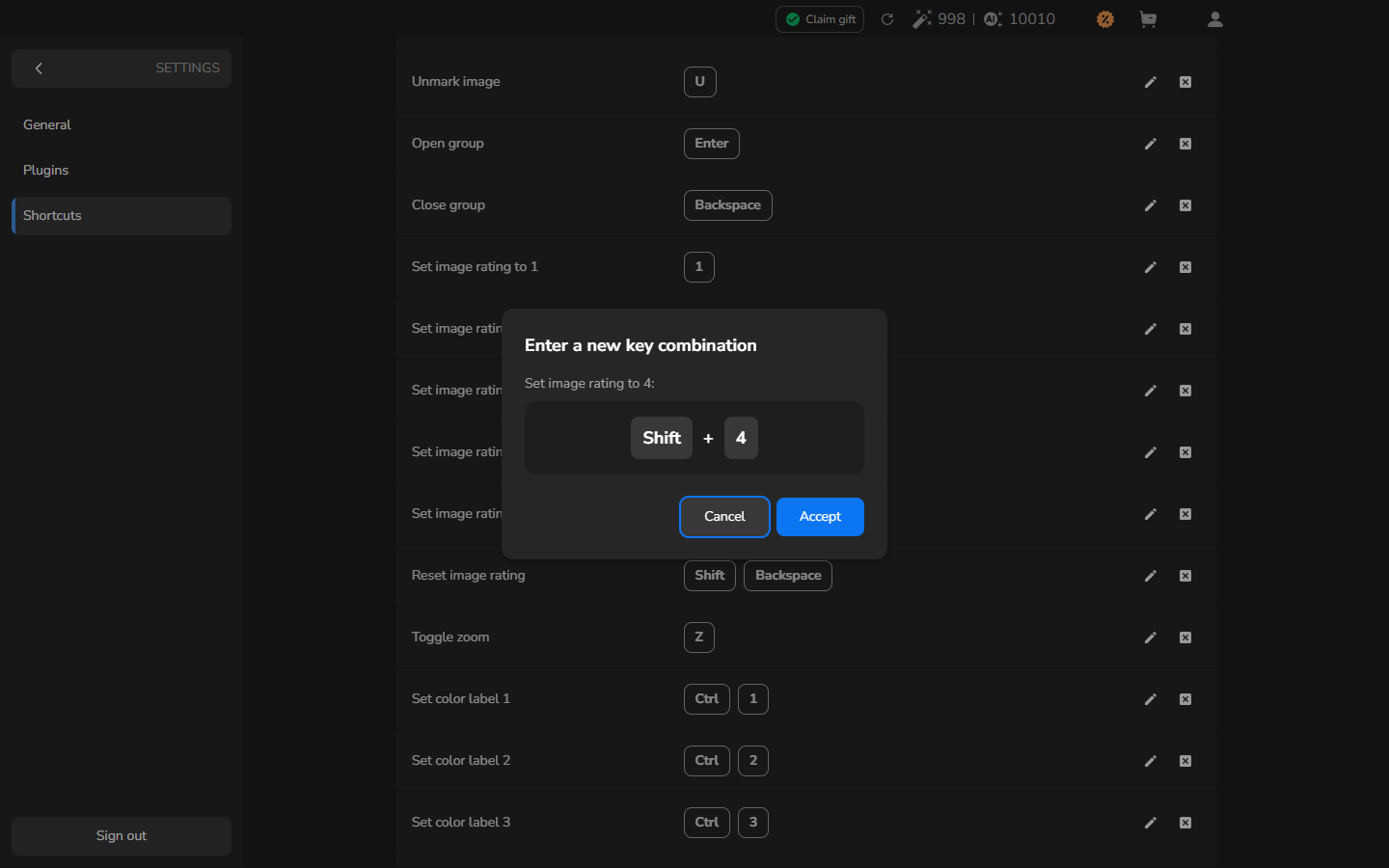
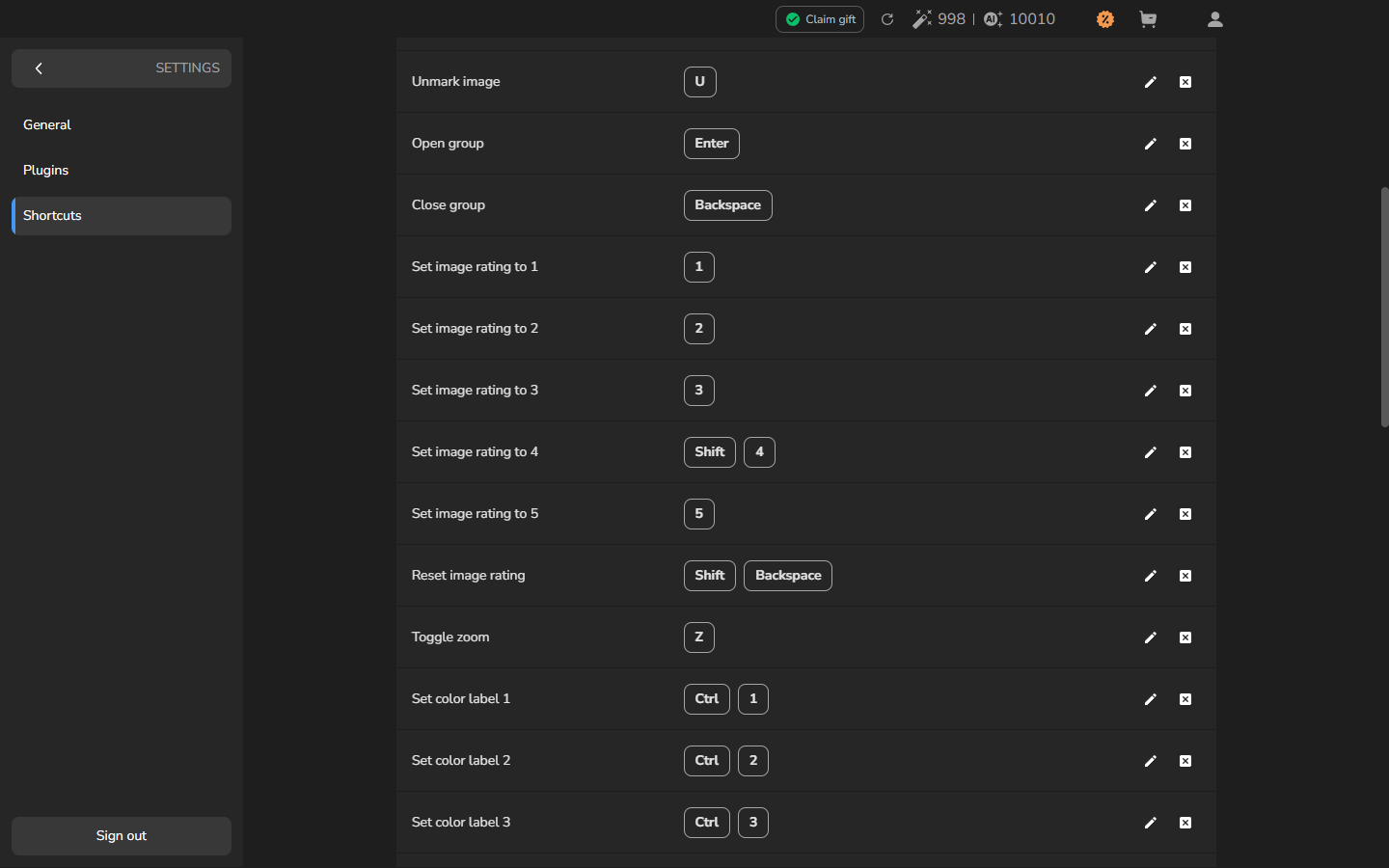
The screenshots use Set image rating to 4 as an example and change its shortcut from 4 to Shift+4. Choose the action and key combination that suit your own workflow.
Before you start
Section titled “Before you start”Sign in to Arams. Choose a key combination that is easy to remember and does not replace another shortcut you rely on.
Change the shortcut
Section titled “Change the shortcut”- Click Settings.
- Select Shortcuts in the left menu.
- Find the action you want to change. The Shortcut column shows its current key combination. To follow the example, scroll to Set image rating to 4; its default shortcut is 4.
- In that row’s Actions column, click the pencil icon.
- When Enter a new key combination opens, press your chosen combination. The example uses Shift+4.
- Confirm that the dialog shows the keys you intended, then click Accept.
The action’s row now shows the new keys in the Shortcut column. In the example, Set image rating to 4 shows Shift and 4.
Optional: try the new shortcut
Section titled “Optional: try the new shortcut”This check is optional. If you changed Set image rating to 4, open a project, select a photograph, and press your new key combination. A 4 beside a gold star means the rating was applied.
Optional: restore the default shortcut
Section titled “Optional: restore the default shortcut”Reset a row only if you no longer want its custom shortcut. You do not need to reset a shortcut after changing or trying it.
- Open Settings, then select Shortcuts.
- Find the action whose default shortcut you want to restore. To follow the example, scroll to Set image rating to 4.
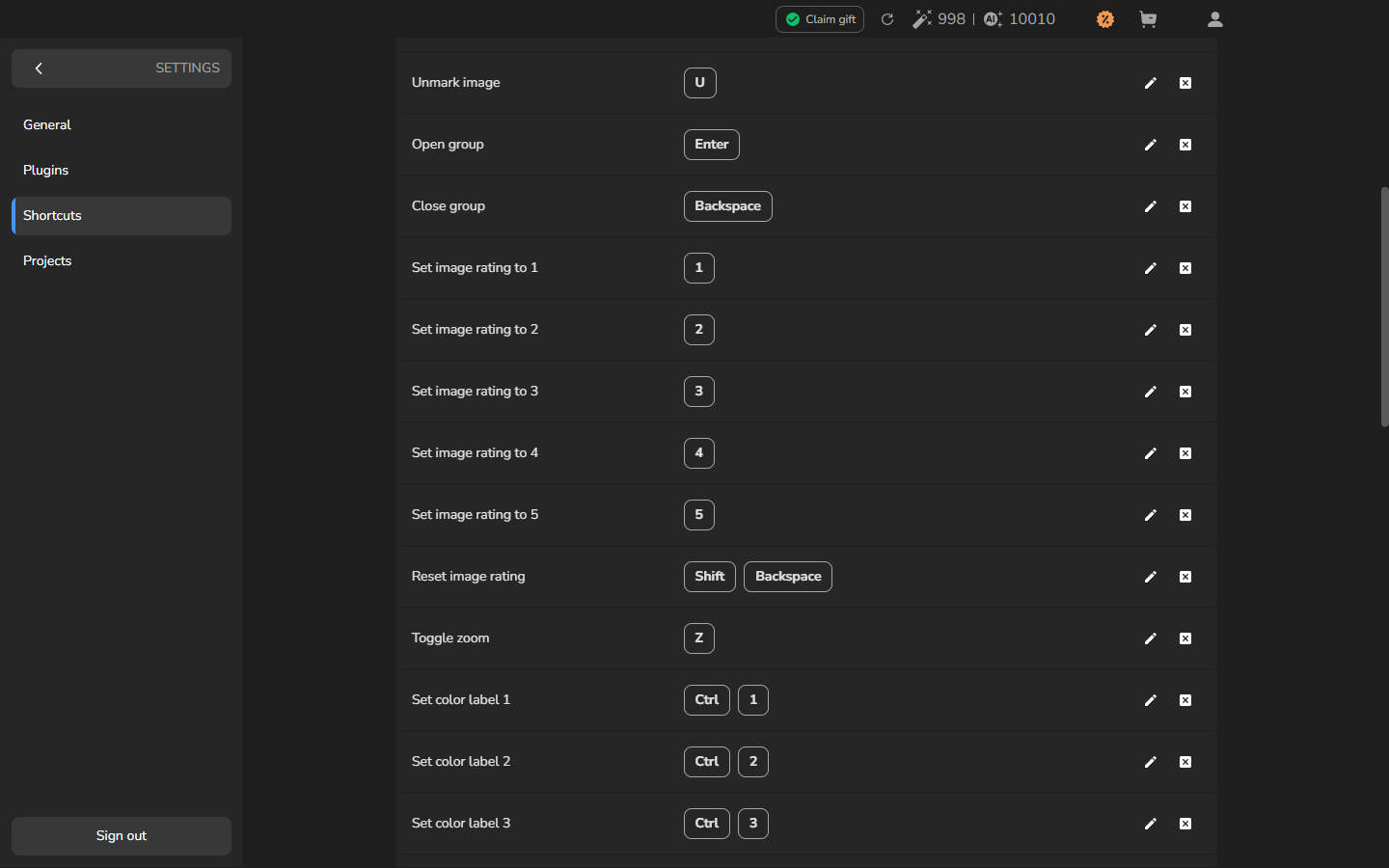
- In that row’s Actions column, click the reset icon (the small square with an ×). In the example, the shortcut changes back to 4.
If it does not work
Section titled “If it does not work”- The key combination is not shown in the dialog: click the shortcut preview area if necessary, then press the complete combination again before clicking Accept.
- A photo-related shortcut has no effect: return to the project and make sure a photograph is selected before pressing the keys.
- The wrong row changed: use the reset icon in that row to restore its default shortcut, then edit the action you intended to change.