Filter photographs during culling
What you will do
Section titled “What you will do”Use the rating filter to narrow a rated shoot to the photographs you need next—for example, your strongest selects, one rating group, or frames that need another look. Filtering hides photographs that do not match; it does not remove them from the project or clear their ratings. You can restore the full gallery when you finish.
Before you start
Section titled “Before you start”Sign in and open a project that contains photographs with manual star ratings. If you have not rated your photographs yet, see Rate photographs for culling. You do not need to analyze or retouch photographs before filtering them by rating.
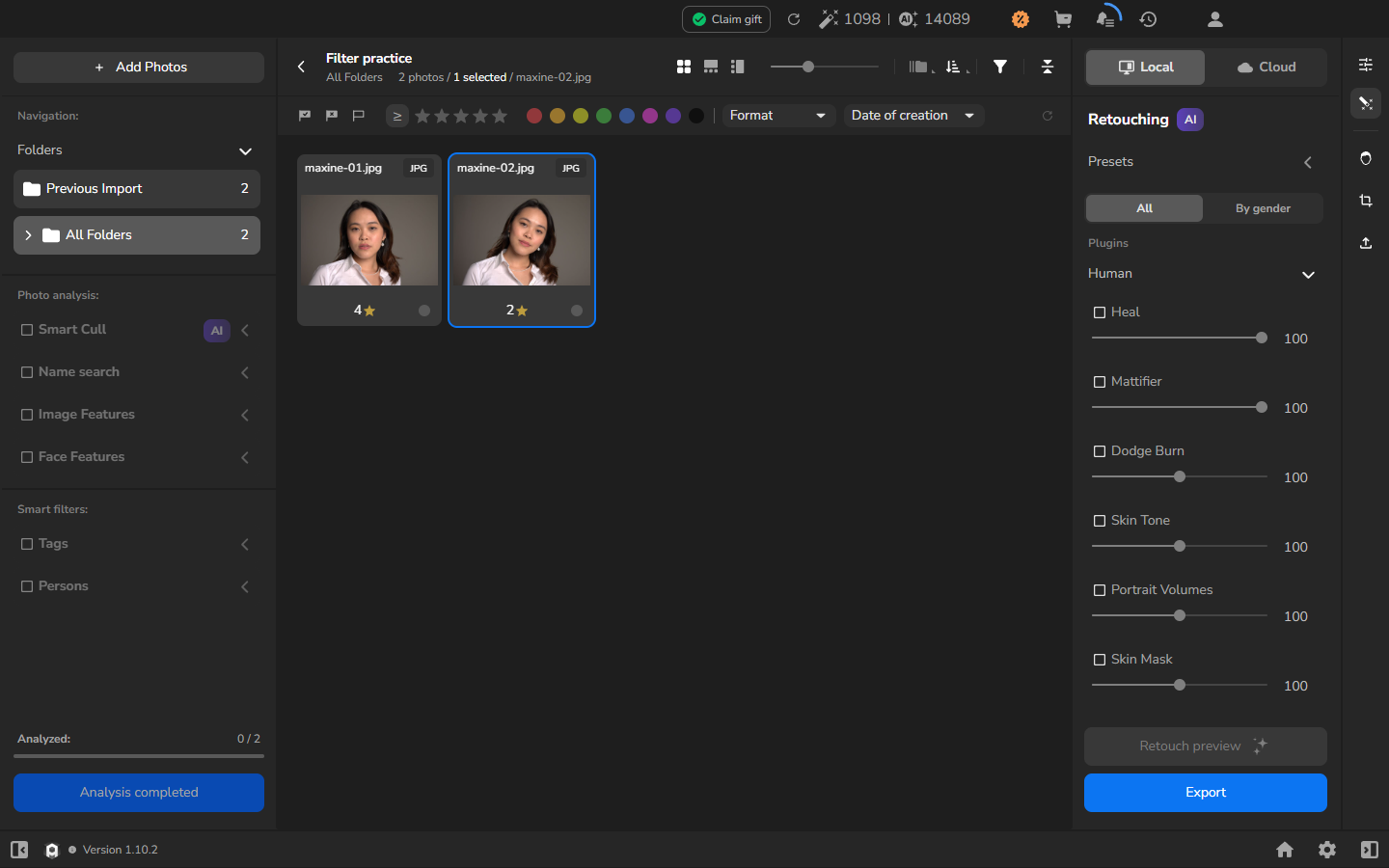
Show the rating filter
Section titled “Show the rating filter”- If the filter bar is hidden, click the funnel icon in the toolbar above the gallery.
- Locate the comparison button and five stars near the left end of the filter bar. These stars set the filter; the rating beneath each thumbnail belongs to that photograph.
Change the comparison
Section titled “Change the comparison”Choose the comparison for the part of the shoot you want to see, then click the comparison button until its symbol appears:
| Symbol | Show photographs rated | When to use it |
|---|---|---|
| ≥ | At or above the chosen rating | Continue with your stronger selects. |
| = | Exactly the chosen rating | Work with one rating group. |
| ≤ | At or below the chosen rating | Revisit lower-rated photographs. |
The button cycles from ≥ to =, then ≤, and back to ≥.
Show photographs rated four or higher
Section titled “Show photographs rated four or higher”This example uses four stars, but choose the threshold that matches your own rating system.
- Set the comparison button immediately before the filter stars to ≥.
- Click the fourth star in the filter bar so that four stars are gold.
- Continue when the gallery shows only photographs rated four stars or higher and the photo count reflects that result.
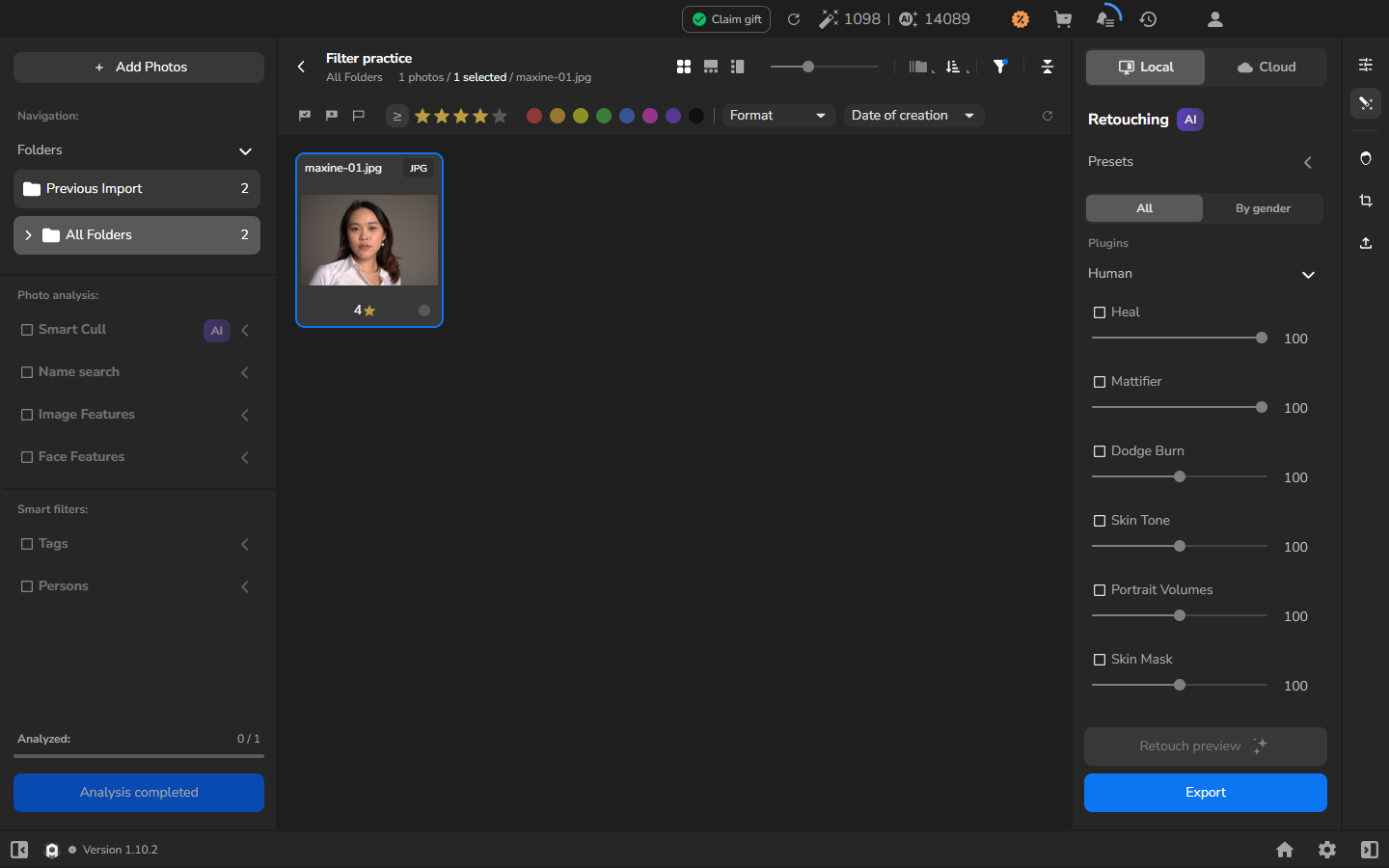
Before applying an action to several photographs, check the selected counter and the highlighted cards. Filtering or resetting the gallery can change which selections are visible, so select the photographs you intend to use in the current filtered view.
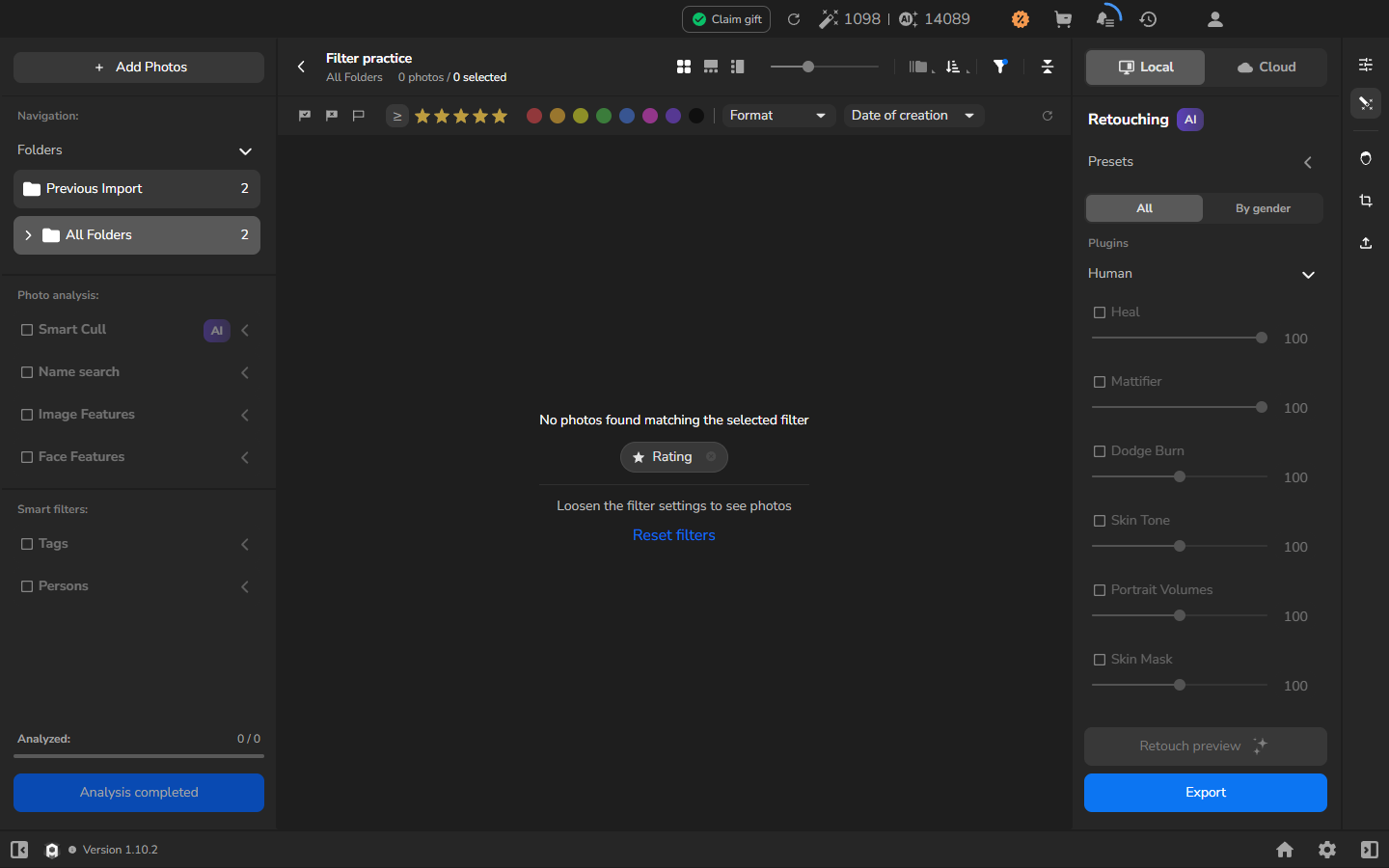
Understand an empty gallery
Section titled “Understand an empty gallery”You do not need to produce an empty gallery as part of filtering. If no photograph matches your comparison and rating, Arams displays No photos found matching the selected filter, a Rating chip, and Loosen the filter settings to see photos. The counter reads 0 photos / 0 selected. Your photographs are still in the project; choose a less restrictive comparison or rating, or reset the filter.
Restore the gallery
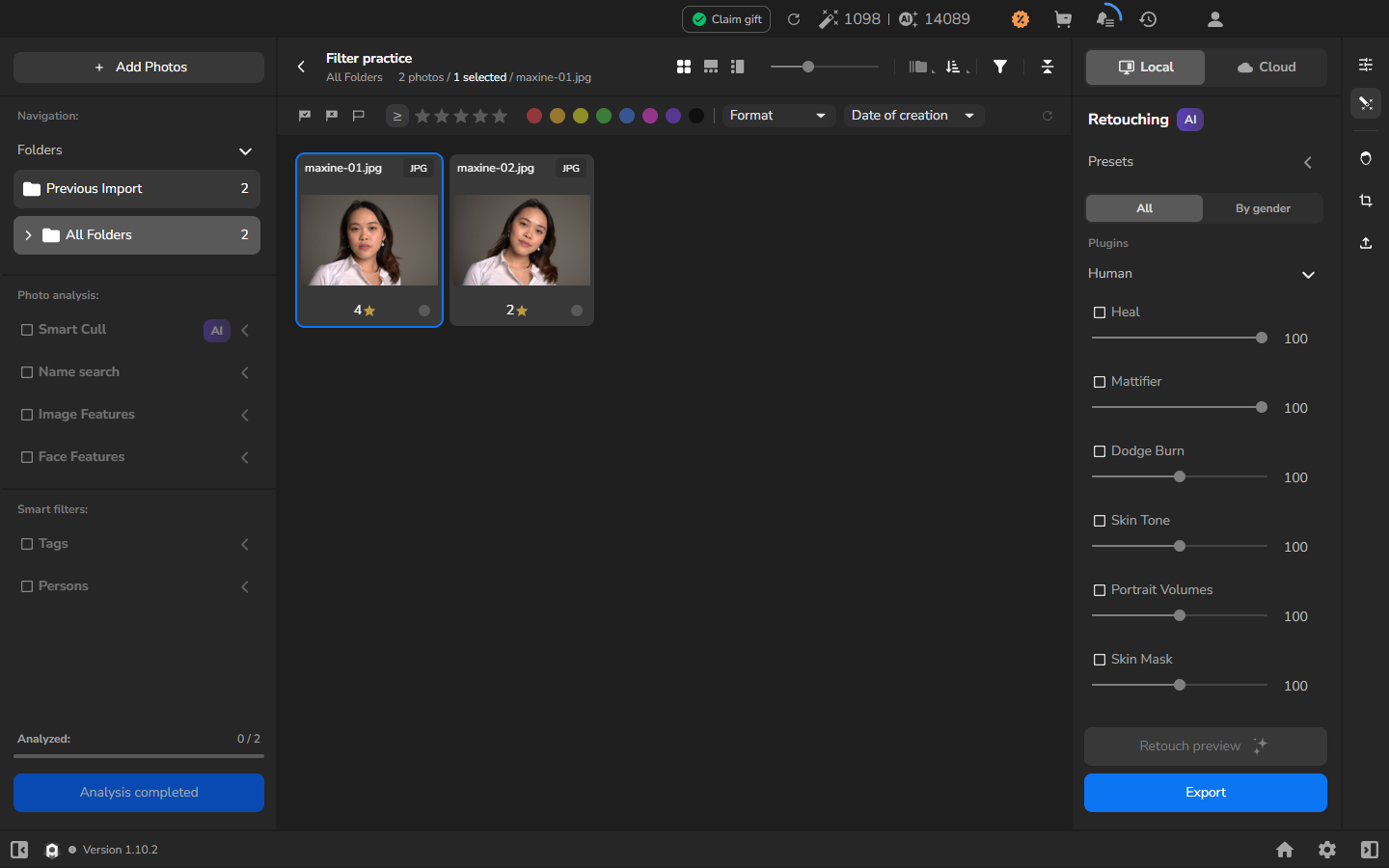
Section titled “Restore the gallery”When you have finished with the filtered group and want to see the whole shoot again:
- Click the circular-arrow reset button at the far right of the filter bar.
- Continue when the hidden photographs return and the filter stars are gray. Ratings beneath the thumbnails remain unchanged.
If it does not work
Section titled “If it does not work”- The gallery is empty: check the comparison symbol and the number of gold filter stars. Loosen the filter, or use the circular-arrow button to show the full gallery again.
- Lower-rated photographs are still visible: check whether the comparison is ≤. Click the comparison button until ≥ appears.
- The filter stars are gray, but the cards still have gold rating stars: the filter has been reset successfully. Resetting filters preserves the photographs’ ratings.
- You cannot find the filter stars: use the funnel icon above the gallery to reveal the bar.