What is Arams?
What Arams is
Section titled “What Arams is”If you want to select, prepare, retouch, and export a shoot without splitting the work across several applications, Arams can keep those tasks in one project. The Windows and macOS application combines Retouch4me tools for individual photographs and entire series with photo organization, color correction, cropping, and export.
Retouching is optional. You can use Arams only to select, organize, correct, crop, and export photographs, or add cloud retouching or separately purchased local plugins. When you retouch, you can adjust the available tools and compare the result with the original before exporting.
Use this page to choose a route. You are ready to begin when you know whether you need no retouching, cloud processing, or local plugins, and have opened the guide for that route.
When Arams is useful
Section titled “When Arams is useful”- Portrait sessions: inspect faces, compare similar photographs, choose keepers, and compare retouching with the original before exporting.
- Studio and beauty photography: adjust portrait retouching, clothing and background cleanup, and color. Inspect fine detail because an automatic result may leave defects or need different settings.
- A series that needs consistent treatment: configure tools and presets, apply settings to a selection, and check representative photographs before processing the series.
- A shoot with several people: find photographs containing a person, combine that selection with ratings, and prepare separate deliveries. A shared photograph can belong in more than one person’s delivery.
- A growing project that needs organization: use folders, ratings, labels, groups, and search to find the photographs you need while keeping the original files available.
Cloud or local retouching?
Section titled “Cloud or local retouching?”| Cloud retouching | Local retouching | |
|---|---|---|
| Access and payment | Requires a subscription and/or credits under the applicable plan. | Local plugins are purchased separately. Purchased plugins provide unlimited local retouching without per-photo cloud retouching credits. |
| Processing | Photographs are sent to the service; an internet connection is required. | Processing runs on your computer using the installed, activated plugins. |
| Available controls | Cloud tools can have their own controls, including a separate adjustment for moles. | Controls depend on the installed plugin; do not assume they match the cloud version. |
The two modes are not identical feature sets. Choose a mode by the tools and controls you need, where you want processing to run, and its payment model. Unlimited local retouching applies only to the plugins you own; it does not include every plugin or make cloud services free.
Choose where to start
Section titled “Choose where to start”- You want to organize and export without retouching: follow your first photo workflow and choose unretouched copies at the export stage.
- You want local retouching: first choose and set up the tools, then follow local processing with plugins that are installed, activated, and available to your account.
- You want cloud retouching: follow cloud processing after checking the upload, internet, account, and credit requirements.
- You already know your processing route: use the capability catalogue below to continue with selection, correction, series processing, or delivery.
Whichever route you choose, keep every tool you want in the finished photographs enabled. Turn tools off only when you intend to export unretouched copies. Use delivery settings for tools that support the regular preview; if a plugin says it cannot create ordinary preview layers, follow the pre-export workflow. The export is complete when its task finishes and the saved files open normally in the chosen destination.
Optional: preview a photograph
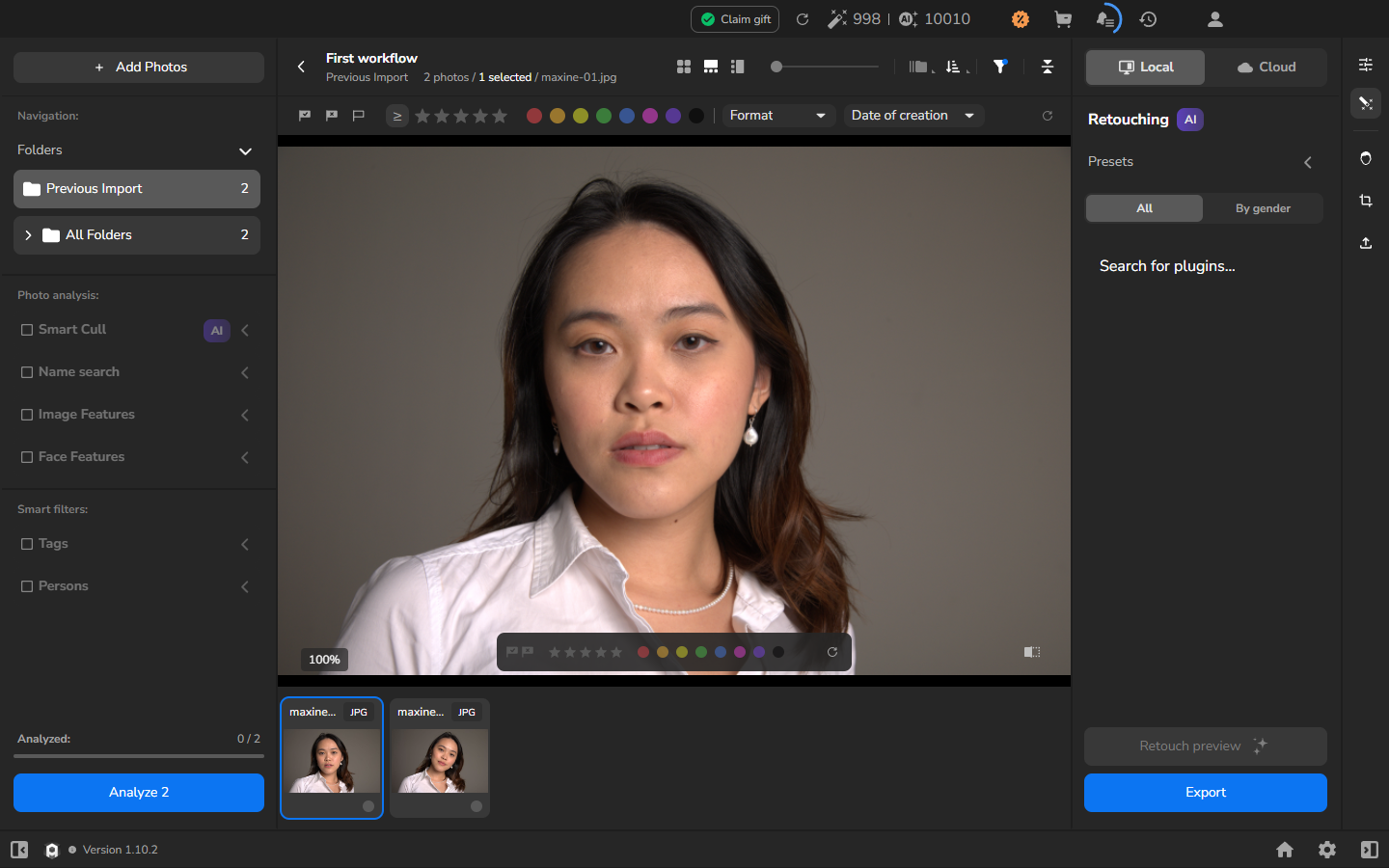
Section titled “Optional: preview a photograph”If you already have photographs in a project, you can open one in the large viewer to inspect detail before deciding what to keep or process. This preview is optional and is not required to choose a processing route.
Capability catalogue
Section titled “Capability catalogue”Use this catalogue to find the next task in your workflow. It covers the features explained in this manual; the features available to you can depend on your Arams version, plan, and installed plugins.
| Area | Capabilities and details |
|---|---|
| Account and access | Sign in to Arams with an existing account. Available capabilities depend on your account. |
| Projects | Create, open and manage, reopen, and back up and restore projects. |
| Source files and import | Import photographs, organize folders and filenames, and keep projects and original files available. |
| Selection and inspection | Select photographs, zoom and inspect detail, and inspect detected faces. |
| Culling | Ratings, filters and labels, groups of similar photographs, and a selection workflow for delivery. |
| Finding photographs | Search by filename, manual tag, date, or detected person in Find photographs and people; automatic AI tagging is a separate workflow. |
| Photo and face analysis | Run Analyze, review visible image- and face-quality filters, and inspect candidates in Review AI analysis. AI classifications still require visual review. |
| Crop | Crop and straighten photographs. |
| Retouching controls | Choose tools and settings, use presets, and apply settings by gender. |
| Portrait results | Retouch a portrait while preserving natural detail and compare the processed result with the original. |
| Clothing and backgrounds | Use Fabric and Clean Backdrop and inspect fabric, edges, texture, and real studio-floor scuffs. |
| Color | AI color correction, curves and LUTs. |
| Series processing | Retouch a consistent series, including presets and copied settings, and review completed processing tasks. |
| Processing routes | Use local processing with an installed plugin or cloud processing with its upload, connection, and credit requirements. |
| Plugin access | Activate a plugin available to your account. A local plugin must be installed and activated before you can use it. |
| Export and delivery | Prepare delivery settings, export and verify saved files, and deliver separate selections for different people. |
| Metadata | Exchange ratings and color labels using XMP sidecars. If other metadata matters to your delivery, check it in the exported files. |
| Workspace | Explore the interface, customize the workspace, change general settings, and customize keyboard shortcuts. |
| Troubleshooting | Diagnose import failures and stalled processing or export. |
Free tagging, analysis and processing
Section titled “Free tagging, analysis and processing”Automatic AI tagging is free and does not consume analysis credits. Download its model and enable automatic tagging in Settings. You do not need to press Analyze to obtain these tags. Open the bell icon at the top to follow the tagging operation; the same area can also show other background work. Generated tags may be inaccurate or missing, so inspect them before relying on them.
Cloud photograph and face analysis through Analyze is a separate operation that consumes analysis credits. Local retouching, cloud retouching, and plugin activation have their own requirements. Free tagging does not mean that all processing or all plugins are free. See the linked chapters before choosing a processing route.
Plugins and advanced workflows
Section titled “Plugins and advanced workflows”This manual includes workflows for Heal, Dodge Burn, Portrait Volumes, Fabric, and Clean Backdrop. The plugin catalogue can change, and the tools available to you depend on the plugins installed and activated for your account.
Open a plugin’s gear icon to adjust its detailed parameters; these controls are separate from the application’s global Settings. Lab, Face Make, Frequency Separation, and Color Match run at the pre-export stage rather than in the regular preview. The controls available at that stage depend on the plugin.
Protect your originals and review the result
Section titled “Protect your originals and review the result”Keep your original photographs available and maintain backups. Inspect processed previews and exported files at a magnification that reveals the detail important to the job: automatic processing still needs a photographer’s judgement.