Fix an import that stays empty
What you will do
Section titled “What you will do”If JPEG photographs you dragged into a project do not appear, check whether the project is still empty and whether you selected the intended files, then retry in the same project. You are done when the photographs have thumbnails and the project count includes them.
Before you start
Section titled “Before you start”Open the affected project and find the JPEG photographs you want to import in Windows File Explorer.
Diagnose an empty import
Section titled “Diagnose an empty import”- Check the photo count beside the project name and look for photo cards in the central area. If the count reads 0 photos / 0 selected and there are no cards, the project is still empty.
- Do not count the pictures in the Start with AI panel as imported photographs. That panel and the central Add Photos button belong to the empty-project screen.
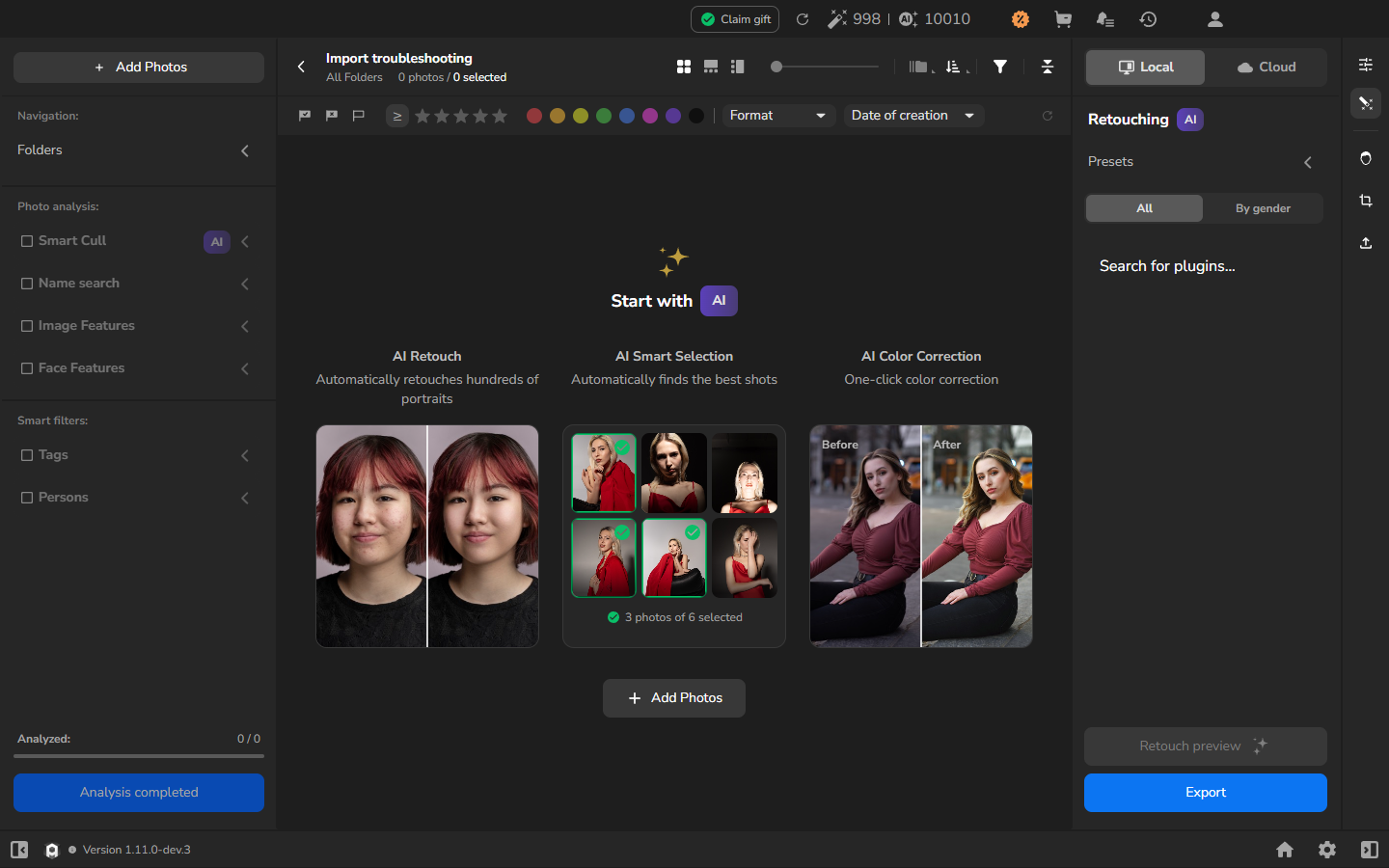
- In File Explorer, check what you attempted to drag into Arams. Make sure the selection contains the intended JPEG photographs rather than an unrelated file. If Arams displayed an error, note the exact message before retrying.
Retry with JPEG photographs
Section titled “Retry with JPEG photographs”- Leave the same project open. In File Explorer, select the JPEG photographs you want to import.
- Drag them into the central photo area and release them there.
- Wait for photograph thumbnails to replace any loading symbols in the grid.
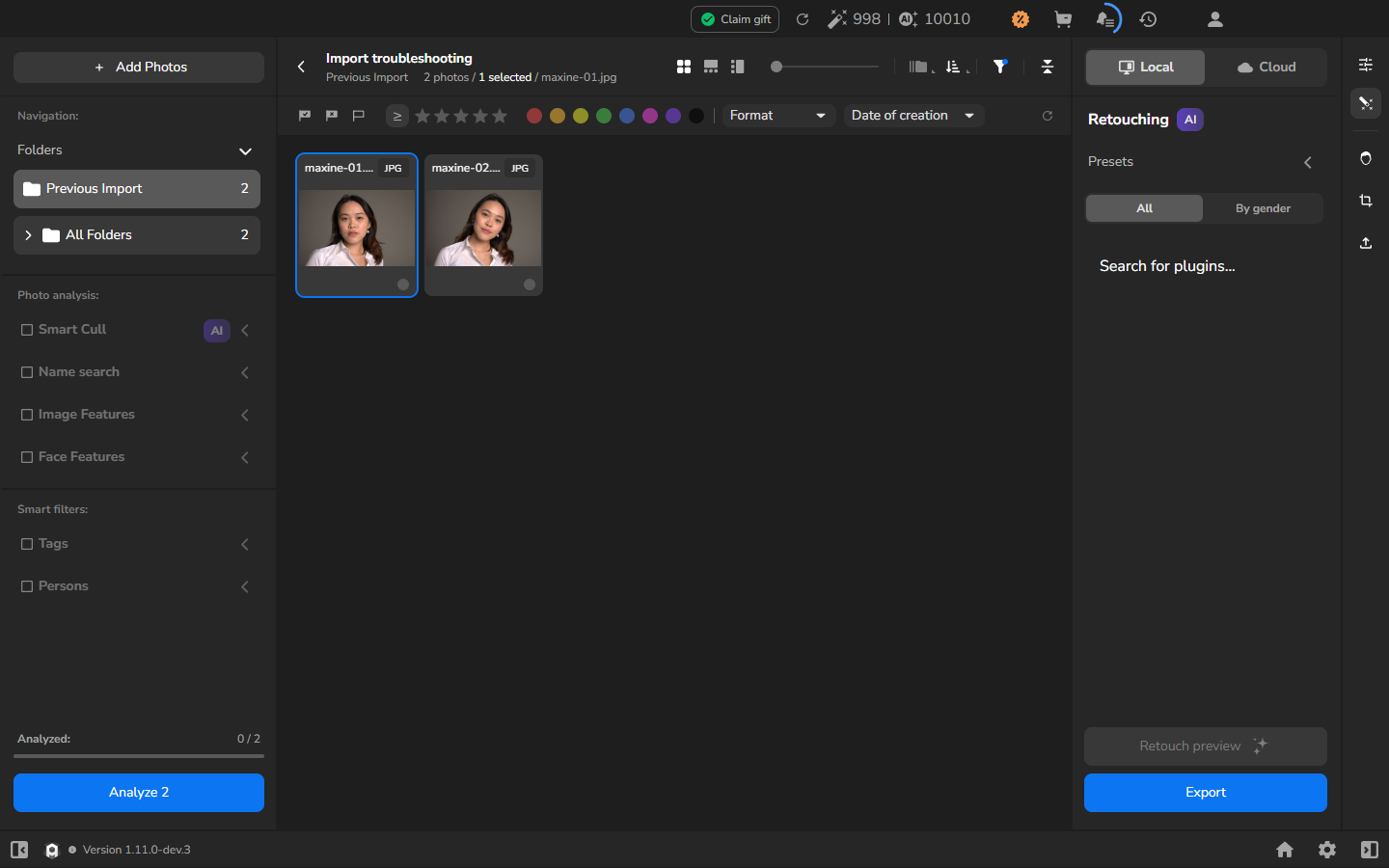
- Compare the photo count and cards with the photographs you selected. If each photograph is present as a thumbnail and the total has increased accordingly, the retry is complete.
Check the result
Section titled “Check the result”Previous Import shows how many photographs were added in the latest import. The top counter separates the total number of photographs in the project from the number currently selected.
Card names may be shortened to fit the grid. If some photographs are missing, select the cards to see their full filenames beside the top counter, then retry only the missing JPEGs.
Optional: understand an unchanged empty screen
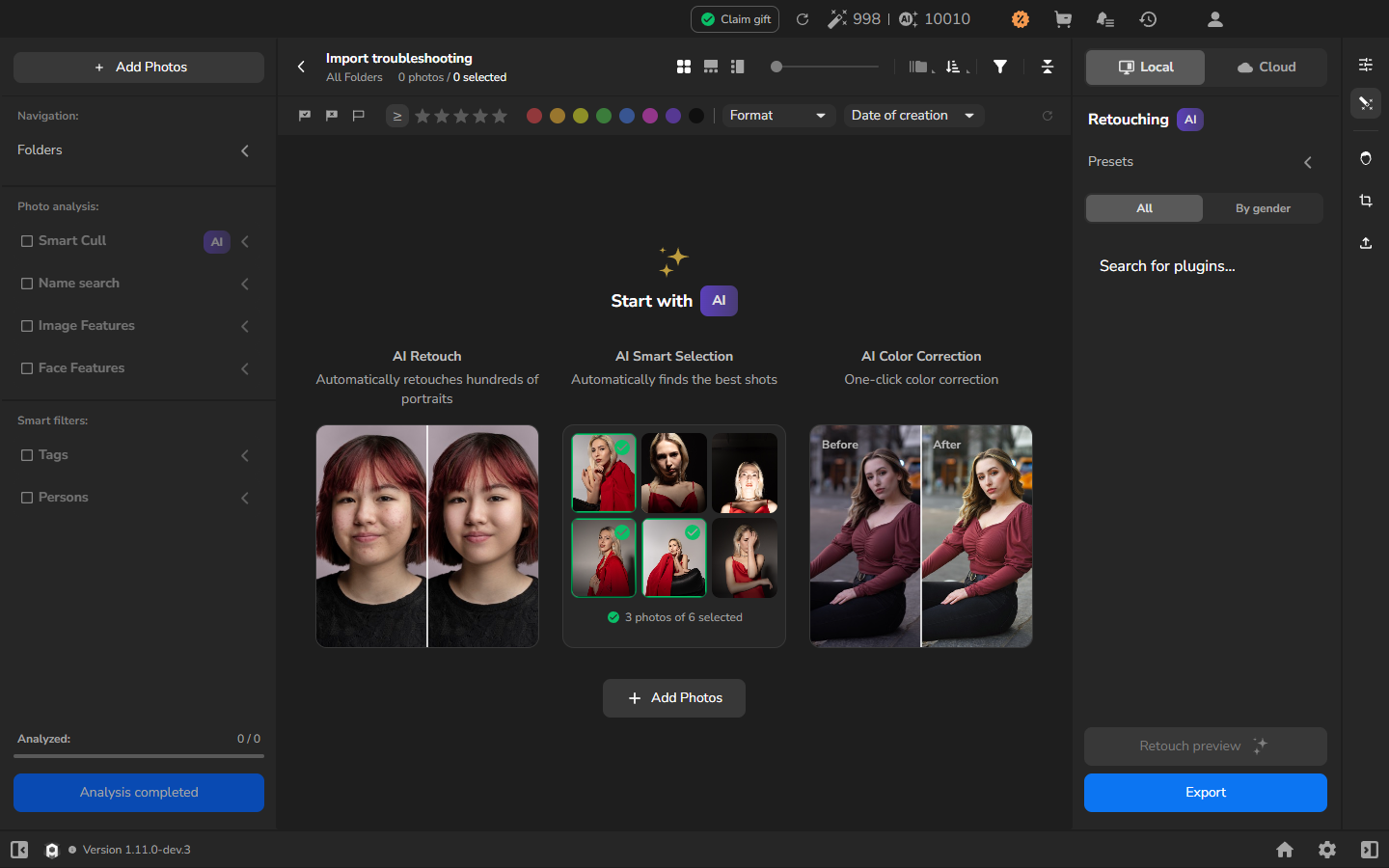
Section titled “Optional: understand an unchanged empty screen”You do not need to test the project with a non-photo file. The example below shows why an unchanged screen is not proof that a drop worked: after a text document was dropped, the project still showed 0 photos and no error dialog. This visible state does not identify every cause of a failed import.
If it still does not work
Section titled “If it still does not work”| What you see | What to check next |
|---|---|
| 0 photos and the empty-project panel | Check that you selected the intended JPEG photographs, then repeat the drag-and-drop steps above in the same project. |
| Cards with loading symbols instead of photographs | Wait for the thumbnails. If they do not appear, note which files remain stuck. |
| Fewer photographs than you intended to add | Compare the source filenames with the card names, then retry only the missing JPEGs. |
| An error dialog, or JPEGs still do not appear | When reporting the problem, include the exact message, file types, number of files, Arams version, and whether you used drag-and-drop or Add Photos. |
This recovery route applies to JPEG photographs added by drag-and-drop. If the files may be corrupt or unavailable, the problem involves duplicate imports, or you used the Add Photos dialog, include that detail when you report the problem because this route does not diagnose those cases.