Reopen an existing project
What you will do
Section titled “What you will do”Continue working with photos you have already imported by opening their project from the project list. You do not need to import the photos again.
Before you start
Section titled “Before you start”Sign in to Arams. The project you want to reopen must already contain imported photos.
- If a project is open, click the left-pointing arrow immediately to the left of its name at the top of the photo area. If the project list is already visible, continue to the next step.
- Find the card named after your project. Use the photo count to distinguish between similarly named projects. A card can show No cover and still be opened normally.
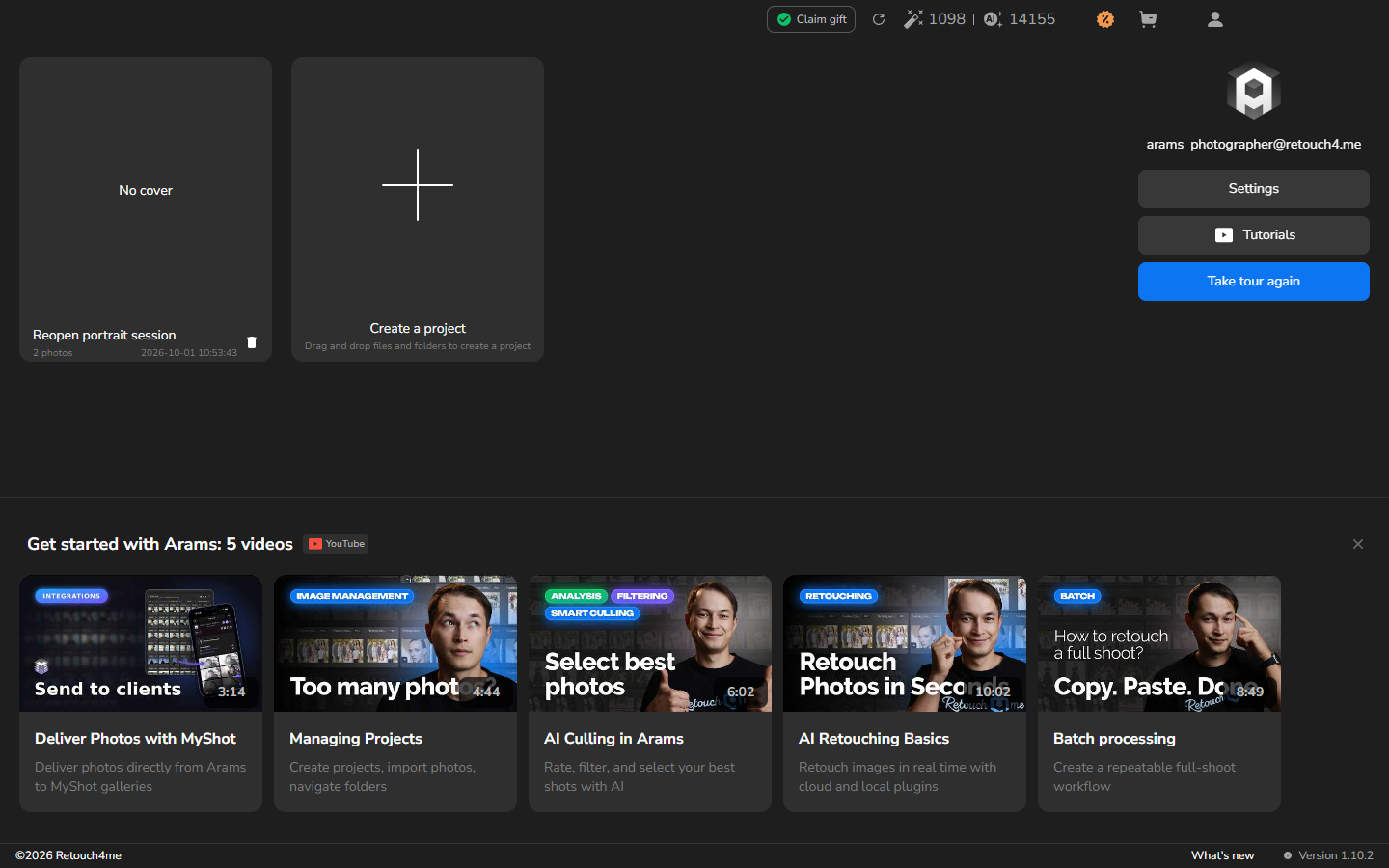
- Double-click the main area of the project card, away from the trash icon in its lower-right corner.
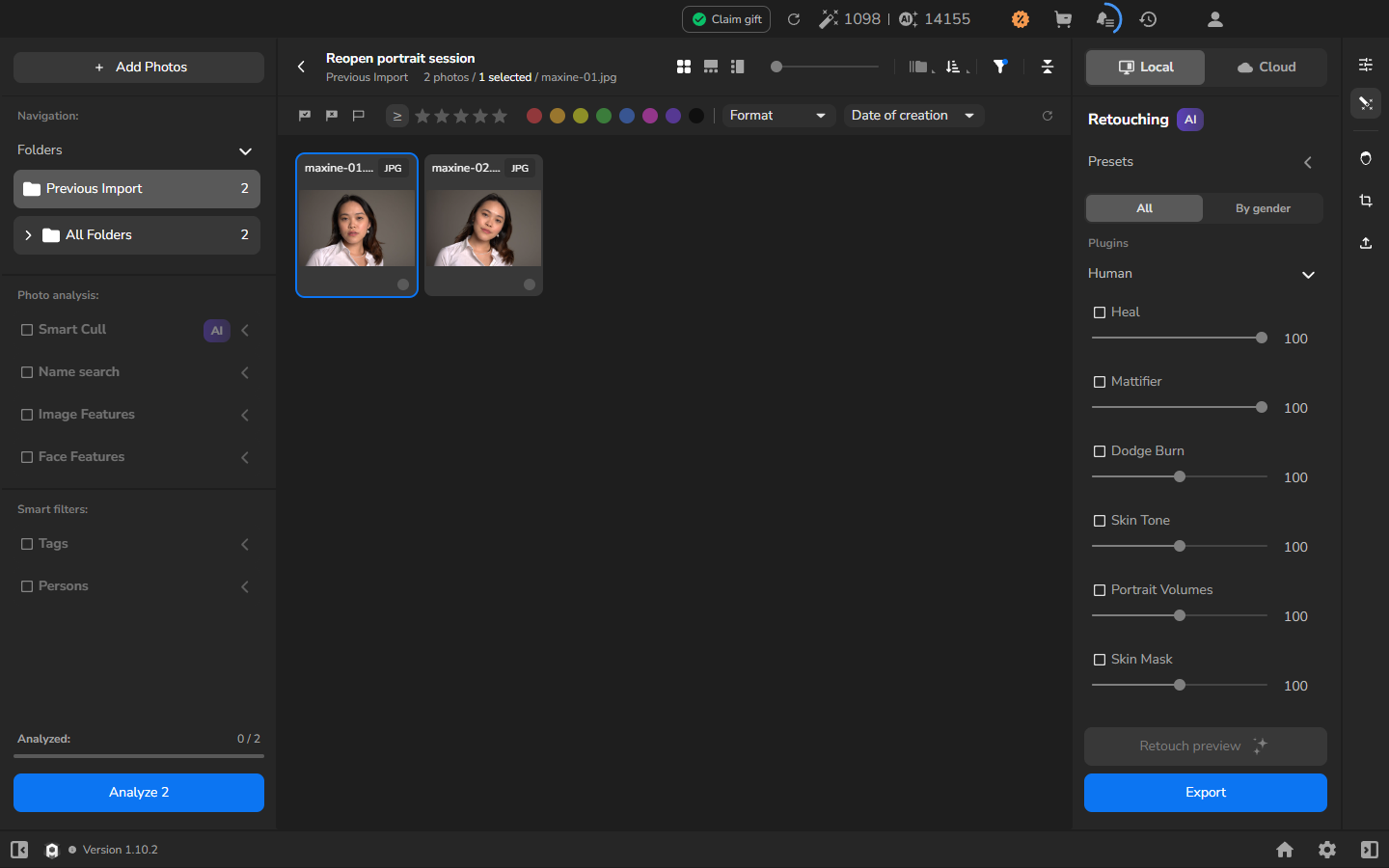
- Wait for the loading spinner and overlay to disappear. The project is ready when its name and photo grid are visible.
Check the result
Section titled “Check the result”Confirm that the heading shows the intended project name and that its imported photos appear in the grid. You can now continue working in the project.
If it does not work
Section titled “If it does not work”Thumbnails can appear beneath the loading overlay before the project is ready. Wait until the spinner and overlay disappear.
If the heading names a different project, use the same left-pointing arrow to return to the project list and double-click the intended card.