Manage your projects
What you will do
Section titled “What you will do”When you return to an existing shoot, use the Arams home screen to identify the right project and open it. You can also give the project a more useful name or locate its storage folder without changing the original photos.
Before you start
Section titled “Before you start”Sign in to Arams and have a project containing imported photos. You need Windows File Explorer and a project whose Location is Default only if you want to locate the project storage folder.
Open and identify a project
Section titled “Open and identify a project”- If a project is open, click the left-pointing arrow beside its name to return to the home screen.
- Find the project card by its name and photo count. A card can show No cover, so do not rely on its preview alone.
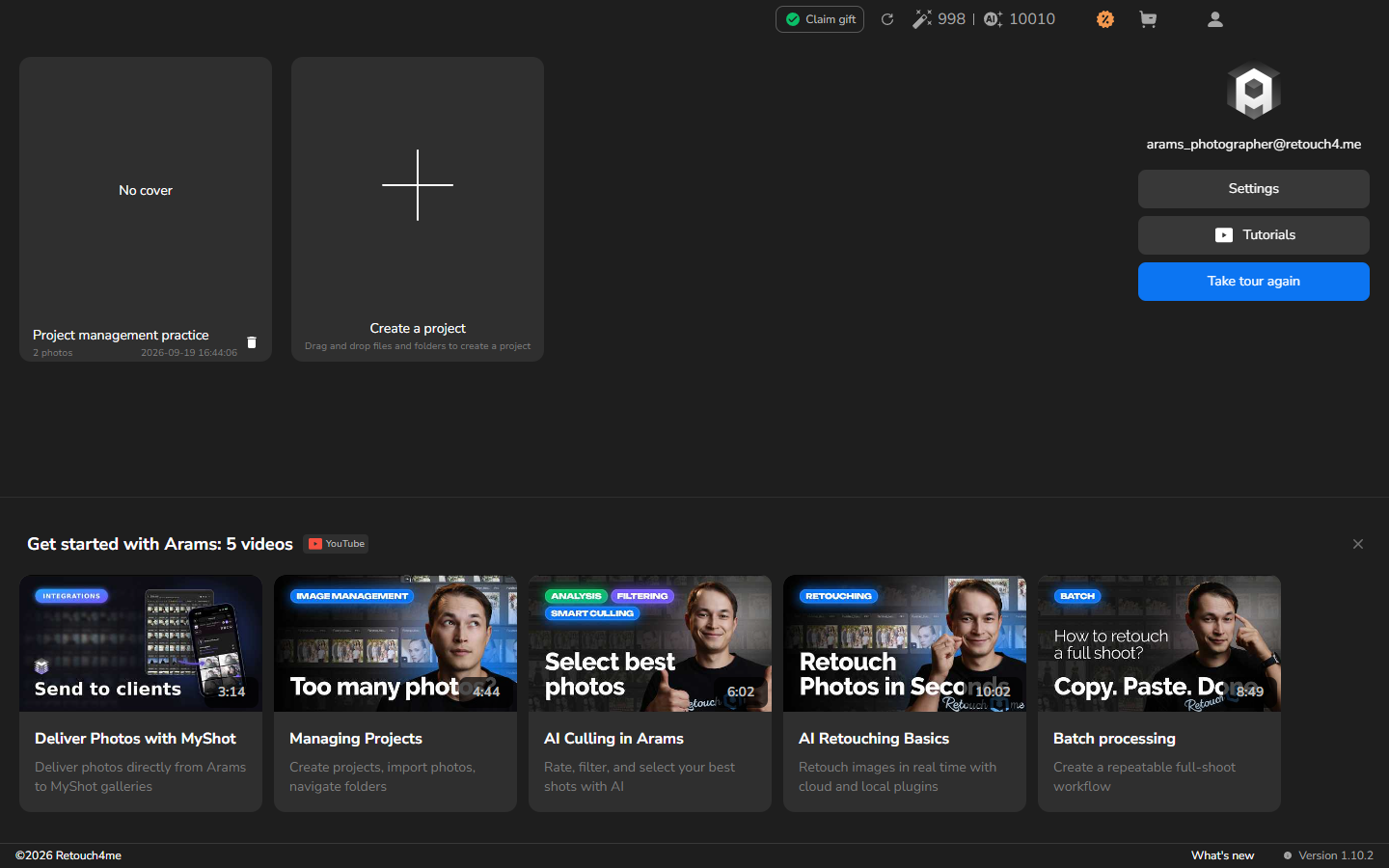
- Double-click the card, away from the trash icon in its lower-right corner.
- When the project name and photo grid appear, you can continue working with that project.
Rename the project
Section titled “Rename the project”Rename a project when its current name does not clearly identify the shoot. If the name is already useful, skip this section.
When Location is Default, Arams also renames the project storage folder. It does not rename or modify the original photos in their source folder.
- Return to the home screen.
- Right-click the project card and select Rename.
- In Rename project, enter a distinctive name that will help you recognize the shoot later.
- Select Accept.
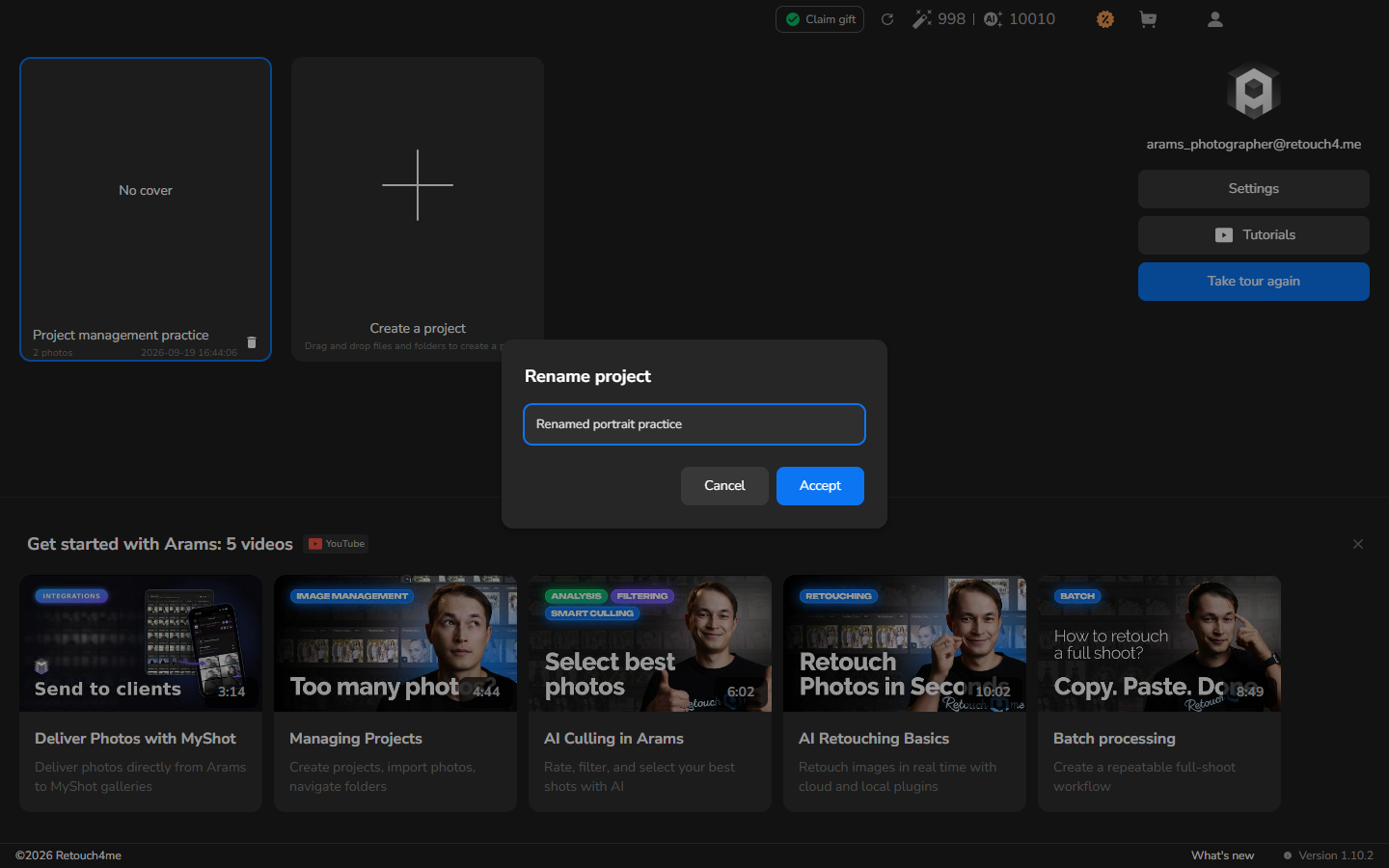
The project card now shows the new name.
Locate the project storage folder
Section titled “Locate the project storage folder”This is optional. Use it when you need to find the files Arams manages for a project, for example before backing up the project. It is not a way to find the original photos you imported.
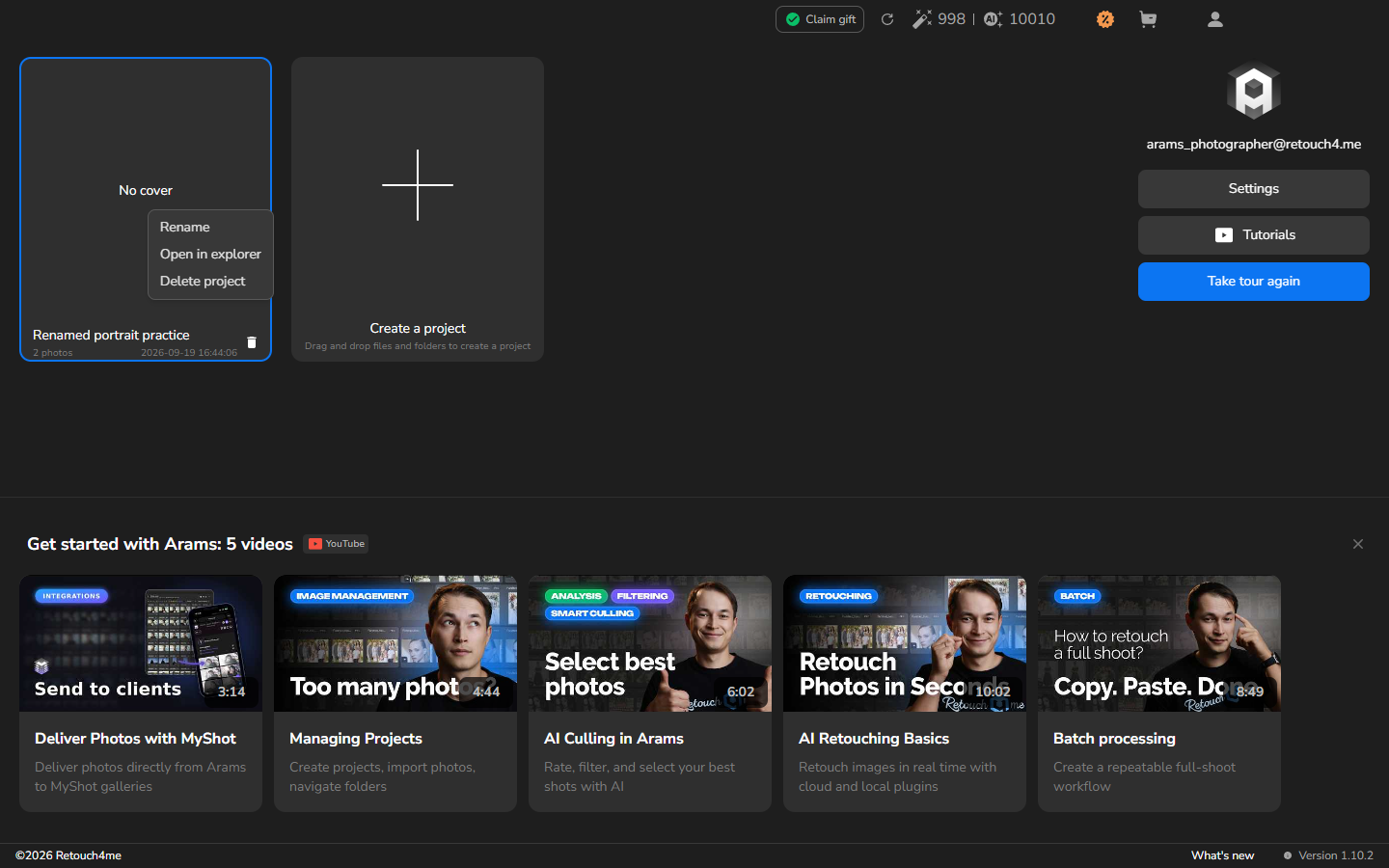
- On the home screen, right-click the project card.
- Select Open in explorer.
- Windows File Explorer opens the project storage folder. When Location is Default, it is below Pictures\Retouch4me Arams\Projects.
The folder contains Arams’s hidden .retouch4me data and its catalog. Do not move, rename, or delete files inside .retouch4me.
Open the project again later
Section titled “Open the project again later”This section is optional; use it the next time you return to the shoot. If you renamed the project, its card remains available under the new name on the home screen.
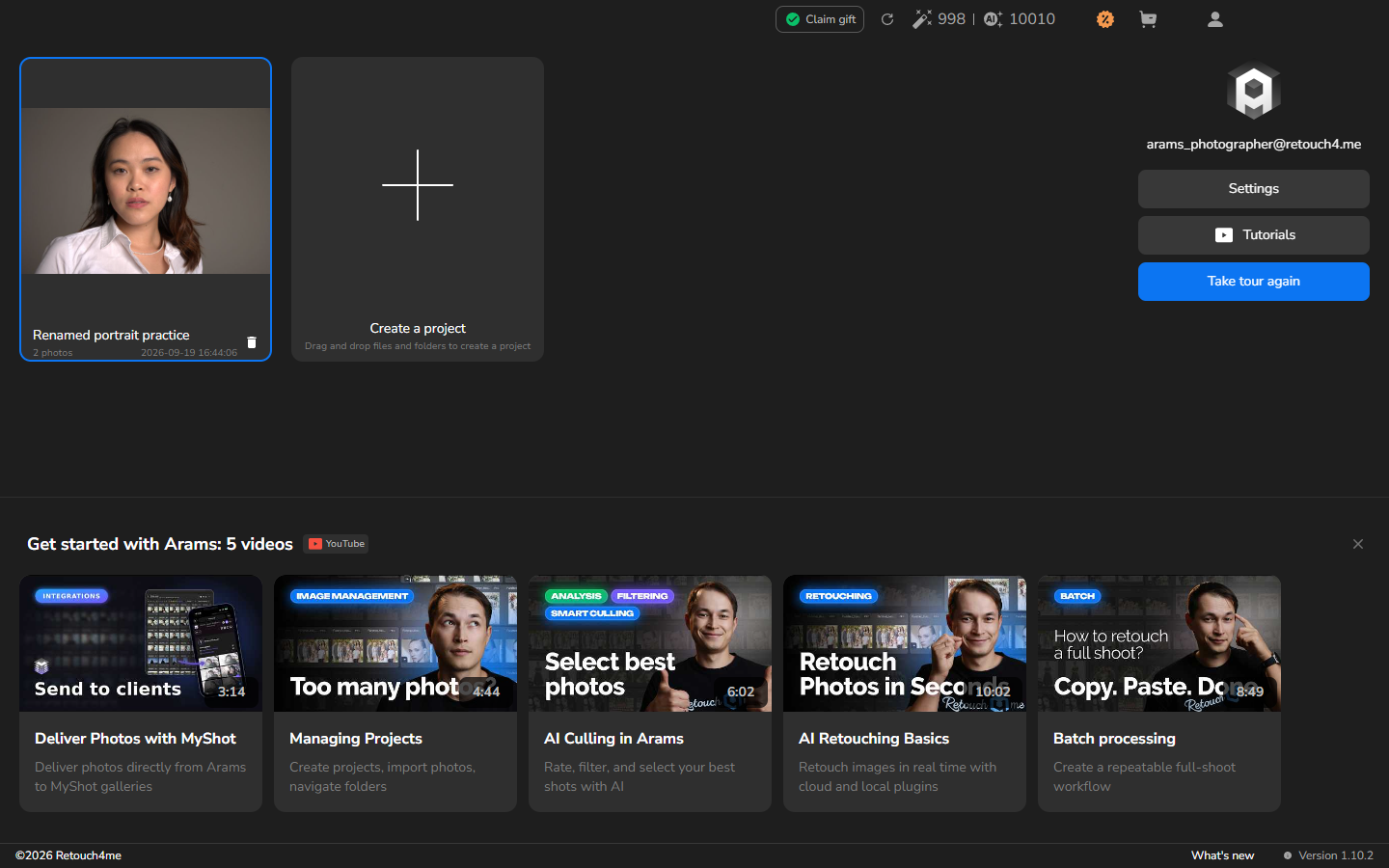
Double-click the card to continue working. You are in the intended project when its name and photo grid appear.
If it does not work
Section titled “If it does not work”If you cannot find the project card, make sure you are on the home screen and compare project names and photo counts before opening another card.
If the old name remains after you select Accept, reopen Rename project, check the new name, and try again.
If the opened project does not contain the photos you expect, return to the home screen and compare the project names and photo counts. Do not import the photos again merely to make the displayed count match, and do not alter the files inside .retouch4me.