Inspect a photograph and zoom in
What you will do
Section titled “What you will do”Open a photograph in the large viewer and enlarge the area you need to judge, such as focus, eyes, or skin. When you are finished, you can keep the enlarged view, restore the initial framing, or return to the grid. Inspecting the photograph does not analyze or retouch it.
Before you start
Section titled “Before you start”Sign in and open a project with imported photographs. Wait until their thumbnails appear in the grid.
Open a photograph
Section titled “Open a photograph”- Double-click the photograph’s card in the grid.
- Wait for the photograph to appear in the large central viewer. Its filename appears beside the photo counter.
The thumbnail strip remains below the viewer. The scale indicator at the lower left reads 100% in the initial view.
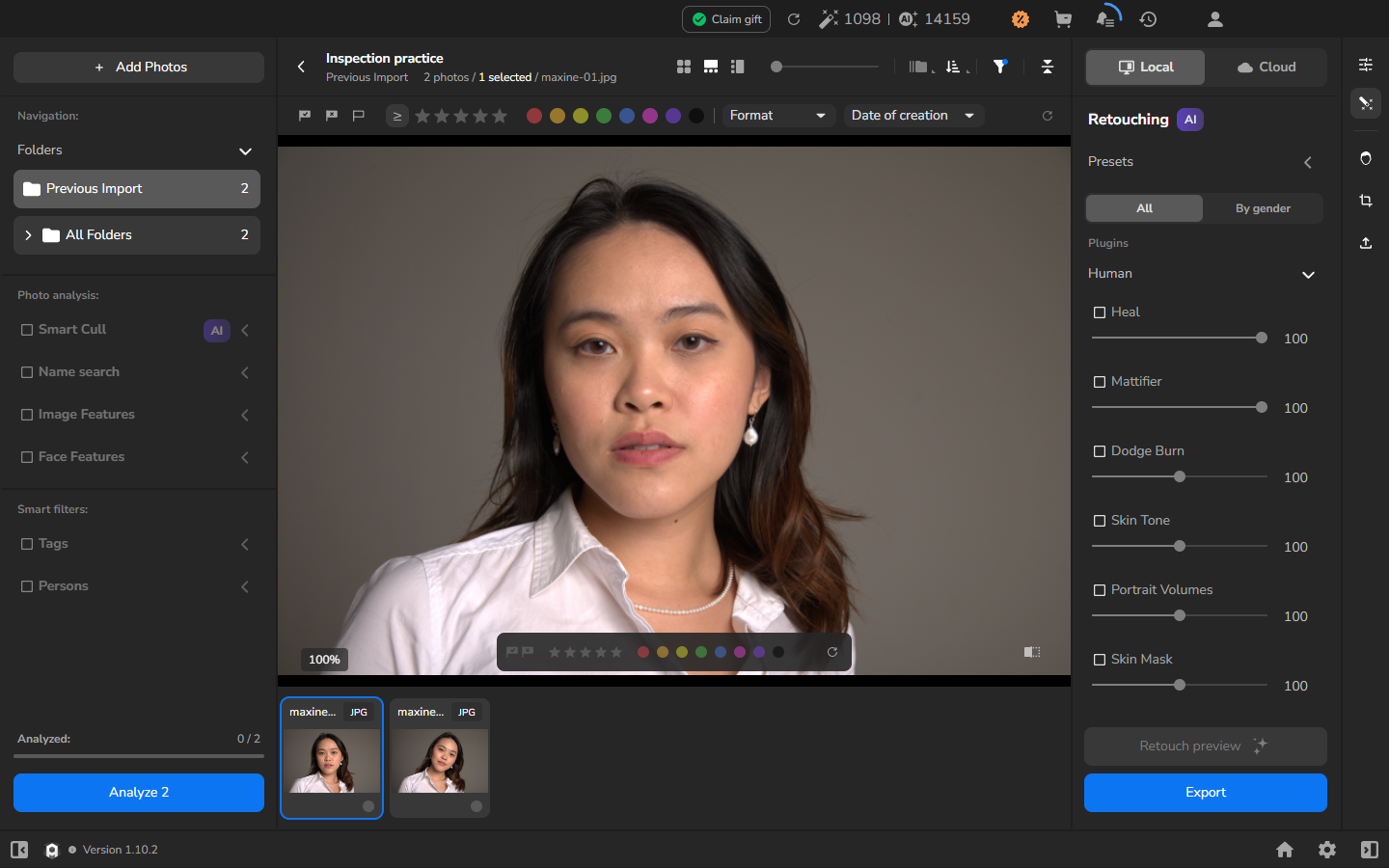
Zoom in to inspect details
Section titled “Zoom in to inspect details”- Move the pointer over the large photograph.
- Scroll the mouse wheel upward until the detail is large enough to judge. The percentage at the lower left increases as the photograph enlarges; at higher scales, part of the photograph extends beyond the viewer.
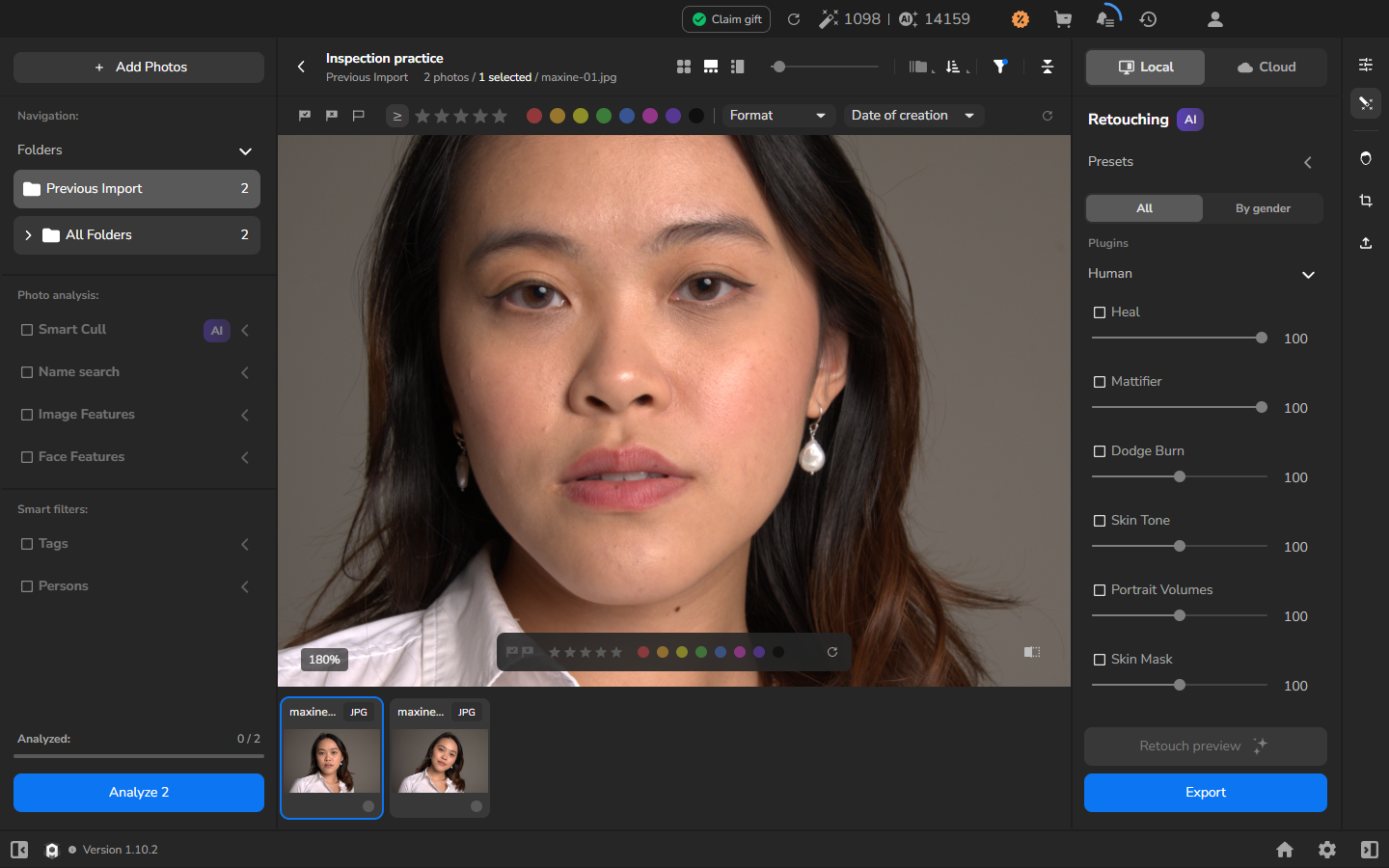
In this viewer, 100% means the initial view; it does not confirm that one image pixel equals one screen pixel.
Once the detail is large enough to judge, the inspection is complete. The following actions are optional and depend on what you want to do next.
Restore the initial view
Section titled “Restore the initial view”If you want to see the whole photograph again, double-click the enlarged photograph. The initial framing returns, and the indicator reads 100% again.
Return to the photo grid
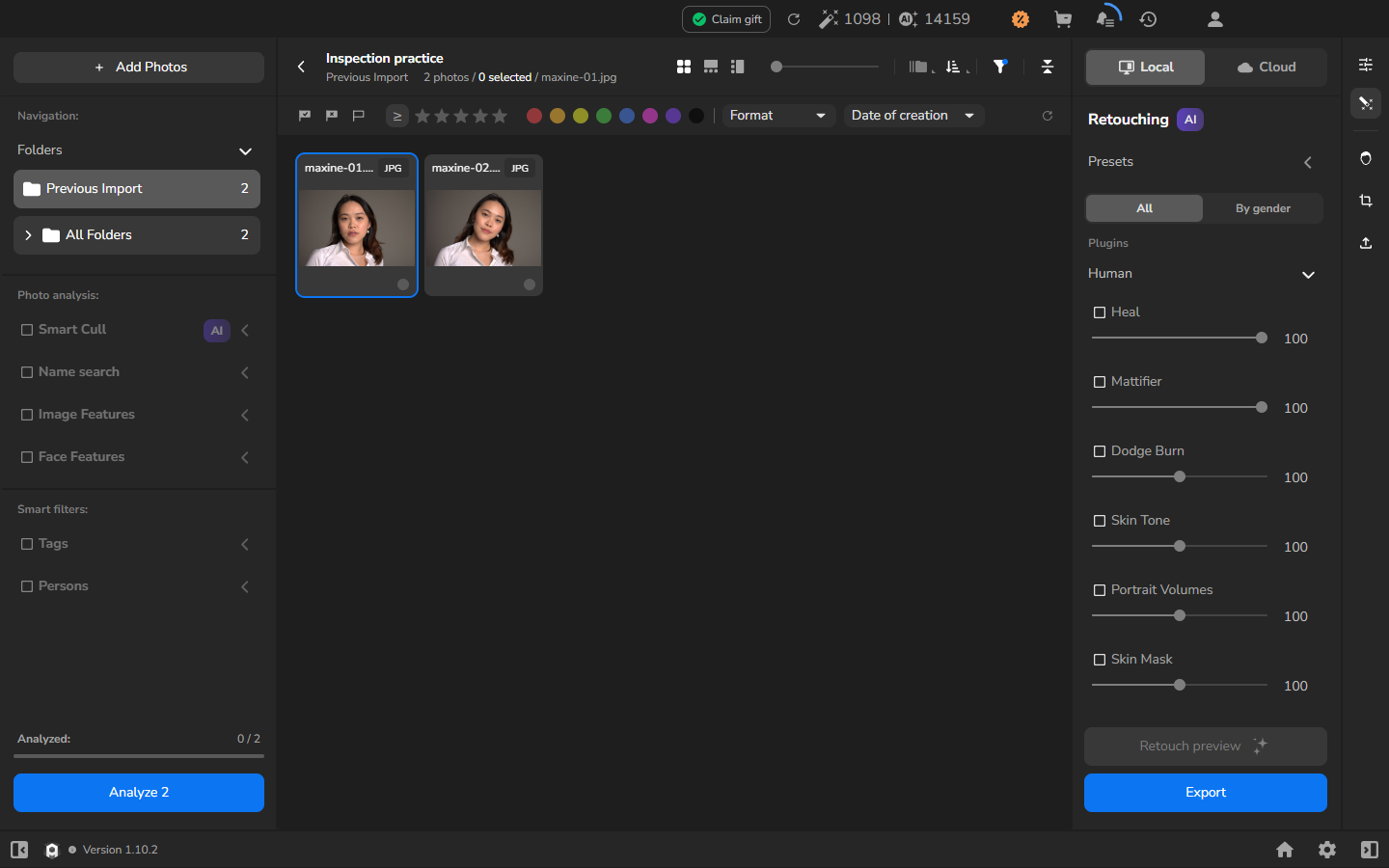
Section titled “Return to the photo grid”If you want to choose another photograph from the grid, click the Gallery icon. It is shown as four small squares in the top toolbar above the photograph. It is the leftmost of the three view-mode icons, just before the horizontal slider. The photo grid reappears.
If it does not work
Section titled “If it does not work”- A click only selects the card: double-click it to open the large viewer.
- There are no photographs to open: import photos and wait for their thumbnails and filenames before continuing.