Review processing tasks
What you will do
Section titled “What you will do”After starting an export or render, use Export and Render History to see whether it is waiting, running, or complete. Confirm the expected photos reached their destination before optionally removing completed records from the history.
Before you start
Section titled “Before you start”Open the project where you started the export or render.
Open and review the history
Section titled “Open and review the history”- In the toolbar above the photographs, click the history icon. Its tooltip reads Export and Render History.
- Find the task you want to review and read its status. Queued is waiting, In progress is running, and a finished local export shows Completed, 100%, Task — Export, and Mode — Local.
- Check Photos for the number of photos in that task. Then check the task card for a separate Failed to export section and expand that section if it is present. A task can show Completed and 100% even when one of its photos failed.
- Use Total at the top of the drawer to see how many task records are in the history. It is not the number of photos.
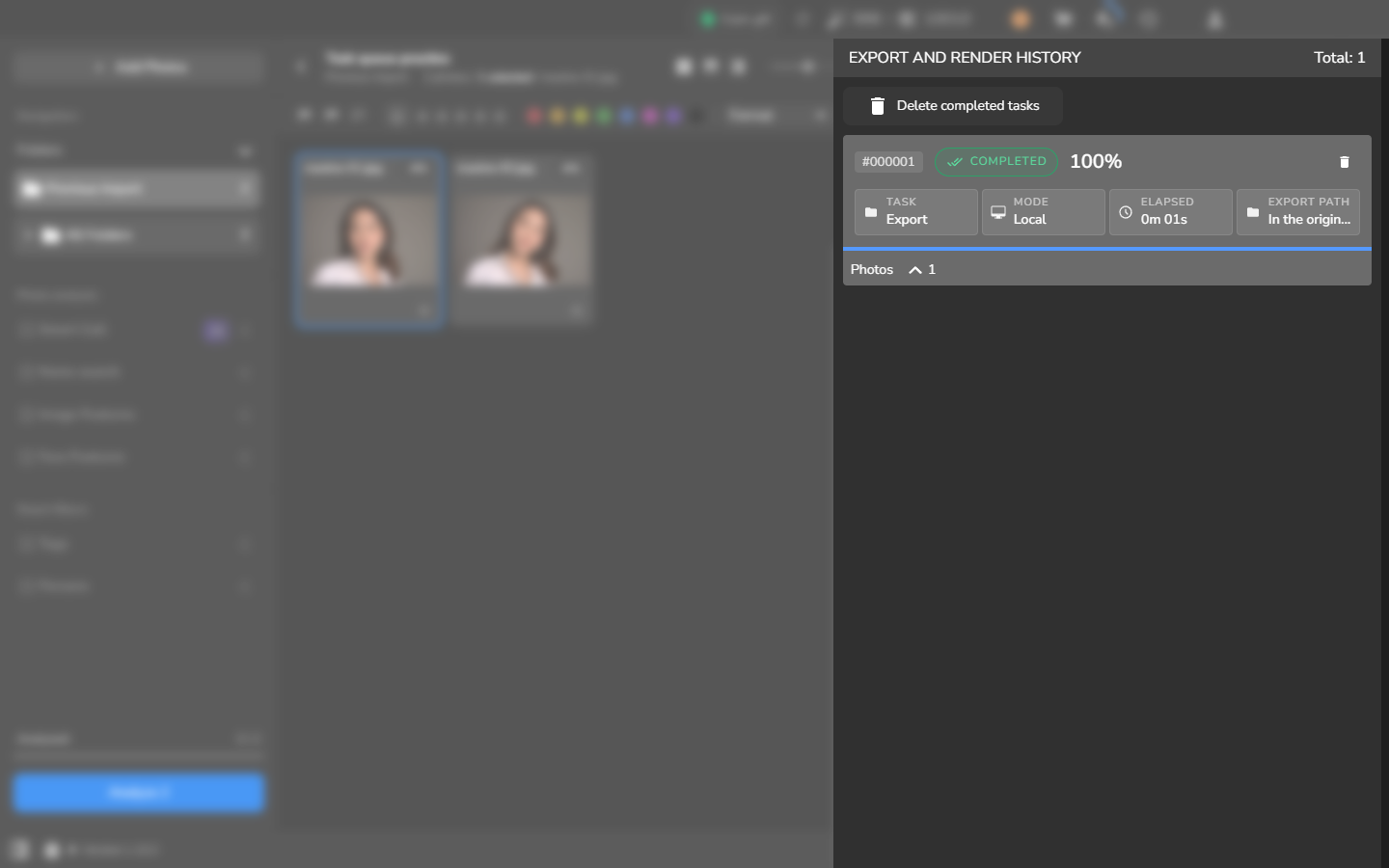
The task card also shows the elapsed time and export path. Long paths are shortened to fit, so open the destination folder and confirm that it contains the expected photos before deleting the record. If a task is still waiting, running, or contains a failed photo, leave it in the history and diagnose the processing task.
Optional: remove completed task records
Section titled “Optional: remove completed task records”Keep the records if you still need their task details. Otherwise, remove completed records after checking the exported photos in their destination folder.
- Click Delete completed tasks.
- When Are you sure you want to delete completed tasks? appears, click Accept to remove the completed records from the history. Close the dialog instead if you want to keep them.
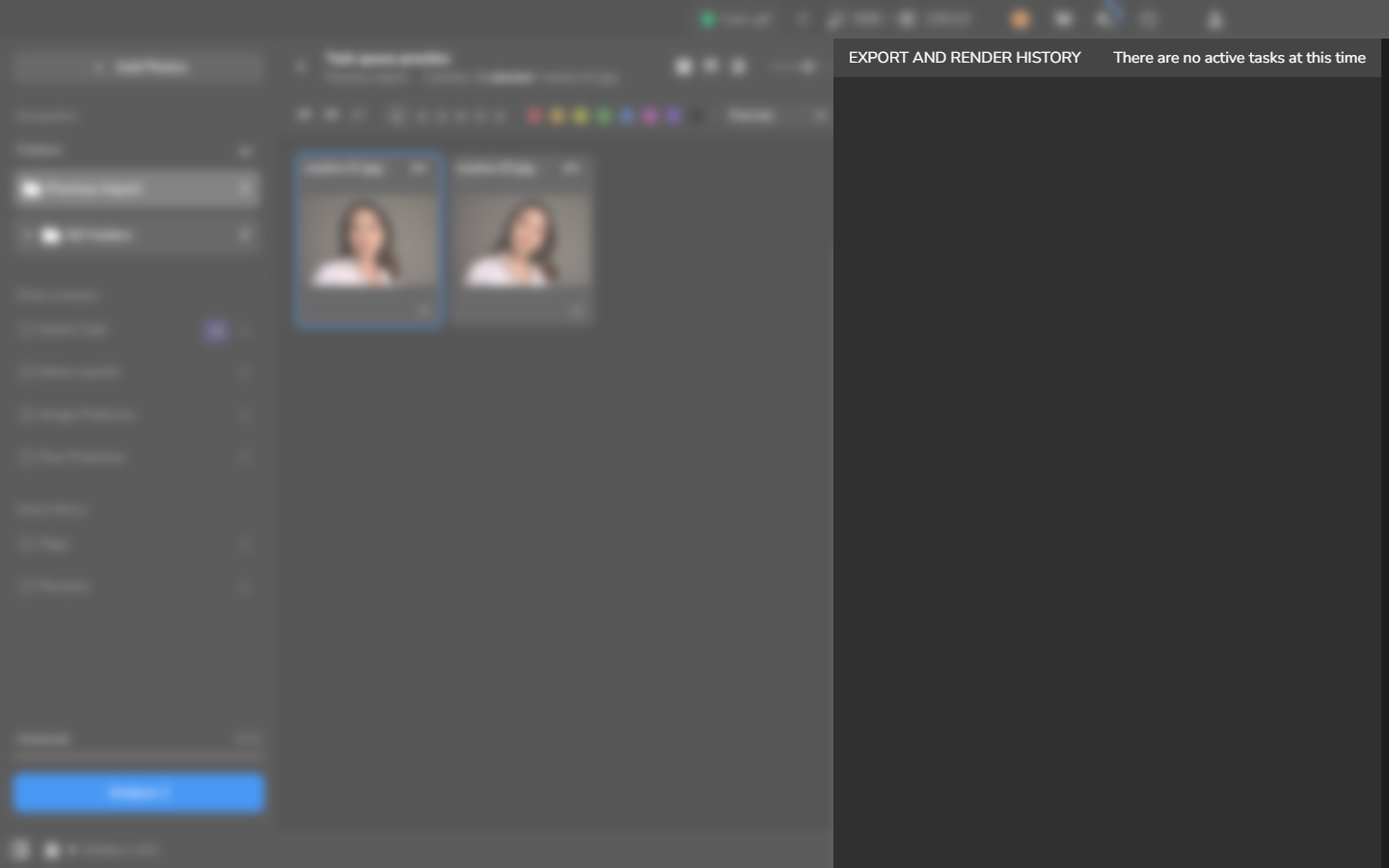
- When no other records remain, the drawer reads There are no active tasks at this time and Delete completed tasks is no longer shown. This is the completion signal for clearing the history.
If it does not work
Section titled “If it does not work”- The drawer is empty: complete an export or render workflow first. Changing settings does not create a task record.
- The task is queued, still running, or contains a failed photo: leave its record in the history and diagnose the processing task.
- Delete completed tasks is missing: check that the history contains at least one completed task.