Credits, plugins and free features
Before you process your photographs, choose the route that fits the job and the resources available to your account. Arams can retouch in the cloud, retouch locally with plugins on your computer, analyze photographs and faces, or add free automatic tags for search. These routes have different credit, licence and connection requirements.
Choose a route
Section titled “Choose a route”Choose the route that matches the job you want to do:
| What you want to do | Choose | What you need |
|---|---|---|
| Retouch photographs on Retouch4me servers | Cloud | Retouching credits provided by your account plan. A local plugin purchase does not cover cloud processing. |
| Analyze photo quality and faces | Analyze | Photo analysis credits, kept separate from retouching credits. Analysis helps you review photographs; it does not retouch them. |
| Retouch on your computer with a plugin you own | Local | A separately purchased, installed and activated plugin. It provides unlimited local processing for that plugin without per-photo cloud retouching credits. |
| Add automatic AI tags for searching | Automatic image tagging in Settings > General | Free. It does not use photo analysis credits, and you do not need to choose Analyze. |
Prices, credit requirements and plan allowances can vary. Before submitting a cloud request, read its confirmation and check the relevant balance in your account. An AI Color Correction allowance does not cover every editing feature or the separately licensed Color Match plugin.
Free tagging versus analysis
Section titled “Free tagging versus analysis”Use automatic tagging when you want searchable suggestions and do not need cloud photo or face analysis:
- Open Settings > General.
- If Arams asks for the tagging model, download it.
- Turn on Automatic image tagging.
- After importing photographs, use the bell icon at the top to follow the tagging operation.
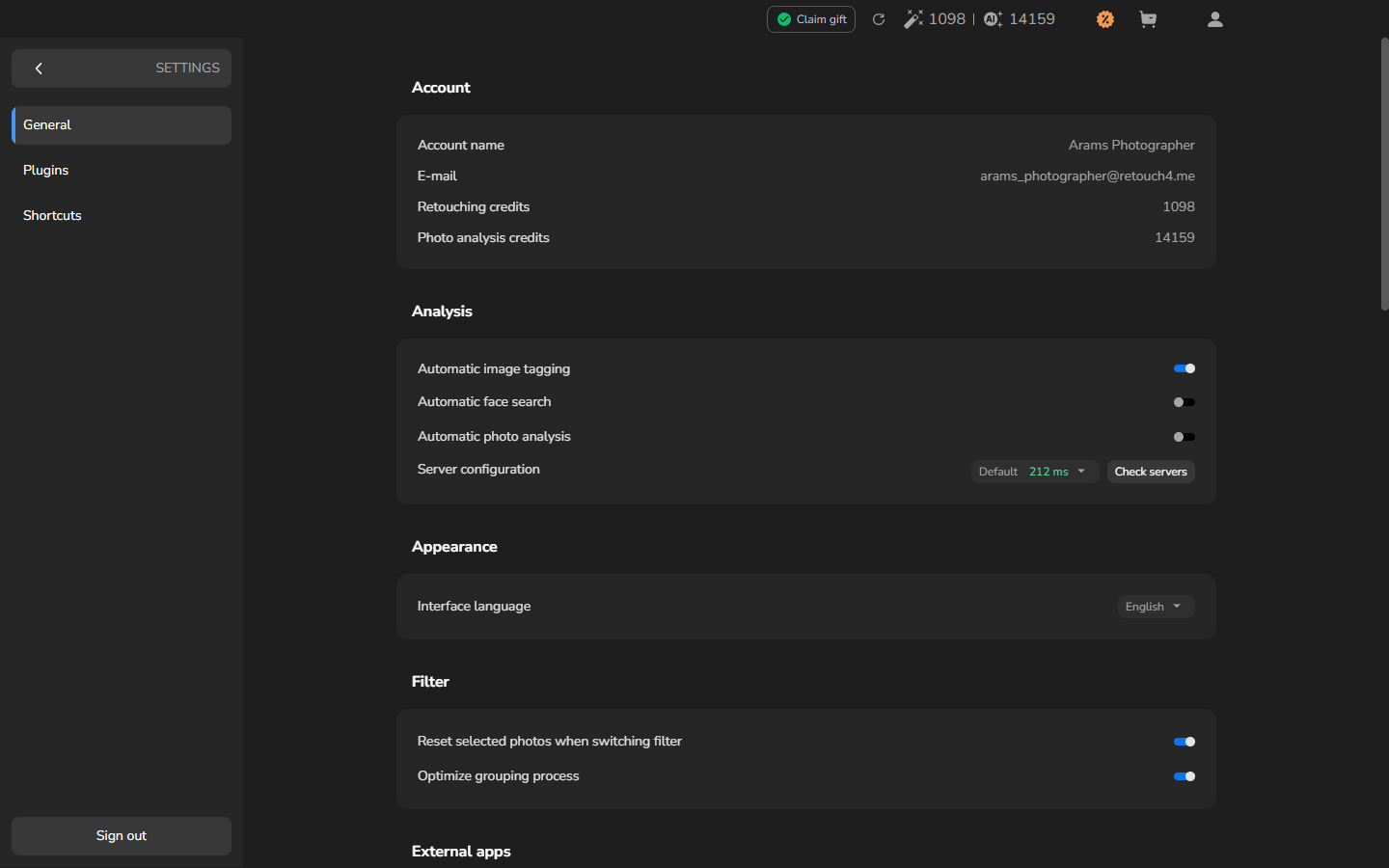
The Account area lists Retouching credits and Photo analysis credits separately. Your balances depend on your account. Turning on Automatic image tagging does not make Automatic face search or Automatic photo analysis free.
Choose Analyze only when cloud photo or face analysis will help you review the photographs. It uses photo analysis credits. Analyzed counters and Analysis completed refer to that analysis, not to tag generation.
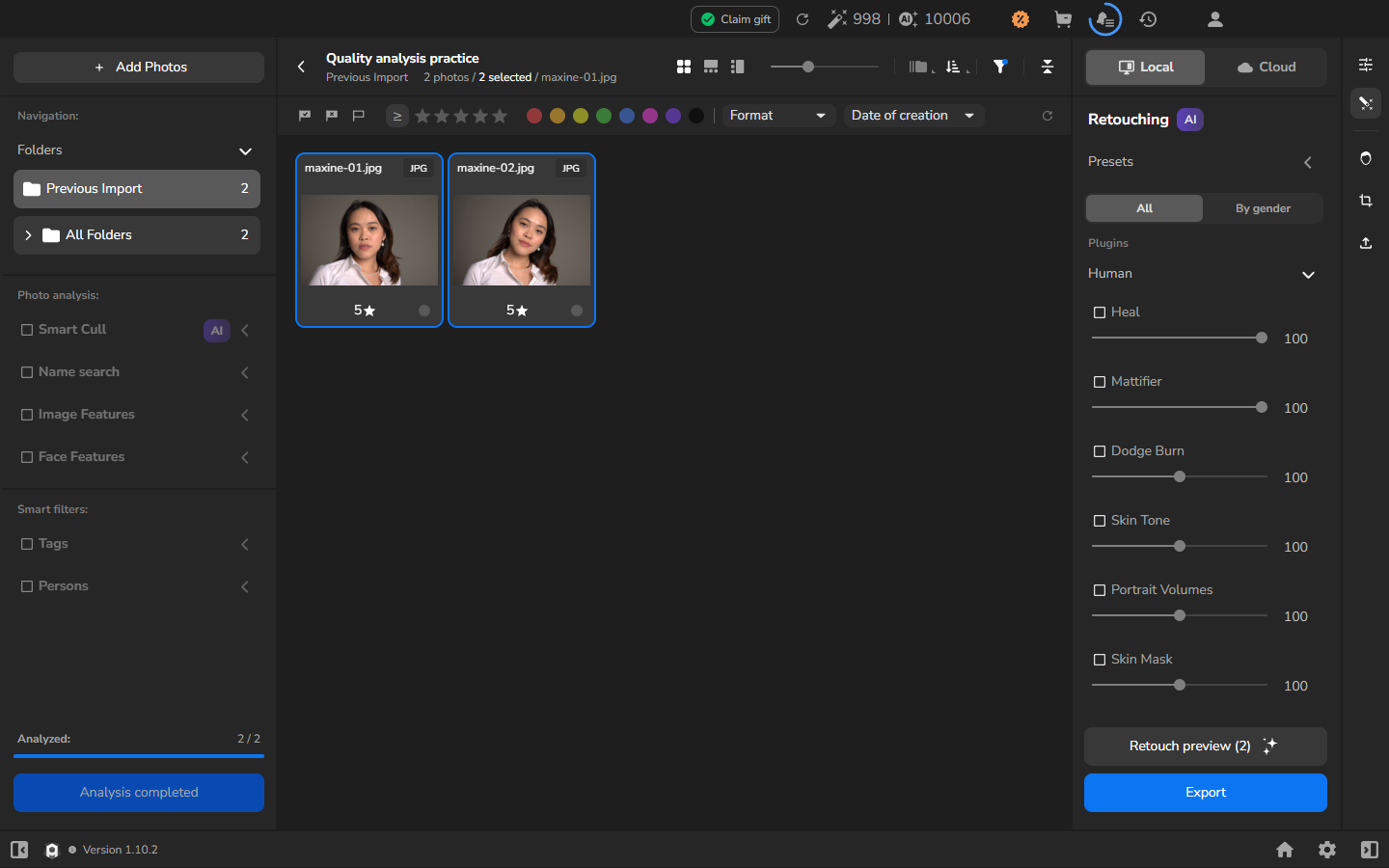
Tags and analysis results are AI suggestions, so compare them with the photographs themselves. Automatic tags do not require completed analysis.
Choose local or cloud retouching
Section titled “Choose local or cloud retouching”Choose Local when the plugins you need are installed and activated on this computer. Choose Cloud when you want server processing and your account has the required tools and retouching credits. Cloud processing uploads the selected photographs and requires an internet connection; owning the same plugin for local work does not cover a cloud request.
Use a plugin you own on this computer
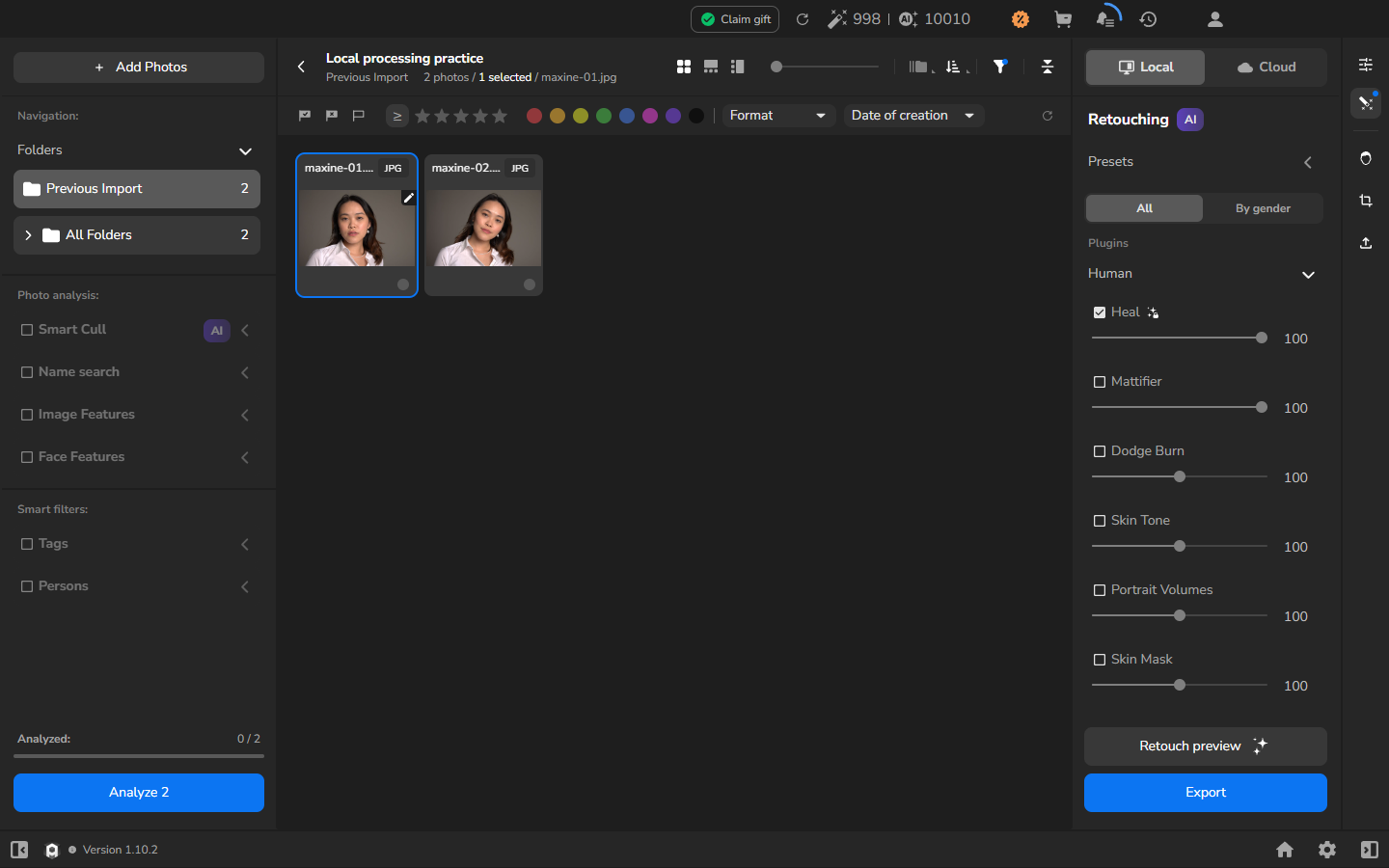
Section titled “Use a plugin you own on this computer”For example, if you own Heal and want to process on this computer:
- Make sure Heal is installed and activated on this computer.
- Open the retouching panel and select Local.
- Enable Heal and choose a strength that suits the photograph. Keep every plugin you want in the saved result enabled.
Previewing is optional. Use it when you want to judge the effect before export: select a photograph, choose Retouch preview, then compare the result with the original. Adjust the strength if the result removes detail or character you want to keep.
Unlimited local use applies only to the plugins you own. Seeing another plugin in the list does not mean it is installed, activated or included in your licence.
Send photographs for cloud retouching
Section titled “Send photographs for cloud retouching”Select Cloud, then select the photographs and every tool you want in the result. Before continuing, read the upload notice and credit confirmation. Check the amount for the current request because it can differ by tool, batch, preview or repeat run.
Combine local work with analysis only when needed
Section titled “Combine local work with analysis only when needed”You can retouch with an owned local plugin and still run Analyze when photo or face analysis would help with culling. The operations remain separate: local retouching uses the plugin, while Analyze uses photo analysis credits. If you only need searchable automatic tags, leave Analyze out of the workflow.
You are ready to continue when
Section titled “You are ready to continue when”You have finished choosing a route when you know whether the job uses free tagging, photo analysis credits, retouching credits or an installed local plugin, and the required balance or plugin is available. The selected Local or Cloud route still determines the requirements when you export with processing enabled.
Related topics
Section titled “Related topics”Continue with automatic AI tagging, photo and face analysis, local retouching, cloud retouching or color correction. If a local plugin is installed but unavailable, see activate an existing plugin.