Explore the workspace
What you will do
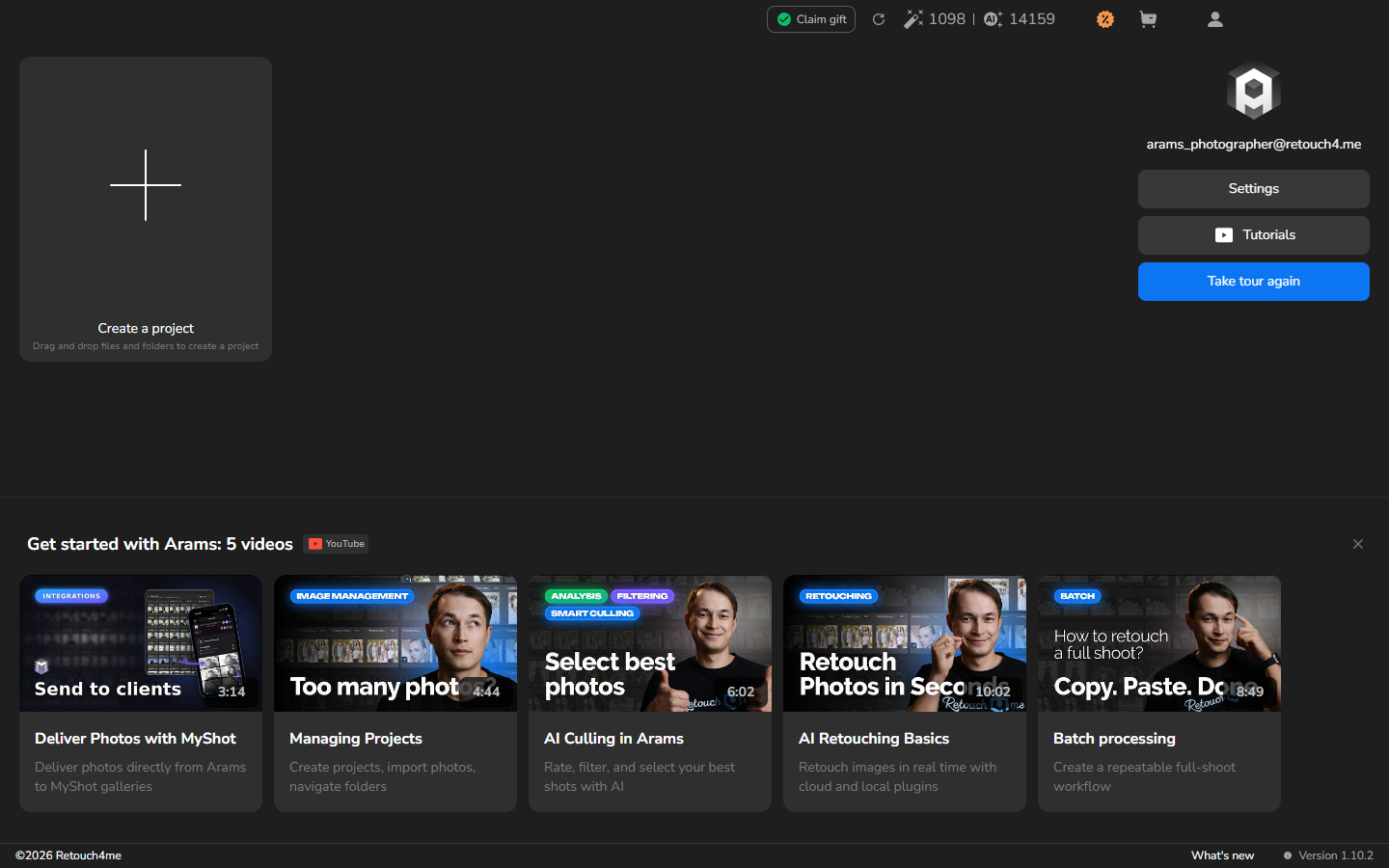
Section titled “What you will do”After signing in, use the workspace to begin a project for your photos. You can also open settings or find the installed version when you need those details.
Before you start
Section titled “Before you start”Sign in to your account to open the workspace.
- Select the Create a project tile with the large plus sign on the left.
- Follow Create a project to name the project and open its workspace.
When the new project’s workspace opens, you are ready to add your photos.
Other choices
Section titled “Other choices”- If you need to adjust Arams before you begin, select Settings, below your account email address on the right, and follow General settings.
- If support asks which release you use, look for Version in the bottom-right corner.
- Optional: To learn more before starting a project, select Tutorials, Take tour again, or one of the tutorial video cards.
If it does not work
Section titled “If it does not work”If you see the E-mail / Password form instead, sign in first. Existing projects and account offers can change the appearance of your workspace.