Customize your working environment
What you will do
Section titled “What you will do”Adapt Arams to the way you work by changing only the preferences you need: the interface language or a shortcut for a frequent action. You will also learn how to confirm the selection before changing a group of filtered photographs. Each section is independent, so you can stop after the sections that matter to you.
Before you start
Section titled “Before you start”You can change the language and shortcuts without opening a project. The selection preference matters only when you work in a project and change its filters.
Choose the interface language
Section titled “Choose the interface language”- Click Settings.
- Make sure General is selected in the left menu.
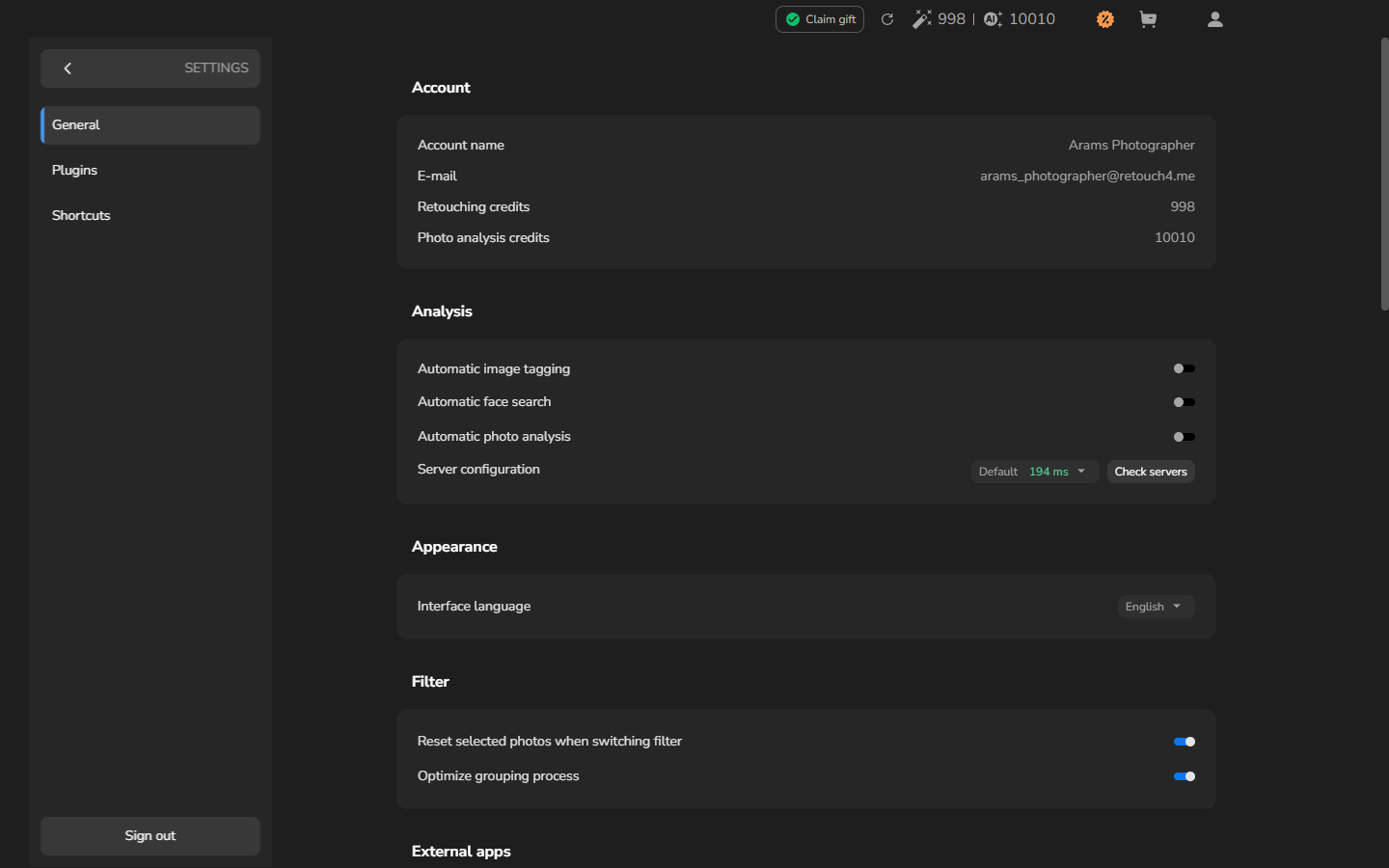
- Under Appearance, open Interface language and choose the language you want to use. The interface labels change immediately.
The language choice applies to Arams labels, not to project names or photo filenames that you supplied.
Optional example: switch from English to Russian and back
Choosing Русский changes the Settings page to Russian:
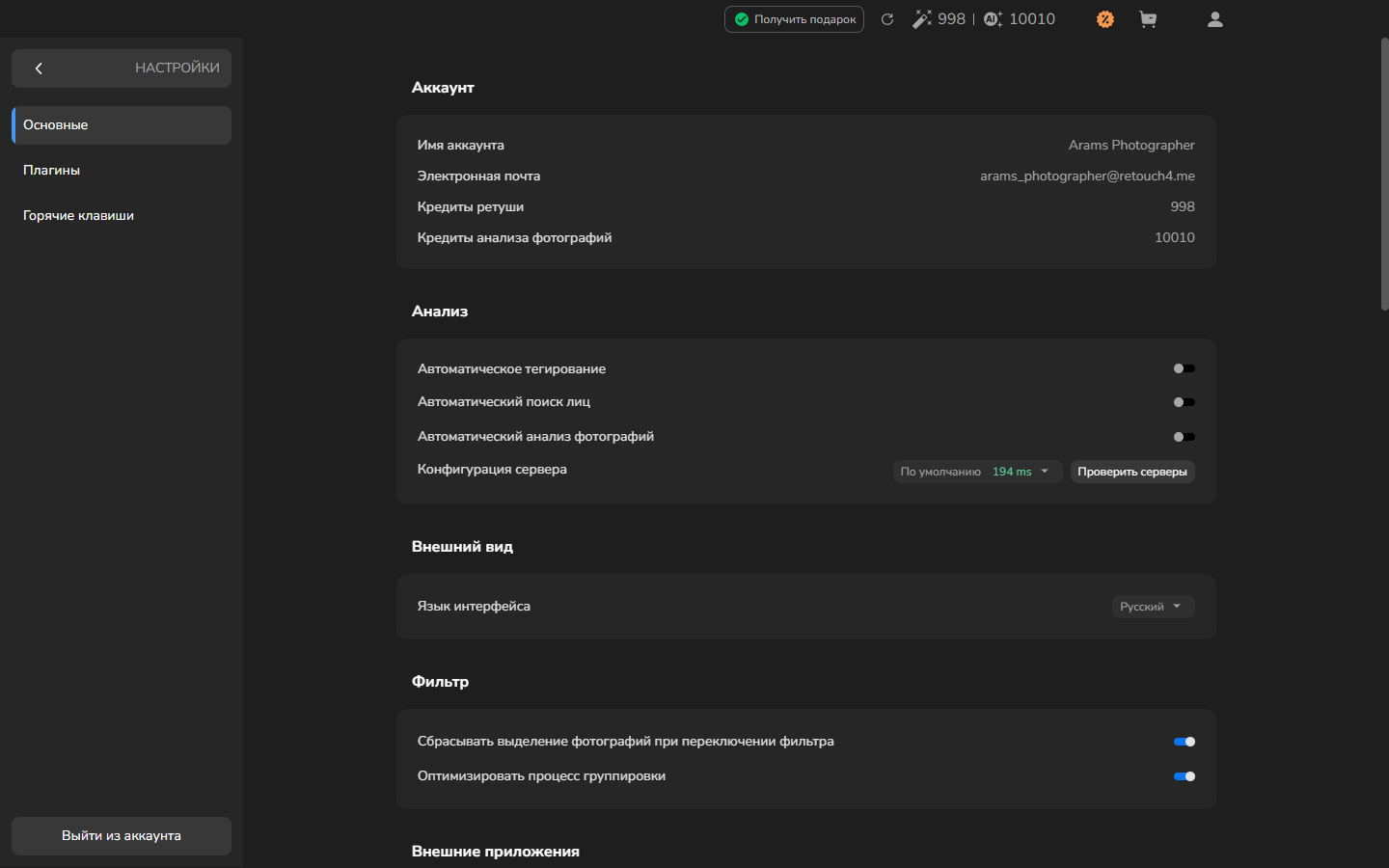
To switch back, select Основные in the left menu. Under Внешний вид, open Язык интерфейса and choose English.
Choose keyboard shortcuts for frequent actions
Section titled “Choose keyboard shortcuts for frequent actions”Open Settings, select Shortcuts, and find the action you use frequently. Choose a combination that is easy to reach and does not replace another shortcut you rely on. For example, you can change Set image rating to 4 from 4 to Shift+4.
Follow Customize keyboard shortcuts to edit the combination, optionally try it on a selected photograph, or restore its default.
Check the selection after filtering
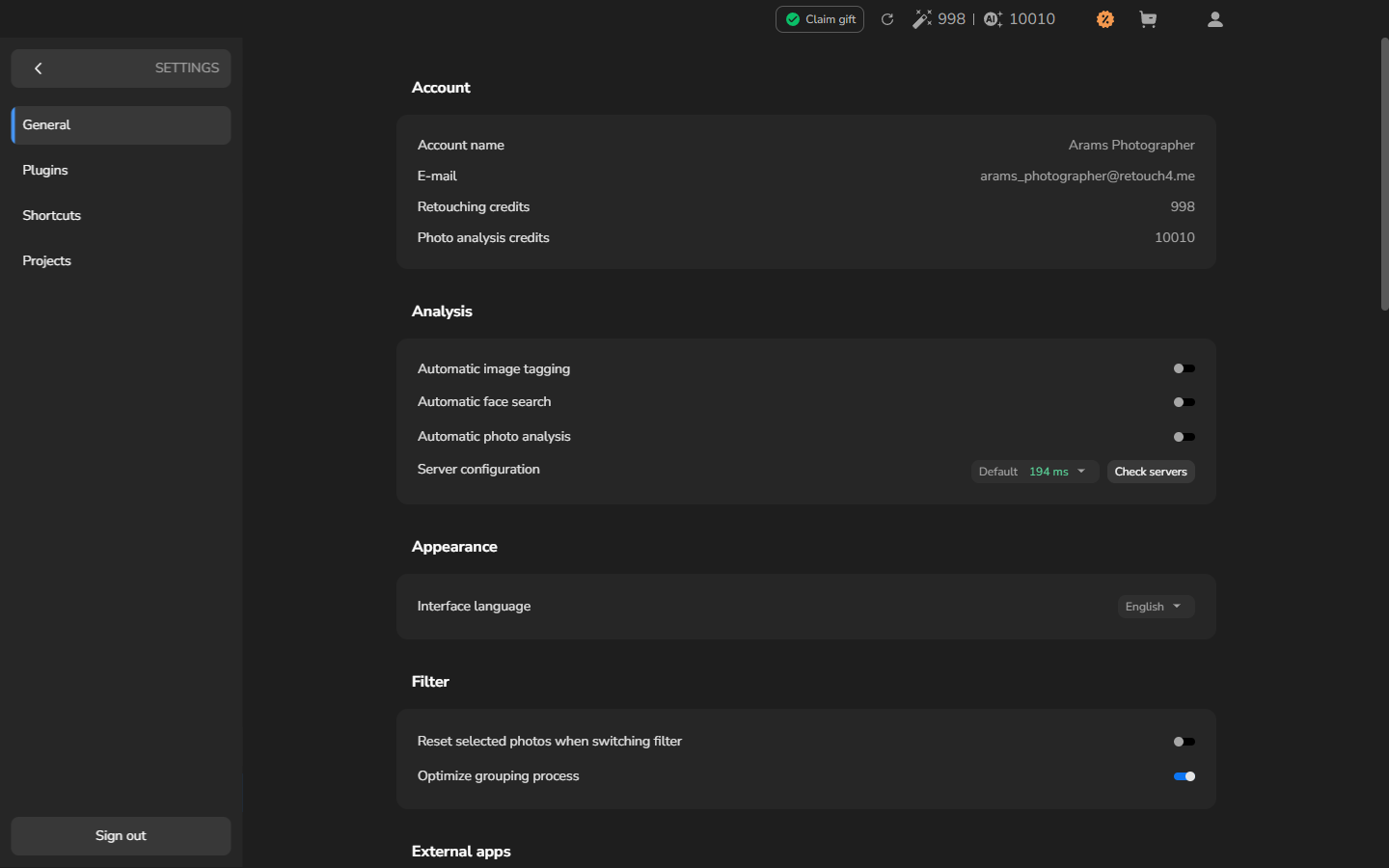
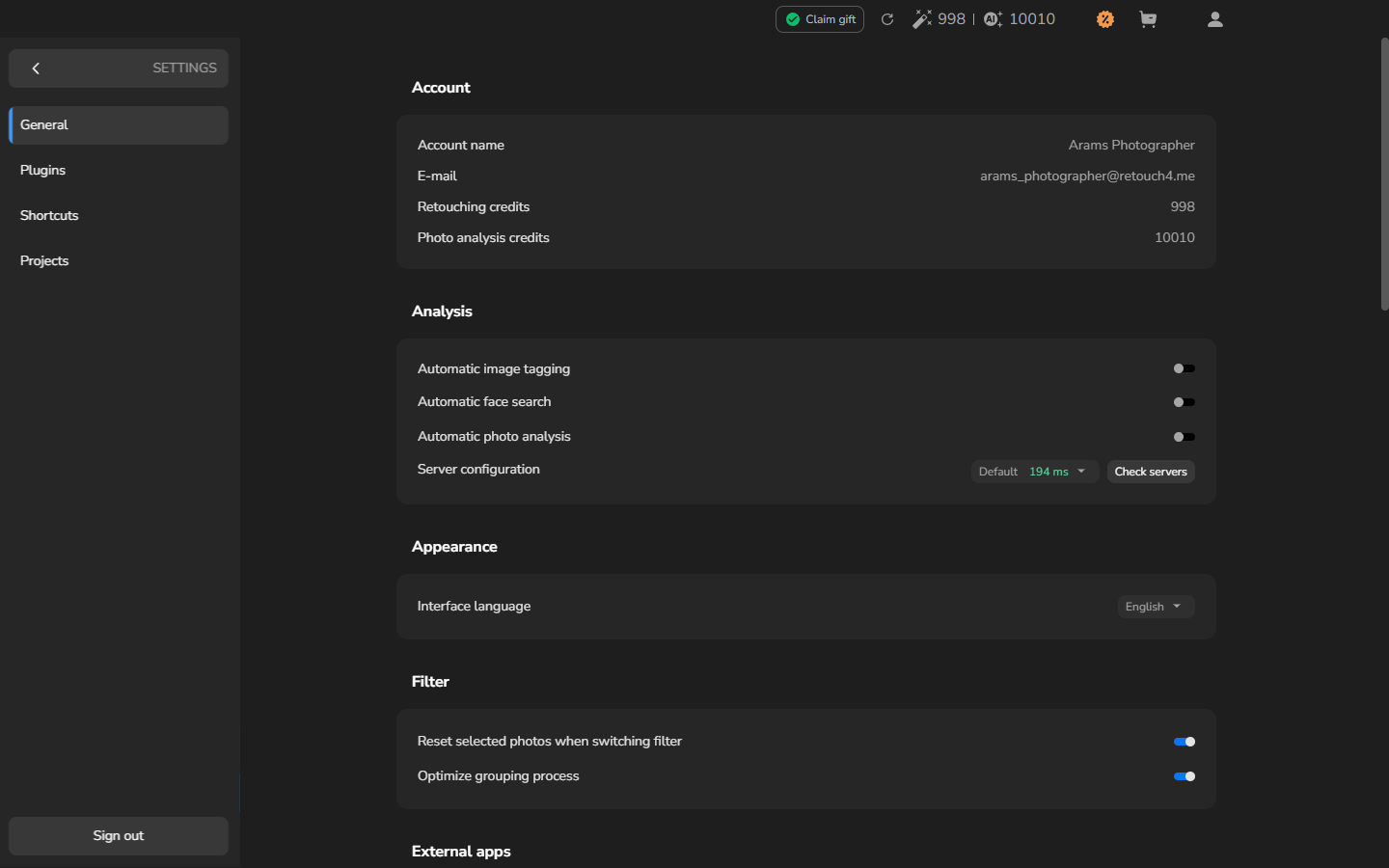
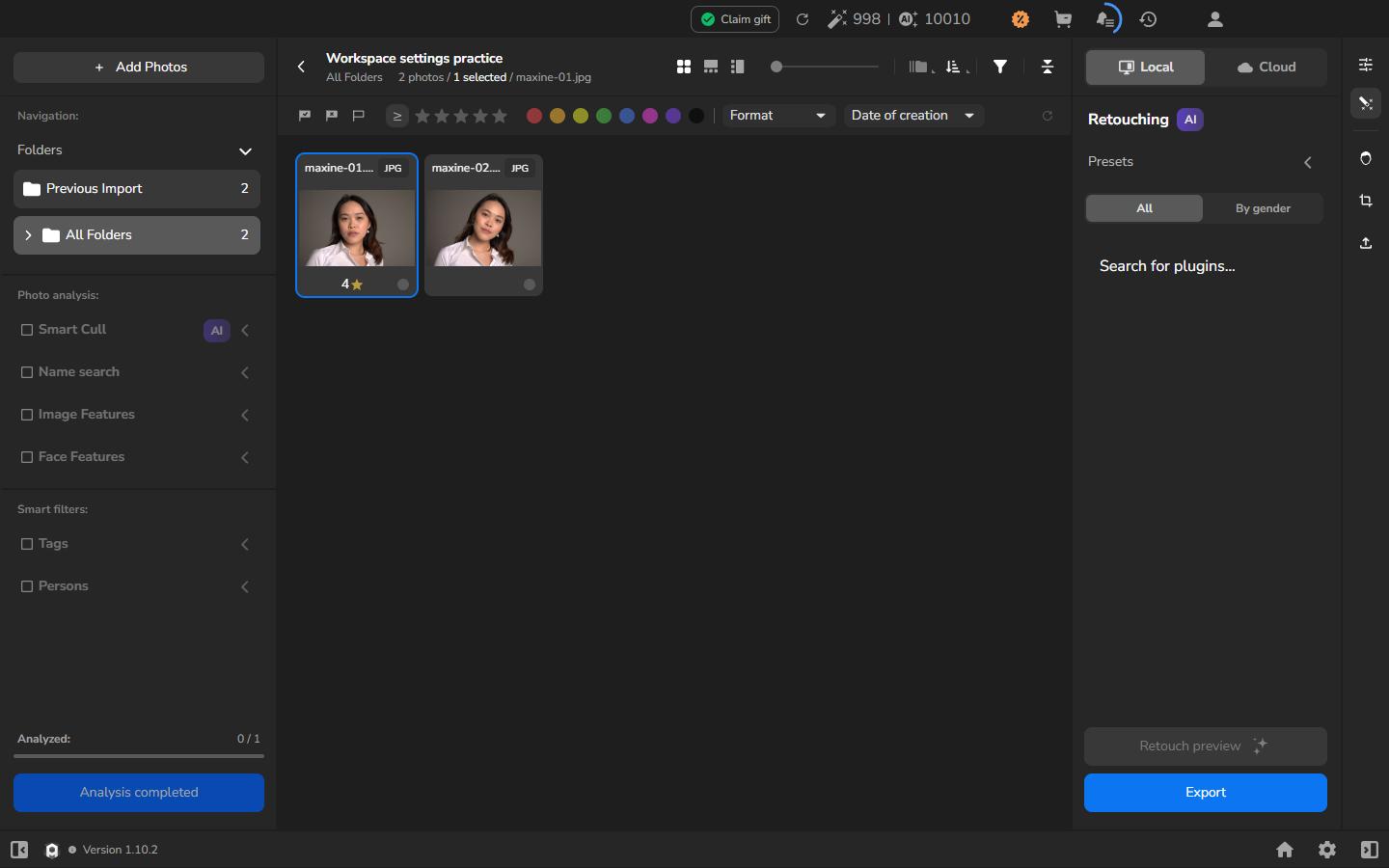
Section titled “Check the selection after filtering”The Reset selected photos when switching filter switch is under Settings → General → Filter. In the current version, either switch state can leave a photograph that remains visible selected while removing a photograph hidden by the filter from the selection. Do not rely on the switch alone to determine which photographs a group action will affect.
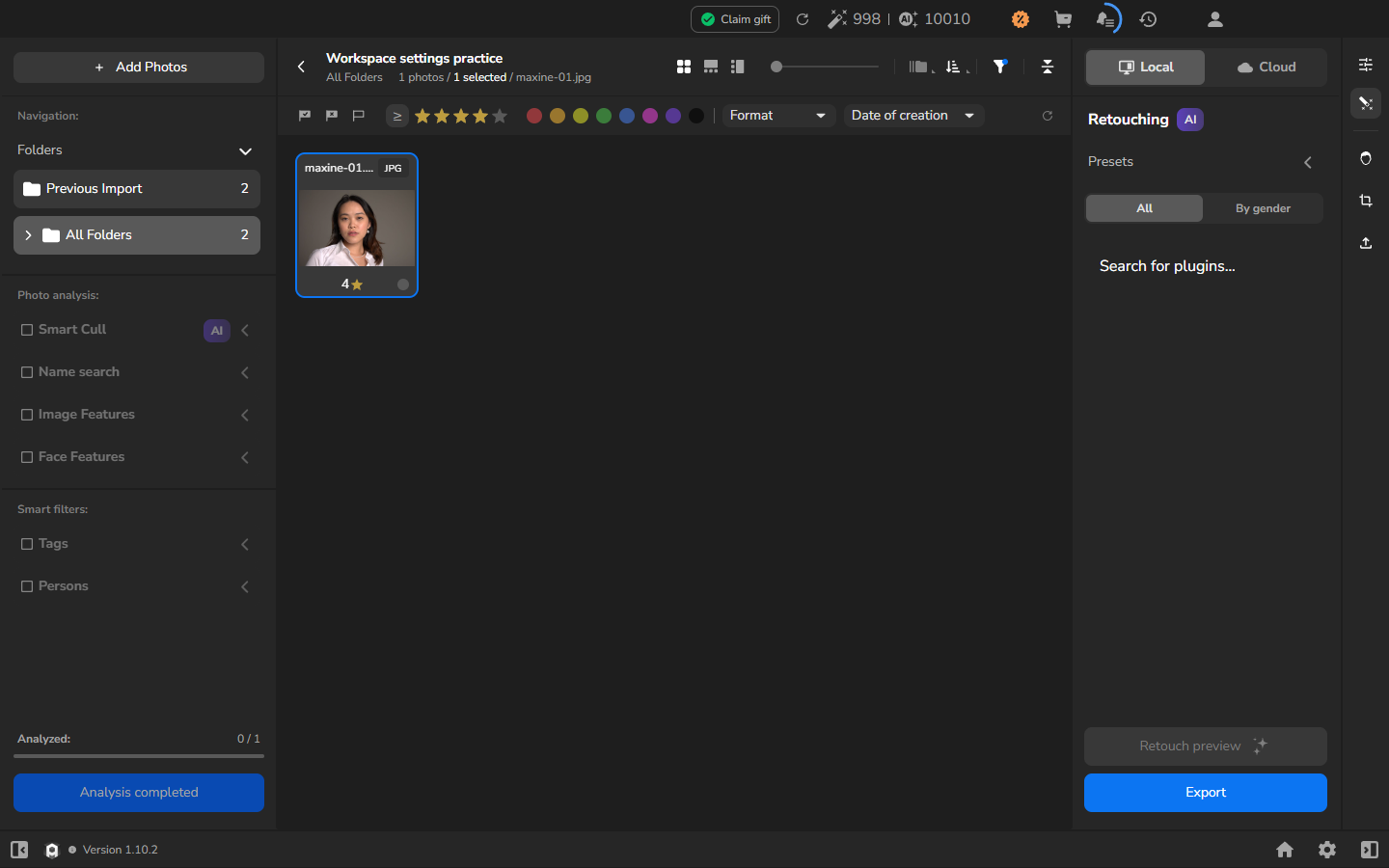
After changing a filter, use the project counter to check how many photographs are visible and selected. Reselect the photographs you need before rating, tagging, or otherwise changing the group. When the counter matches the group you intend to change, you can continue. You do not need to change the switch for this procedure.
The screenshots below show the two switch states in Settings → General → Filter for reference:
Off
On
Optional example: see what can happen with the switch off
When a rating filter hides one of two selected photographs, the visible photograph can remain selected:
After the filter is cleared, the hidden photograph returns but is not selected automatically:
If it does not work
Section titled “If it does not work”- You cannot find the language control: select General and look under Appearance. In the Russian interface, these labels are Основные and Внешний вид.
- The shortcut does not affect a photograph: return to the project and select a photograph before pressing the combination. See Customize keyboard shortcuts for more troubleshooting steps.
- The selection is not in the expected state after a filter change: check the project counter, then reselect the photographs you need before continuing.